This page collects app-wide problems and customer support. For a problem with a single feature, go to the relevant page from the “Feature-specific troubleshooting” table below.
| For problems with | See |
|---|
| Installation, first launch, trial and license, automatic updates, display language, tabs · panes · shortcuts | Getting Started |
| Local terminal, SSH connections, saved connections, file tree, SFTP | Terminal · SSH · SFTP · Files |
| WinRM, VNC remote desktop and file transfer, desktop mirror, screen capture | Remote Desktop · Windows Servers |
| Code editor, autocomplete (language servers) | Code Editor |
| Running and debugging, web preview, design | Run · Preview · Design |
| Change history and reverting, ChangeSet, Git · GitHub | Change History · Git |
| DB connection failures, queries, result grids | Databases |
| AI Setup Wizard, AI error messages, approval cards, usage limits | AI Chat |
Unified search (Ctrl+K) returns nothing or the wrong things | Unified Search (RAG) |
| Suggestions to save to persistent memory | Persistent Memory |
@BLYCK@ debug records aren’t being collected | AI Debug Bridge |
| AI debate, Agent Board, scheduled runs, background tasks, to-do window | AI Teams & Automation |
| Connecting mail accounts, mail not arriving, mail rules | Mail |
| Remote access (other PCs · phone), Tailscale | Other PCs · Phone |
| Backup, chat sync, data locations | Backup · Chat Sync · Privacy |
| Symptom | Cause | Fix |
|---|
| A “Windows protected your PC” window appears on Windows | The installer doesn’t have a code signature (a digital signature proving who made it) yet | More info → Run anyway. You only need to do this once |
| A “cannot be opened” warning on Mac | The Mac’s security feature | On macOS 15 and later, Open Anyway in System Settings → Privacy & Security; on earlier versions, right-click → Open |
| Launching brings the existing window to the front instead of opening a new one | Blyck runs only one copy at a time | This is normal. Use the existing window |
| No window appears when you launch | A Blyck you launched earlier is still running without a screen | Windows: end every Blyck process in Task Manager (Ctrl+Shift+Esc), then launch again. Mac: right-click the Dock icon → Quit, then launch again |
| A “Freeing up disk space” window appears right after launch | The search index file is being cleaned up once | This is normal. It happens only the first time and can take 1–2 minutes. Wait and it opens right away |
| Security software (antivirus) blocks or quarantines Blyck | It’s suspicious of a new program (Blyck opens terminals, runs AI programs, and opens a connection channel used only inside this PC) | Check that the installer came from blyck.dev → release it from quarantine and add the Blyck install folder as an exception → if it still doesn’t work, send the security software’s name and the warning screen to support@blyck.dev |
| Symptom | Cause | Fix |
|---|
| The screen turns white briefly, then redraws | The process that handles the screen crashed (low memory, etc.) and Blyck reloaded it automatically | Usually you can keep working. If a terminal or similar got disconnected, reopen it. If it happens often, send diagnostics |
| It stays frozen on a white screen | If it crashes more than 3 times within 30 seconds, it stops reloading | Quit and relaunch Blyck. If it keeps happening, send crash.log and diagnostics |
| Key presses don’t register for a few seconds, then it recovers | The app is briefly busy with something else | Wait a moment and it recovers. If it happens often, send diagnostics right after it happens (the log keeps a record of that moment) |
| The whole app shows “Not Responding” | — | If it doesn’t recover after waiting 1–2 minutes, end it in Task Manager, relaunch, and send diagnostics |
| Symptom | Cause | Fix |
|---|
| Closing the window disconnects every terminal and SSH session | Closing the window quits the app, which ends the sessions (Windows) | This is normal. When you relaunch, the tab and pane layout comes back and connections are restored |
| On Mac, the app stays running after you close the window | Default behavior for Mac apps | Press Cmd+Q to quit completely |
| Quitting takes a few seconds | If a GPT (Codex) chat is open, it waits up to 3 seconds to clean up | This is normal |
| Blyck is still in Task Manager after quitting | A process that didn’t finish cleaning up | End it in Task Manager. If it happens often, send diagnostics |
Blyck has no notification area (tray) icon. Closing the window quits it.
| Symptom | Cause | Fix |
|---|
| No new-version notification appears | It only checks 5 seconds after launch and every 4 hours, and doesn’t show failures | Check your internet connection, then relaunch Blyck |
| Updates keep failing | A company network or security software is blocking the update server (update.blyck.dev) | Download a new installer from the download page and install over the existing one (your data stays as it is) |
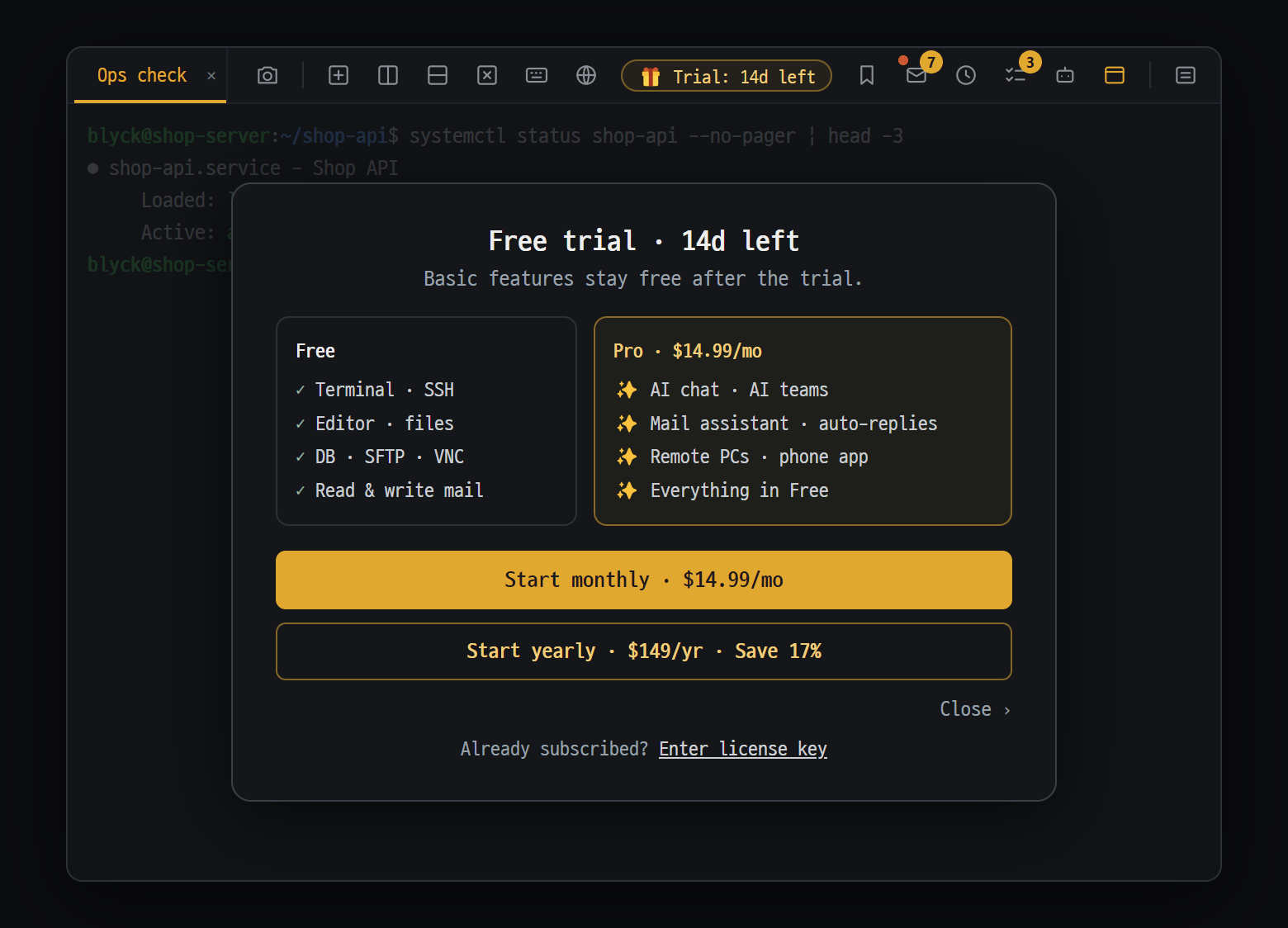
- "Free" — after the trial, terminal · SSH, editor · files, DB · SFTP · VNC and reading & writing mail stay free
- "Pro · $14.99/mo" — AI chat · AI teams, mail assistant · auto-replies, remote PCs · phone app
- "Start monthly · $14.99/mo" or "Start yearly · $149/yr · Save 17%" — the checkout page opens in your browser
- When the trial (14 days, no card) ends, you keep using the basic features such as terminal, SSH, editor, and DB for free, and only AI features and remote access (other PCs · phone) require Pro. Pricing is $14.99 monthly / $149 yearly, and one key works on up to 3 PCs.
- For key activation failures, offline use, and device limits, see the license section of Getting Started.
- If you see “This license key has been disabled. Please contact support@blyck.dev.”, contact support.
- Make backup files regularly.
- Files and DBs that were changed by mistake can be reverted in change history (
Ctrl+Shift+H).
- Uninstalling Blyck leaves the data folder in place. If you reinstall, you pick up right where you left off.
Blyck keeps errors and activity records in log files on your PC. Diagnostics are sent only when you click the button, check what will be sent, and then click [Send].
Where to open it — Open the AI chat pane (Ctrl+Shift+A), then ⋯ in the header at the top → Chat settings → Diagnostics on the left → 🩺 Diagnostics. It also works if you haven’t set up AI, or in the Free state after the trial ends (if the setup wizard is covering it, close it with Explore without AI).
- Right after the problem happens, click [📤 Send diagnostics].
- In the Send diagnostics window, check what will be sent (the end of the recent log). Sensitive information such as passwords and tokens is masked with
***.
- If it looks fine, click [Send]. If you cancel, nothing is sent.
- A Received window shows a ticket number. Click [Copy number].
- Send an email to support@blyck.dev with the ticket number and “what you were doing and what happened”.
- What’s sent: the recent log (the last 1.5 MB), app version, OS and CPU type, and the time it was sent.
- Only the operator sees the data received, and it’s automatically deleted after 90 days. To have it deleted sooner, ask with your ticket number.
Click [📁 Open log folder] and open blyck.log in Notepad (TextEdit on Mac). The bottom is the most recent record.
| File | Location |
|---|
blyck.log, blyck.1.log (the previous log) | Windows %APPDATA%\blyck\logs · macOS ~/Library/Logs/blyck |
crash.log (records of the screen process crashing) | Directly under the data folder — Windows %APPDATA%\blyck · macOS ~/Library/Application Support/blyck |
On Windows, type %APPDATA%\blyck into the File Explorer address bar and press Enter; on Mac, press Cmd+Shift+G in Finder and enter the path. The full list of storage locations is in Backup · Chat Sync · Privacy.
| Symptom | Fix |
|---|
| ”No log to send” | Make the problem happen once more and try again, or just email the symptoms |
| ”Failed to send diagnostics: …” | Your internet is down or a company firewall is blocking it. Try again; if it still fails, attach blyck.log to an email |
- Blyck version — the number such as
Blyck 0.3.48 in the window title bar
- OS — e.g. Windows 11, macOS 15
- What you were doing and what happened (in order), and the exact text shown on screen (a screenshot is even better)
- Diagnostics ticket number — or attach
blyck.log
- The name of your antivirus or company security software (for installation or launch problems)