
Databases
Inside Blyck you connect to a DB (database), see its list of tables, write and run SQL (the command language you give a database), view and fix the results as a table, and export them to a file. Five kinds of DB work on the same screen, the same way.
| Category | Features | Price |
|---|---|---|
| Basic | Connect, saved connections, schema tree, SQL editor, run/stop, results grid, cell editing, adding new rows, export, transactions, changing table structure, history, snippets, connection switching | Free |
| AI | SQL editor AI (Ctrl+I), grid cell AI | Pro |
Connecting
Section titled “Connecting”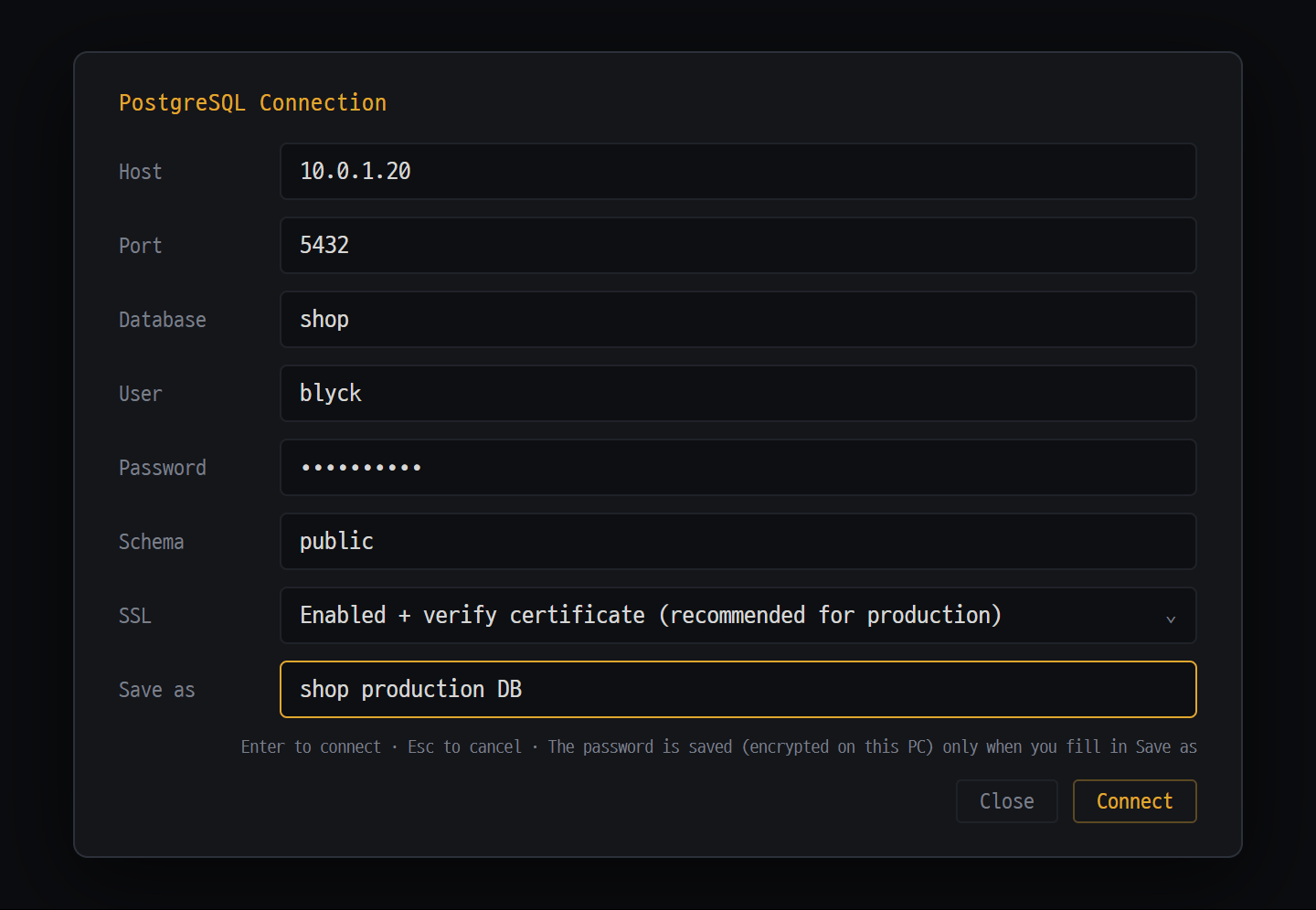
- Host · Port · Database · User — the server and account to connect to (port 5432 and DB postgres by default)
- Password — stored encrypted on this PC only when you fill in "Save as"; after that you connect without typing it
- SSL — "Disabled (default)" / "Enabled + verify certificate (recommended for production)" / "Enabled + allow self-signed (dev/internal only — MITM risk)"
| DB | Command palette name | Shortcut | Default port | Required fields |
|---|---|---|---|---|
| SQLite | Open SQLite DB… | Ctrl+Alt+D | None (file) | File |
| Oracle | Oracle connect… | Ctrl+Alt+O | 1521 | Host · Service · User |
| PostgreSQL | PostgreSQL connect… | Ctrl+Alt+P | 5432 | Host · User |
| MSSQL | MSSQL connect… | Ctrl+Alt+M | 1433 | Server · User |
| MySQL | MySQL connect… | Ctrl+Alt+Y | 3306 | Host · User |
Where to open it: the DB icon tiles in the new tab menu (SQLite · Oracle · PostgreSQL · MSSQL · MySQL), the shortcuts above (on a Mac, Cmd+Option+letter), the Command Palette, or the Saved connections list. A DB always opens as a new sub-tab in the current panel.
Enter= connect,Esc= cancel. If you leave Port empty, the default port is used.- If you fill in Save as before connecting, the connection goes into Saved connections, and the password is saved too, encrypted by the OS. Next time, one click connects you right away with no window.
- Connect to MariaDB with MySQL connect….
Things to know for each DB
Section titled “Things to know for each DB”| DB | Good to know |
|---|---|
| SQLite | Only existing files open (no creating a new DB). A file you’ve opened once goes into Saved connections automatically |
| Oracle | It first connects with the Thin mode, which works with nothing installed. If that fails, it automatically retries with the Thick mode, which uses the 64-bit Oracle Instant Client on your PC. Put the service name or SID in the Service field (there is no TNS name field). The tree shows only the objects of the account you connected with |
| PostgreSQL | The tree shows only the one schema in the Schema field (default public). Choose one of three SSL options |
| MySQL | You must fill in Database to see the schema tree |
| MSSQL | Only SQL Server authentication (user name and password) works (no Windows integrated authentication). A single query fails if it takes more than 60 seconds. Named instances look like host\SQLEXPRESS |
Schema tree
Section titled “Schema tree”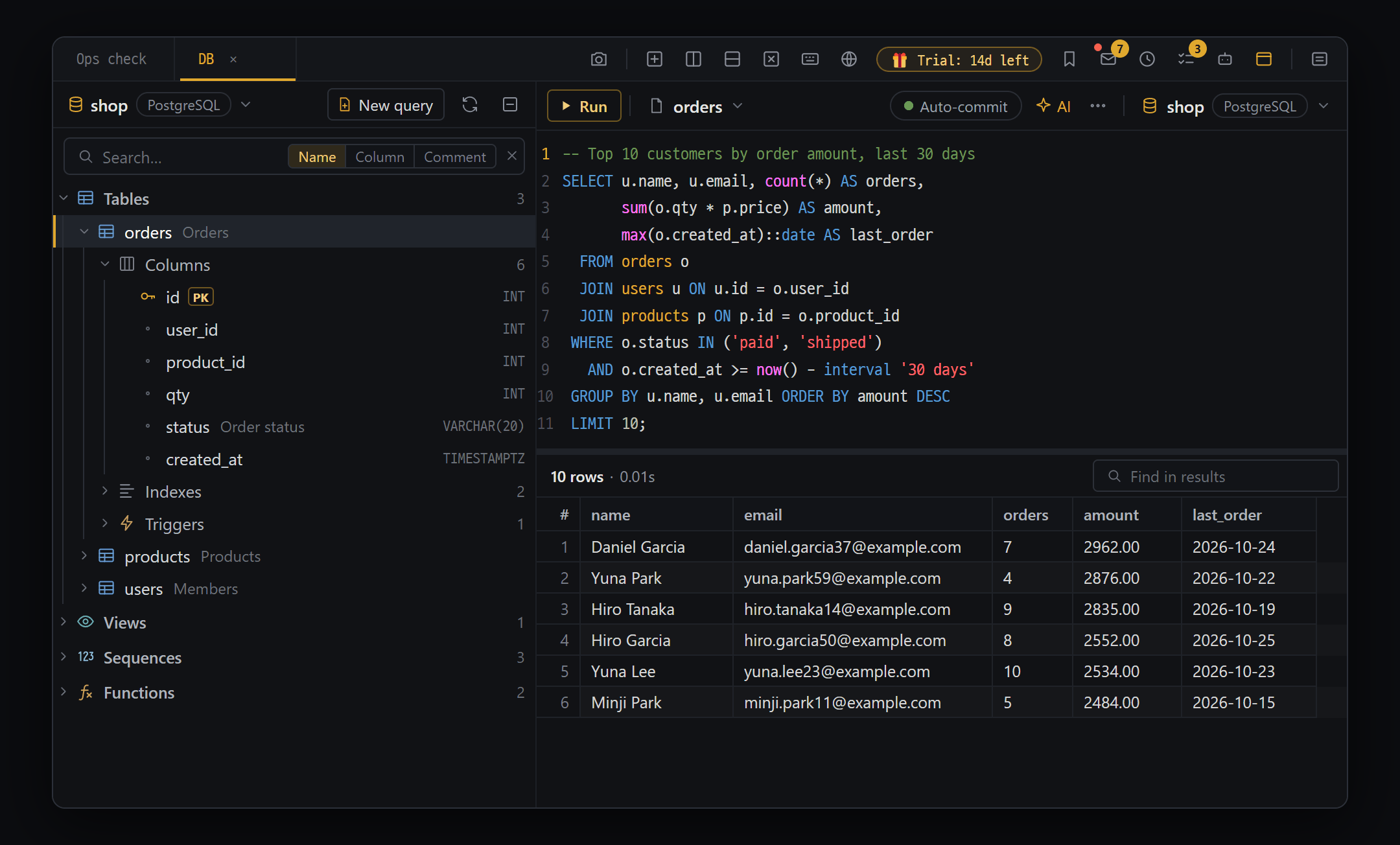
- Schema tree — click the DB name in the header (shop · PostgreSQL ▾) to switch to another DB (the previous one stays open behind). Open a table to see its "Columns" · "Indexes" · "Triggers" groups inside, with comments shown dimmed. Next to the search box, choose what to search: "Name" | "Column" | "Comment"
- SQL editor — one header row: "Run" · current query ▾ (list of queries in this pane) · "Auto-commit" · AI, and at the right end the DB it runs on (shop · PostgreSQL ▾). Tables opened from the tree reuse one query, so queries don't pile up
- Result bar "10 rows · 0.01s" and "Find in results" — the result grid below
Once connected, the DB’s tables, views, sequences, packages, functions, procedures, jobs, schedulers and DB links appear in groups by type. Indexes and triggers sit inside their table, and types that DB doesn’t have get no group.
| Group | Click | Double-click | Right-click |
|---|---|---|---|
| Tables | Expand the table (Columns · Indexes · Triggers) | Runs a query for the first 200 rows in the SQL editor right away (preview query — the next table you open reuses it) | Table structure menu |
| Views | Expand columns | Query the first 200 rows | — |
| Indexes · Triggers inside a table, Packages (Oracle) · Functions · Procedures | Only packages expand to show the functions and procedures inside | Shows the definition (CREATE statement) in the SQL editor (does not run it) | For indexes, DROP INDEX… |
- Click the DB name ▾ on the left of the header (e.g. shop · PostgreSQL) to see the open DBs and your saved DB connections. Pick one and this panel switches to that DB’s tree; the previous DB isn’t closed but stays behind (pick it again to come back, or close it with the × on its row).
- New query in the header opens an empty SQL editor, the refresh icon reloads the list, and the collapse-all icon goes back to the start (only the tables group open).
- Pick what to search with [Name | Column | Comment] right of the search box (you can turn on several). If only something inside a table matches (columns, indexes, triggers), that table opens by itself.
- Drag a name from the tree and drop it in the SQL editor to insert it there.
- Primary key (PK) columns get a key icon and
PK, and table and column comments show dimmed next to the name. In Oracle, invalid (INVALID) objects show a red ⚠; click the ⚠ number in the header to show only those.
Table right-click — Excel · CSV and changing the table structure
Section titled “Table right-click — Excel · CSV and changing the table structure”Right-click a table (or the ⋯ at the end of its row) and the Excel · CSV group is at the top. Both Excel (.xlsx) and CSV work. Views only show Download data….
| Menu | What it does |
|---|---|
| Download template… | An empty template for that table. Row 1 column names · row 2 a guide (type · required · key) · row 3 an example (one real row or a made-up example). Fill in from row 4 |
| Download data… | The whole table as a file. Choose Same as template for the header and you can edit the file and upload it again right away |
| Upload data… | Pick the filled-in file and preview before inserting — guide and example rows to skip, error rows with the reason (not a number · required cell empty · key already exists, and so on). Ways to insert: Add as new rows · update rows with the same key (tables with a primary key) · Empty the table and insert again. It inserts in one go, and if the DB raises an error everything is rolled back |
- Uploads can’t be reverted from the change history (ChangeSet). Before a big change, take a copy with Download data… first.
Right-click a table → Add column… · Modify column… · Rename table… · Add index… · DROP TABLE…. Fill in the input window and Blyck builds the SQL for you. It does not run it right away — it puts it into the editor so you can check it and run it yourself. For DROP, the SQL is only built when you type the name exactly. SQLite does not support Modify column….
SQL editor
Section titled “SQL editor”| Location | Button | What it does |
|---|---|---|
| Header row | ▶ Run · ■ | Run (Ctrl+Enter) / Stop (■ shows only while running) |
| Current query name ▾ | This panel’s query list (most recently used first) · New query at the bottom. Double-click to rename | |
| ● Auto-commit | Click to switch to ● Manual commit (transactions) | |
| Commit · Rollback | Shown only in manual commit | |
| AI | Fix or explain this SQL (Ctrl+I) — opens the input box right away (Pro) | |
| History · Snippets icons | SQL you’ve run / SQL saved with a name | |
| Format · Export icons | Tidy SQL lines (Ctrl+Shift+F) / CSV·Excel·clipboard. In a narrow panel the four icons move into ⋯ | |
| DB button at the right end (name · DB type ▾) | Change the DB it runs on |
- A table opened from the tree opens as a preview query (name in italics), and opening another table reuses that query, so browsing many tables doesn’t pile up queries. Once you edit the SQL, it stays as a normal query.
Running SQL
Section titled “Running SQL”- Write SQL. The DB’s table and view names are highlighted, and autocomplete offers tables after
FROMand columns aftertable.. Ctrl+Enteror ▶ Run.- If you’ve selected text, only the selection runs; otherwise the whole editor runs.
- One statement at a time is the default. If there are several statements, select just the one you want to run.
- A query opens a results table and the result bar shows
N rows · Xs(e.g.5,000 rows · 0.44s); a change showsDone — N rows changed.
- Stop a long-running query with ■ (Stop). The screen frees up right away, and a cancel request is sent to the server too (for SQLite, only the screen is freed).
- When you run SQL directly in the SQL editor, it runs right away with no confirmation window.
Results grid
Section titled “Results grid”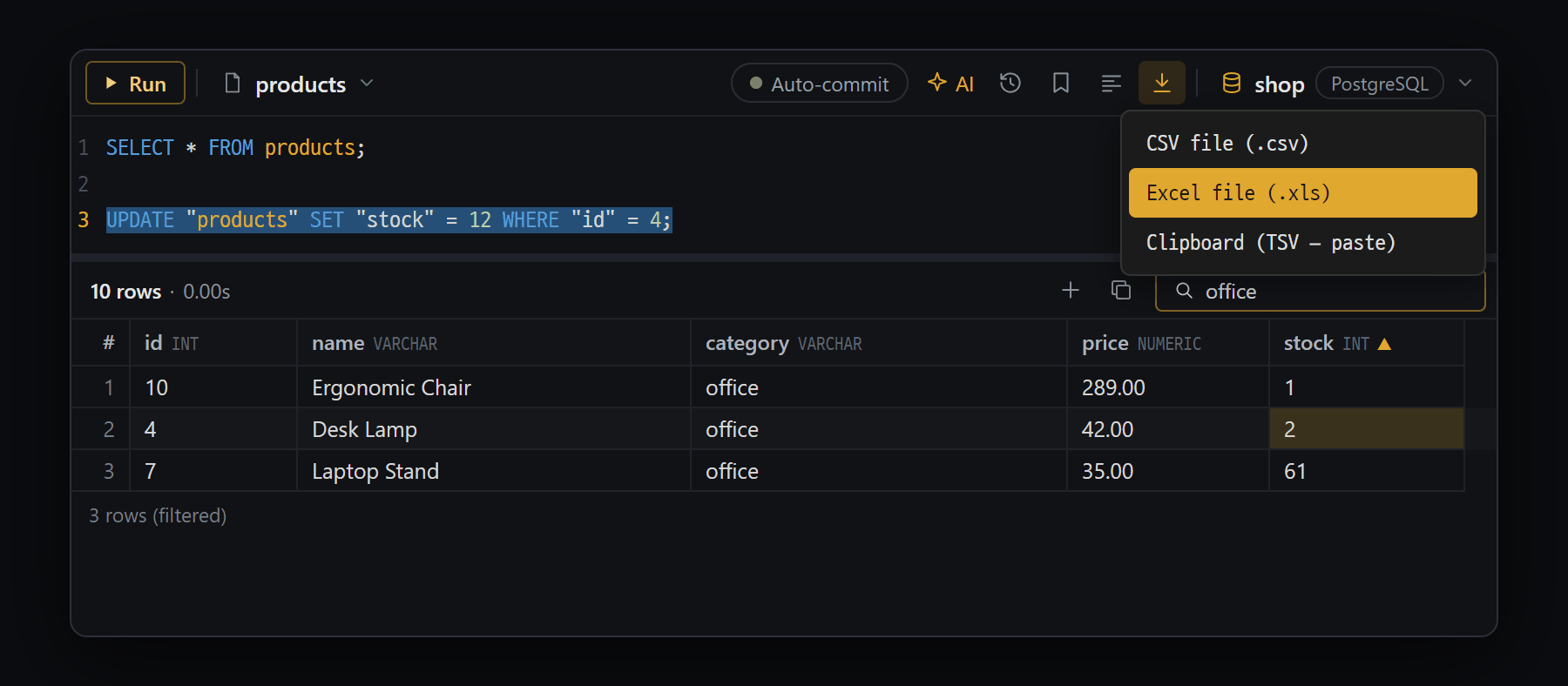
- Double-click a cell and edit it: an UPDATE statement is added to the end of the editor. Nothing runs on its own — check it, then Ctrl+Enter
- + Row · Copy rows (when you queried a single table) and "Find in results" in the result bar — filter the fetched rows by text. "Save" · "Cancel" appear only when there are new rows
- Click a column header to sort ▲/▼ (within the fetched rows only). For a single table, each column shows its type dimmed
- Export icon — CSV file (.csv) · Excel file (.xls) · Clipboard (TSV — paste)
| What you want | How |
|---|---|
| Sort | Click a header cell (▲/▼). Sorts only within the rows already received |
| Filter | The Find in results box in the result bar |
| Get more | Up to 5,000 rows at a time. If there are more, Next 5,000 ▾ in the result bar |
| Copy | Drag to select cells and press Ctrl+C (pastes straight into Excel) |
| View one row vertically | Click the # cell at the far left |
| See a long value in full | Shift+double-click |
| Build INSERT/UPDATE statements from selected rows | Ctrl+G (DML generator) |
Editing a cell → UPDATE statement
Section titled “Editing a cell → UPDATE statement”- Double-click a cell, change the value, and press
Enter. UPDATE … WHERE primary_key = value;is appended at the very end of the editor and left selected.- Check it, then run it with
Ctrl+Enter. It does not run automatically.
You can edit only when the result comes from one table and includes its primary key (not for JOIN·GROUP BY·UNION·DISTINCT·views).
New rows · copying rows · pasting from Excel → INSERT
Section titled “New rows · copying rows · pasting from Excel → INSERT”When the result is a query on a single table, the + Row · Copy rows icons appear in the result bar, and Save · Cancel appear once there are pending rows.
- Create staged rows with + Row or Copy rows and fill in the cells (empty cells are NULL).
- To paste from Excel, click the
#cell of a staged row to set it as the starting point, then pressCtrl+V. More rows are added automatically if needed. - Save. Auto-commit is turned off automatically, so check the result and Commit or Rollback. Rows that failed stay there so you can fix them and save again.
Export
Section titled “Export”Export icon → CSV file (.csv) · Excel file (.xls) · Clipboard (TSV — paste).
- File export does not save the 5,000 rows in the grid — it runs the original SQL again and saves everything. So the grid’s filter and sort are not reflected in the file.
- CSV is UTF-8 (with BOM). Excel saves every cell as text, with a maximum of 1,048,575 rows.
- Clipboard copy does reflect the grid’s filter and sort.
Transactions and auto-commit
Section titled “Transactions and auto-commit”After changing data, you choose whether to confirm it right away (auto-commit, the default) or check first and then confirm (manual commit).
- Click ● Auto-commit in the header row to switch to ● Manual commit. The Commit · Rollback buttons appear.
- Run UPDATE·INSERT·DELETE and ● Uncommitted appears.
- If it’s right, Commit; if not, Rollback.
- Transactions are per connection. SQL tabs on the same connection share uncommitted changes, and committing in one tab confirms them all.
- Structure changes such as CREATE·ALTER·DROP are confirmed immediately in some DBs and can’t be rolled back (Oracle DDL cannot be rolled back).
Dangerous SQL confirmation and revert
Section titled “Dangerous SQL confirmation and revert”When a person runs SQL directly in the SQL editor, there is no confirmation window. When the AI runs it, or it’s run with ▶ Run in the code editor, Blyck asks as follows.
| Risk level | SQL |
|---|---|
| No confirmation | Read-only SQL such as SELECT |
| Confirmation | UPDATE·DELETE with WHERE, INSERT, MERGE, CREATE, etc. |
| Strong confirmation | DROP, TRUNCATE, ALTER, UPDATE·DELETE without WHERE |
For the AI’s UPDATE·DELETE, the number of affected rows is counted and shown in advance.
Change records and revert
Section titled “Change records and revert”Runs that changed the DB (by people and by the AI) are recorded in change history, and simple UPDATE·DELETE statements get a backup for reverting before they run.
| DB | Backup method |
|---|---|
| SQLite | Keeps the rows that will change in Blyck’s history file (up to 1,000 rows; UPDATE needs a primary key) |
| Oracle · PostgreSQL · MSSQL · MySQL | Creates a blyck_bak_… backup table inside the DB and copies them there (only with auto-commit) |
- To revert:
Ctrl+Shift+H→ the DB record row → [Revert DB change]. You need to be connected to that DB. - Remove the
blyck_bak_…tables created on server DBs with [Clean up backup tables] in the ChangeSet window. - Complex statements with JOINs or subqueries, INSERT, and DROP·TRUNCATE can’t be reverted.
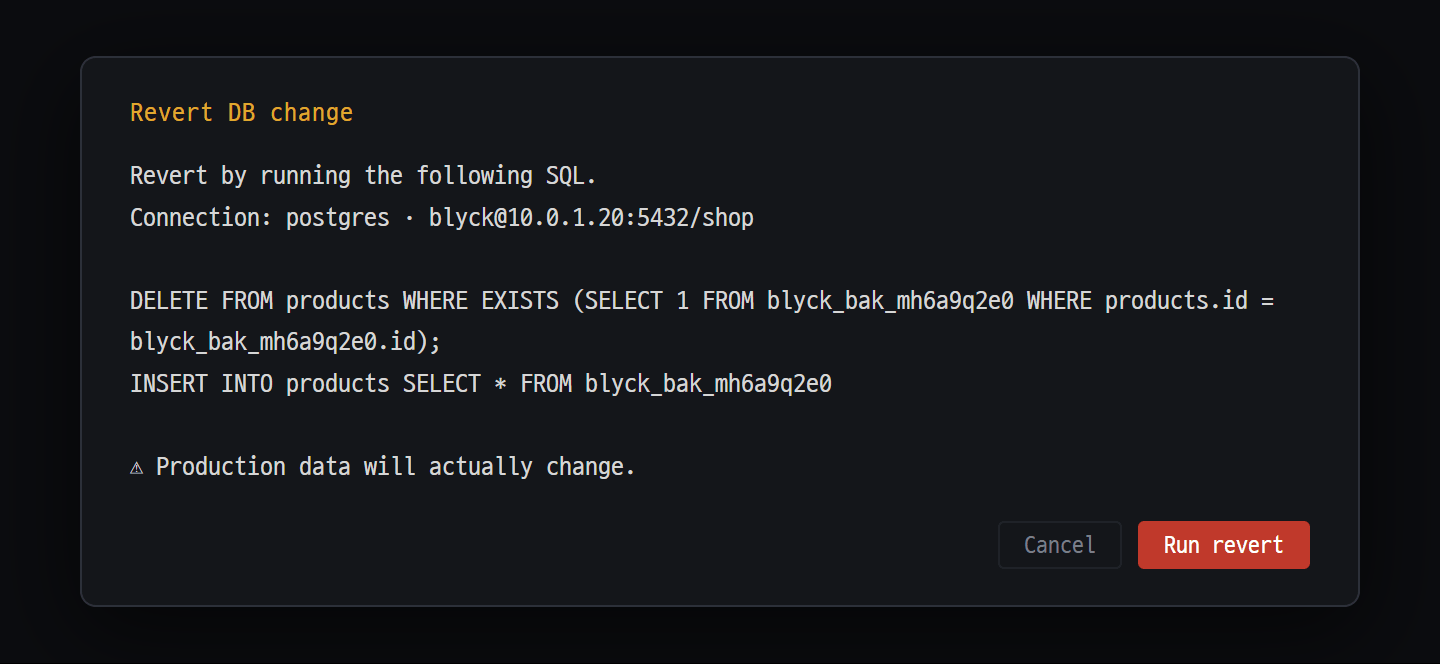
- "Connection:" — the DB to revert. You must be connected to that DB right now
- The revert SQL to run — server DBs are restored from the blyck_bak_… backup table made before the change
- "⚠ Production data will actually change." Check, then [Run revert]
Other conveniences
Section titled “Other conveniences”- Connection switching: keeps the SQL as it is and switches only the DB it runs on to another connection (the DB button ▾ at the right end of the header row). Use it to run the same query on dev → staging → production DBs in turn. The list shows both the open DBs and your saved DB connections. Pick a saved one and it connects and opens that DB’s tree behind the tree panel (the tree you were looking at stays).
- History: the 300 most recent SQL statements that ran successfully. All connections share one list.
- Snippets: save frequently used SQL with a name (up to 500).
- When you restart: the DB panels and SQL editor content that were open reopen. For connections without a saved password, a password window appears.
AI features (Pro)
Section titled “AI features (Pro)”SQL editor AI (Ctrl+I)
Section titled “SQL editor AI (Ctrl+I)”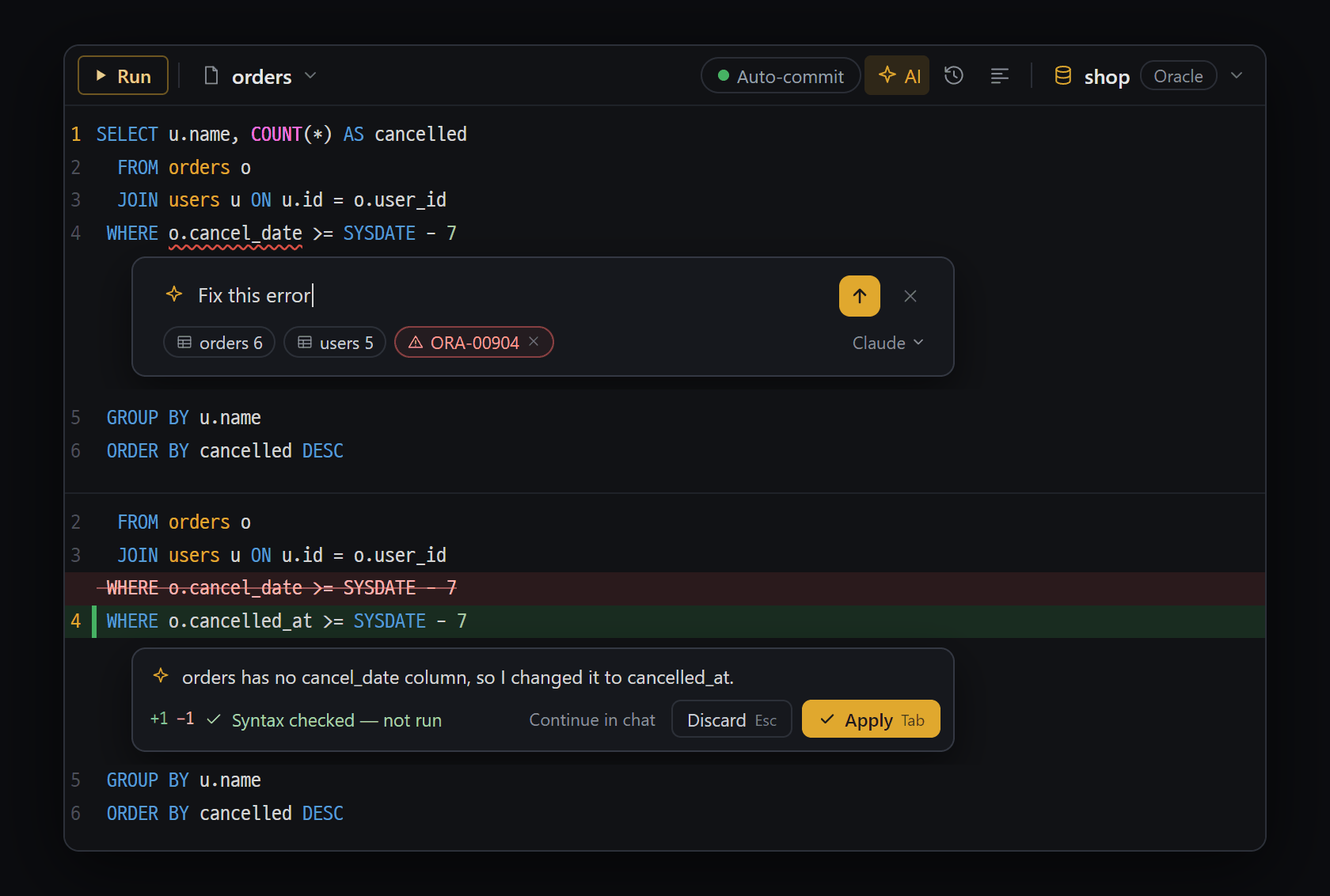
- "AI" button or Ctrl+I — a box opens at the cursor. Top row: ✦ input · ↑ · ×. With a selection, only that part; otherwise the entire SQL (Pro)
- Chips in the bottom row — the columns of the tables in the SQL (orders 6 = 6 columns; hover for details) and the last error (ORA-00904, drop it with ×). Click the model name at the right end to pick a model
- The result — a small card right under the changed lines: one line on why · +1 −1 · "Syntax checked — not run" · "Continue in chat" · "Discard Esc" · "Apply Tab"
Ask the AI to fix the SQL in the editor, or to explain it.
- Press the AI button in the header row or
Ctrl+Iand a box opens right at the cursor. With a selection, only that part is used; otherwise the entire SQL. - The box has ✦ input · ↑ (send) · × in the top row and the chips that go along in the bottom row: the tables in the SQL (for example
orders 6= 6 columns; hover for details) and the last error (for exampleORA-00904). The column names · types · keys · comments of those tables go along, so the AI doesn’t guess column names. Drop the error with ×. Click the model name at the right end to pick a model. - Type your request and press
Enter. For example:fix this error·totals per user·explain this - The fixed SQL is not run — only its syntax is checked (if the DB reports an error, the AI fixes it again, up to 2 times). Changed lines show in place in red and green, with one line on why and Syntax checked — not run. Apply Tab · Discard Esc · Continue in chat
- While sending, the box shows the steps (Table info → AI is fixing → Syntax check). ■ Stop in place of ↑ cancels it but keeps the box, so you can edit your request and send again.
- If you ask for an explanation, the SQL stays as is and the answer comes in the same kind of card, with Copy answer, an Ask a follow-up… field at the bottom (sends the earlier question and answer along) and Continue in chat. Continue in chat puts everything into the chat input — the request · original SQL · fixed SQL · why · syntax check · the table info and error that went along (you press send).
- For a new query, just ask AI Chat. The chat looks at the table structure, tries the SQL, and gives you a code block; press ⤓ Insert into editor on it and the SQL goes below the cursor in that DB’s SQL editor. You run it yourself.
Grid cell AI
Section titled “Grid cell AI”- Grid cell AI: select cells in the results table, press
Ctrl+Iin the grid, and ask things like “analyze these values for outliers”. If more than 200 rows are selected, only the first 200 are sent.
AI chat can also see the open DB to look at its structure or run SQL (writes go through approval cards). See AI Chat.
Frequently asked questions
Section titled “Frequently asked questions”Q. I get an NJS-116 error on Oracle.
The account uses a password method that Thin mode doesn’t support. Check Force Thick and set Client path to the 64-bit Instant Client folder.
Q. I get an NJS-118 error on Oracle.
You’ve already connected with Thin, so it can’t switch to Thick. Restart the app and connect with Force Thick.
Q. I get ORA-12514 / ORA-12505 on Oracle.
The service name or SID is wrong. Check the value in the Service field.
Q. The MySQL tree says “Specify a database (schema)”. The Database field was left empty. Fill in Database using ✎ on the saved connection or in the connection window.
Q. The results stop at 5,000 rows. Only 5,000 rows are fetched at a time. Use Next 5,000 ▾ in the result bar or the export icon.
Q. I edited a cell but the DB didn’t change.
Only an UPDATE statement is built. Run the UPDATE at the end of the editor with Ctrl+Enter (and Commit too if you’re in manual commit).
Q. The filter doesn’t apply to the exported file.
File export runs the whole original SQL again. Add a WHERE to the SQL or use clipboard copy.
Q. Korean text is garbled when I open the CSV in Excel. Specify UTF-8 in Excel’s “Get Data” import, or paste via the clipboard (TSV).
Q. A blyck_bak_… table appeared in my DB.
It’s a backup for reverting. Remove it with [Clean up backup tables] in the ChangeSet window.
Q. The SQL the AI fixed wasn’t run.
That’s on purpose — the fixed SQL is only syntax-checked, never run. Insert it with Apply Tab, then run it with Ctrl+Enter.
Q. After restarting, the DB panel is empty. It’s a connection without a saved password. Enter the password in the window that appears, and next time fill in Save as when you connect.