
Change History · Git
Blyck gathers what people and the AI changed into one window (ChangeSet) and lets you revert it. File changes are based on git (a program that records code changes), while DB changes, server commands, and package installs are kept in Blyck’s change records. Everything is recorded automatically — no locking or setup needed.
| Feature | Free / Pro |
|---|---|
ChangeSet window, revert, git status·commit·push·branches, .gitignore editing, GitHub connection | Free |
| [✨ AI message] (writes commit messages for you) | Pro |
| Automatic checkpoints (auto-commit when an AI answer finishes) | Only created when you use AI (Pro). Viewing and reverting checkpoints that already exist is free |
Opening the ChangeSet window
Section titled “Opening the ChangeSet window”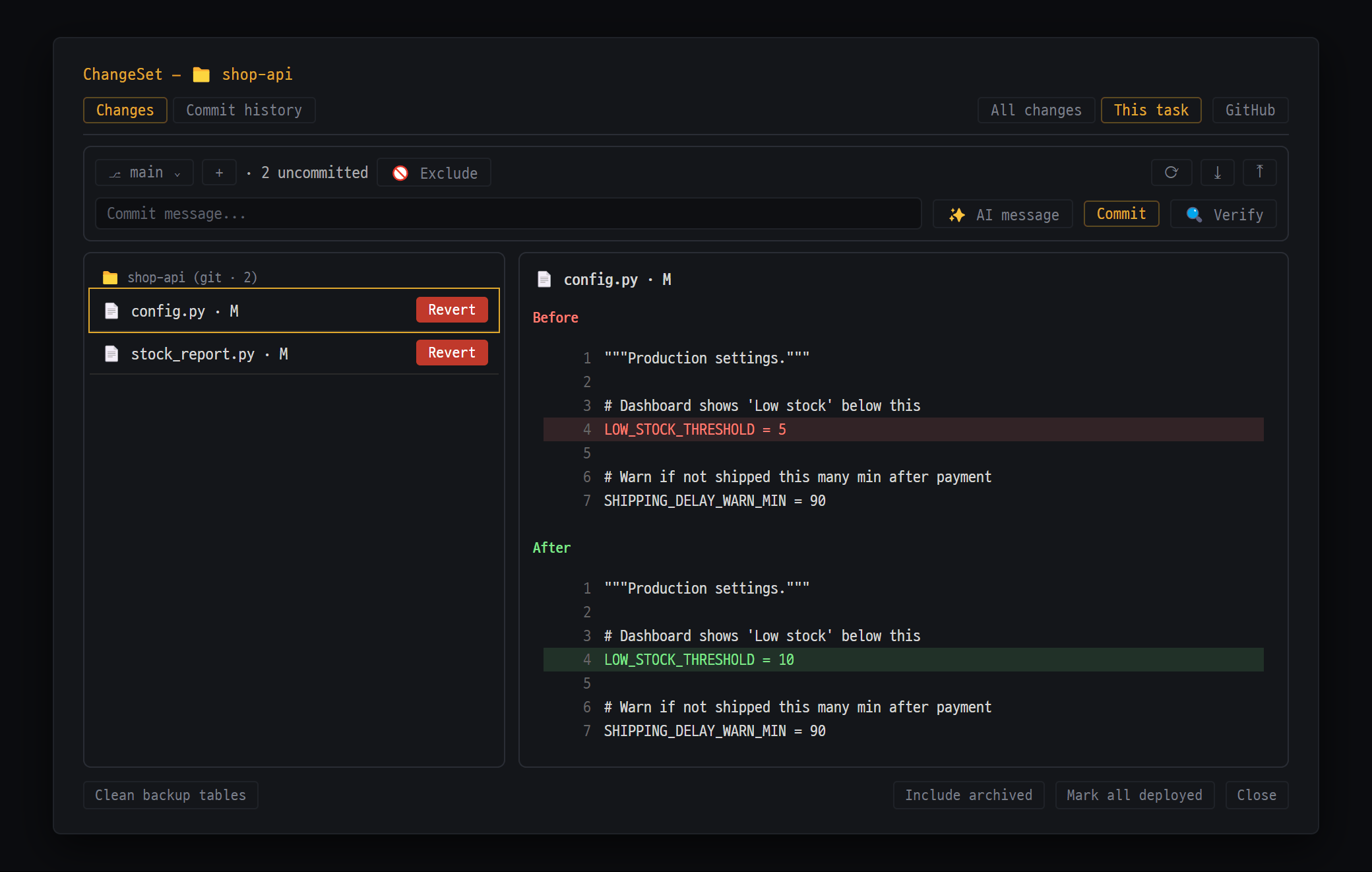
- Switch scope with [All changes] / [This task] · [GitHub] to link and push
- Git bar — branch · uncommitted count · commit · push
- Changed files (📁 shop-api (git · 2)) — [Revert] on a row restores its last committed state
- Click a row to see Before (red) / After (green) on the right
| Way | Initial scope |
|---|---|
Ctrl+Shift+H or Ctrl+Shift+K | All changes |
| Command Palette → Change history / Git | All changes |
| 📦 N under the AI chat input box | This task (that chat) |
The number next to 📦 is the number of uncommitted files in that chat’s folder + the number of DB/SSH/package records.
Screen layout
Section titled “Screen layout”| Part | What it does |
|---|---|
| [Changes] / [Commit history] tabs | List of what changed / list of git commits |
| [All changes] / [This task] | Switch scope ([This task] works only when there’s an AI chat) |
| Folder picker | When the AI chat has 2 or more folders: all, or one folder |
| [GitHub] | Connect to GitHub, push, import |
| git bar | Branch, commit, push (below) |
| List on the left / details on the right | Click a row to see before and after on the right |
| [Include archived] · [Mark all deployed] | Also show items closed as “deployed” / close everything in the current list as deployed (archived) |
| [Clean up backup tables] | Delete server DB backup tables no longer needed for reverting |
[Changes] tab — what you see
Section titled “[Changes] tab — what you see”Files (based on git)
Section titled “Files (based on git)”- Shown only in the [This task] scope. It lists every file git considers “changed” in that AI chat’s project folder. So files changed by Claude’s or Codex’s own editing features, and files changed by the terminal or other programs, all show up.
- Row format:
📄 file name · status code(Mmodified,??new file, etc.) and a [Revert] button.
DB / SSH / packages (based on Blyck records)
Section titled “DB / SSH / packages (based on Blyck records)”| Icon | Meaning |
|---|---|
| 🛠 | DB structure change (CREATE·ALTER, etc.) |
| 💾 | DB data change (INSERT·UPDATE·DELETE) |
| 🖥 | Server command |
| 📦 | (at the front) package install / (at the end of the row) archived |
| 👤 / ✨ | Person / AI |
| ↩ | Reverted |
| ⚠ | Cannot be reverted |
Click a row to see the Executed SQL, Revert SQL, and Connection.
What gets recorded
Section titled “What gets recorded”| Type | When it’s recorded |
|---|---|
| Files | Saving in the editor (👤), files the AI wrote with Blyck tools (✨), folder replace, reverts |
| DB structure · data | When a person or the AI changes the DB (a backup for reverting is made before UPDATE·DELETE) |
| Server commands | When the AI runs a command that changes something (rm, mv, installs, etc.) |
| Packages | When the AI installs a pip package |
Not recorded: read-only actions, files over 1MB, files changed by Claude’s or Codex’s own editing features (these only show in git), and commands a person types directly in the terminal.
Reverting
Section titled “Reverting”| What | Where | What happens |
|---|---|---|
| Uncommitted files | [Revert] on a file row in the [Changes] tab | Returns it to the last committed state |
A new file git has never seen (??) | Same button | Permanently deletes the file (it does not go to the Trash) |
| DB changes | DB record row → [Revert DB change] | Runs the revert SQL (the DB must be connected) |
| One commit | [Revert] in the [Commit history] tab | Creates a new commit that undoes that commit |
| One AI answer | The 📝 N changes chip on the answer | A new commit that undoes the commits made by that answer |
| Server commands · package installs | — | Cannot be reverted (only the record remains) |
- Every revert shows a confirmation window first. Actions that delete or overwrite use a red button.
- When the AI reverts, discards changes, or pushes, it goes through the same confirmation window.
Git bar — status · commit · push
Section titled “Git bar — status · commit · push”
- ⎇ main (switch branch) · + new branch · "· 2 uncommitted" · 🚫 Exclude / on the right ⟳ fetch · ⤓ pull · ⤒ push
- Commit row — [✨ AI message] reads the changes and fills in a draft message, then [Commit] (🔍 Verify checks for risky changes)
This is the git action bar at the top of the [Changes] tab. It appears only when the AI chat has a project folder set. Works for both local and remote (SSH) folders.
- If the folder isn’t a git repository, [⎇ Initialize Git repository] creates one and makes the first commit.
| Part | What it does |
|---|---|
⎇ branch / + | Switch branch / create a new branch |
↑N ↓M · {n} uncommitted | Commits to push / commits to pull / number of uncommitted files |
| [🚫 Exclude] | The .gitignore editing window |
| ⟳ / ⤓ / ⤒ | Fetch / pull (get and merge) / push |
| Commit message… box | Write the commit description |
| [✨ AI message] | The AI reads the changes and fills in a draft message (Pro) |
| [Commit] | Commit |
| [🔍 Verify] | Check for risky changes |
Committing and pushing
Section titled “Committing and pushing”- Open the window with
Ctrl+Shift+Kand press [This task] to check the changed files. - Write a message or press [✨ AI message].
- [Commit] → “Committed 1a2b3c4”.
- Press ⤒ to push.
🚫 Exclude (.gitignore editing)
Section titled “🚫 Exclude (.gitignore editing)”[🚫 Exclude] → write patterns in the Git exclude settings window and save. It shows how many changed files there are per folder and per extension, and the 📋 Recommended file patterns button or Common patterns: chips add common patterns in one go. Also untrack already-tracked files (files kept) is on from the start, so files already being tracked are taken out of tracking too (the files stay on disk). If you don’t want that, turn it off before saving. It takes effect when you commit.
🔍 Verify
Section titled “🔍 Verify”Looks at the records of the current task, finds risky things, and shows them as ❌/⚠/✅.
UPDATE/DELETEwithoutWHEREDROP COLUMN/DROP TABLE- Adding
NOT NULL - A new function appeared but no test file changed
- An environment variable used in the code is missing from
.env
[Commit history] tab
Section titled “[Commit history] tab”- Shows the most recent 50 commits. Click a commit to see its full message and changes.
- Commits that exist only on the server are shown separately as ⬇ {n} incoming commits from GitHub.
- [Revert] creates a new commit that undoes that commit. If there’s a conflict, sort it out yourself in the terminal.
Automatic checkpoints and per-answer revert (Pro)
Section titled “Automatic checkpoints and per-answer revert (Pro)”A safety belt that automatically commits the changed files every time an AI answer finishes (the message starts with checkpoint:). If something goes wrong, you can easily revert one answer at a time.
Where to turn it on: ⋯ at the top of the AI chat panel → Chat settings → Display → 🖥 Display / Streaming → Auto git checkpoint per task. It’s off by default.
- Turn on the setting above. The project folder must be a git repository.
- Give the AI a task.
- When the answer finishes, a ”✓ Checkpoint 1a2b3c4” notice appears and the answer gets a 📝 N changes chip.
- Click the chip to see what that answer changed.
- To revert, press [Revert this answer]. If you change your mind, press [Reapply].
- Works only for local folders. No checkpoints are made for remote folders.
- A checkpoint also commits every change in that folder (including changes made by people).
- If the work folder has other uncommitted changes, reverting an answer may fail.
GitHub connection
Section titled “GitHub connection”Where to open it: the [GitHub] button at the top of the ChangeSet window.
First connection
Section titled “First connection”- Press [🔗 Connect GitHub]: a code appears and GitHub’s authorization page opens in your browser.
- Enter the code in the browser and approve.
- Blyck shows GitHub connected ✓ and ✓ @username.
Pushing and importing
Section titled “Pushing and importing”| What you want | How |
|---|---|
| Push as a new repository | 🚀 Push to GitHub → New repository → name (pre-filled with the folder name) · Private (default) → [Push] |
| Link to an existing repository | Existing repository → pick from the list → [Link] (also pushes the current branch) |
| Import from GitHub | 📥 Import from GitHub → pick a repository → [Import] → choose the parent folder. If the current panel is an AI chat, the imported folder becomes that chat’s work folder |
| Disconnect | [Disconnect] |
- The connection key (token) is saved encrypted by the OS.
- While GitHub is connected, pushing to github.com repositories logs in automatically.
Limits of reverting
Section titled “Limits of reverting”| Can’t be reverted | What to do instead |
|---|---|
| Server commands (SSH·WinRM), package installs | Clean up yourself |
| Files over 1MB | Git only |
| Files changed by Claude’s or Codex’s own editing features | Git file rows in [This task] (before committing), or revert a checkpoint or commit |
| ”Revert” on a new file git has never seen | Permanently deleted — always check before pressing |
DROP·TRUNCATE, INSERT | No revert SQL or backup |
On SQLite, data with more than 1,000 rows changed, or UPDATEd without a primary key | No backup |
On server DBs, complex UPDATE·DELETE with joins or subqueries, changes in manual commit mode | No backup |
| A DB revert itself | You can’t “revert a revert” |
How long records are kept
Section titled “How long records are kept”Up to the most recent 40 per target, 14 days, and 2GB in total. Items closed as “deployed” stay. The record file is blyck-history.db in Blyck’s user folder.
Frequently asked questions
Section titled “Frequently asked questions”Q. I opened it with Ctrl+Shift+H but no files show up.
The [All changes] scope doesn’t show files. Press [This task] (needs an AI chat).
Q. The [This task] button doesn’t work. There’s no open AI chat. Open an AI chat, or open the window from the chat’s 📦 chip.
Q. I can’t see the git bar. The AI chat has no project folder. Set a work folder in the AI chat.
Q. Push fails right away. There are no login credentials. Connect in [GitHub], or set up git credentials in the terminal.
Q. Files I didn’t want got into the commit. [Commit] commits every change. Take them out with [🚫 Exclude] first.
Q. No checkpoints are created. The setting is off, the folder is remote, it isn’t a git repository, or nothing changed.
Q. “connect DB first” appears when reverting a DB change. The DB connection was closed. Reconnect in the DB tree.