Run · Preview · Design
These features let you run what you’ve built (Run), look inside it (debugging), see the web page (web preview), and review the design (design workbench). The fix → run → check loop happens entirely inside Blyck.
| Feature | Free / Pro |
|---|---|
| ▶ Run, output window, error locations | Free |
Viewing the debug window (Ctrl+Shift+D) | Free |
| Web preview, bookmarks | Free |
| Sending captures and recordings to AI chat | Pro |
| AI run & observe (Run & Observe), AI debug tools and auto investigation, AI control of the preview, visual regression, design workbench | Pro |
Running code (▶ Run)
Section titled “Running code (▶ Run)”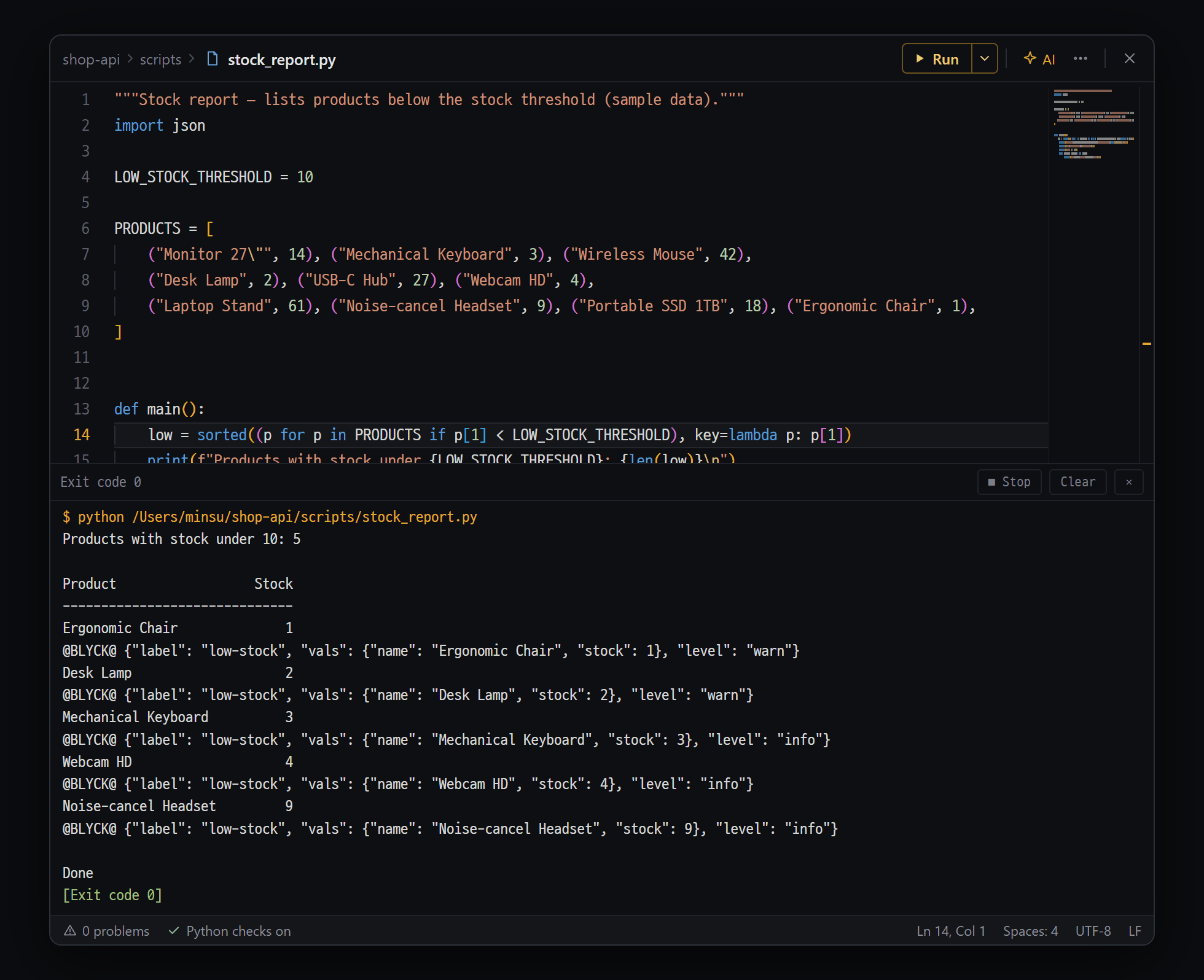
- ▶ Run — runs a locally saved file with one button (■ Stop while it runs) · the ▾ next to it also offers "Debug" (F5) for Python · JavaScript
- Status text — when done "Exit code 0" · [■ Stop] [Clear] [✕]
- Output pane — $ command at the top (amber), the program output, and [Exit code 0] (green) at the end
Run the current file (or its project) from the editor with one button, and watch the results live in the output window below the editor.
- Save the file first (
Ctrl+S). ▶ Run runs what’s saved on disk. - Press [▶ Run] in the editor header row (
Ctrl+F5). The output window opens. - While it runs, the button turns into a red [■ Stop].
- When it finishes, you see Exit code {n} and, if errors were found, {n} problem(s).
▶ Run only shows for locally saved files (not for remote files or untitled files).
Which command is used
Section titled “Which command is used”Blyck looks at the file and project and picks the command automatically.
| Target | Run command |
|---|---|
.py · .rb · .php · .lua · .sh files | Runs that file directly (python file, etc.) — takes priority over the project |
go.mod | go run . |
Cargo.toml | cargo run |
*.sln · *.csproj | dotnet run |
pubspec.yaml | flutter run |
pom.xml / build.gradle | mvn exec:java / gradle run |
package.json | npm start |
.js / .go with no marker file | node file / go run file |
Output window and error locations
Section titled “Output window and error locations”- You see
$ commandat the top, normal output, error output (in red), and the exit code at the end. The most recent 5,000 lines are kept. - [Clear] clears the output, and [✕] hides the window (the program keeps running).
- Blyck recognizes error formats in the output (Python, Go, Rust, gcc/clang, C#, TypeScript, etc.) and adds red (error) and yellow (warning) underlines in open files. Click an error line to jump to that line of that file.
Run with the debugger — stop at red dots and see values
Section titled “Run with the debugger — stop at red dots and see values”Stop a Python or JavaScript file saved on this PC at the line you want, look at the variable values at that moment, and step through line by line. No print needed.
- Click left of the line number where you want to stop, or press
F9— a red dot (breakpoint) appears. - In the header row, ▶ Run ▾ → Debug (or
F5). For Python the debugger (debugpy, about 33 MB) is downloaded once the first time. JavaScript uses the debugger built into Node.js. - When it stops, the line turns yellow, current values appear faintly at line ends, and the Variables · call stack panel opens below. Hover a variable to see its value.
- Continue (
F5) · Next line (F10) · Step into (F11) · Step out (Shift+F11) · Stop debugging (Shift+F5).
- Press Ask AI where it stopped and the stopped line · error · current values · call stack · output are sent along (Pro).
- AI Chat debugs for you (Pro): say “find the cause” and the AI sets red dots, runs with the debugger and reads the values (
dbg_breakpoint·dbg_start·dbg_step·dbg_inspect). Your own editor screen moves along with it, and the status bar shows AI chat is debugging. Works in ⚡ Run · 🚀 Auto mode. - Remote (SFTP) files and other languages aren’t supported yet.
The AI runs and fixes — Run & Observe (Pro)
Section titled “The AI runs and fixes — Run & Observe (Pro)”Tell AI chat “run the tests and fix anything that fails”, and the AI repeats run it itself → check output and errors → fix the code → run again. You don’t need to copy and paste the output.
- Set the AI chat mode to ⚡ Act or 🚀 Auto (it can’t run anything in 💬 Chat or 📋 Plan mode).
- Ask something like “run pytest and fix the failures”.
- Commands that move or overwrite files bring up an approval card. Very dangerous commands ask even in 🚀 Auto mode.
- The default wait time is 30 seconds. For programs that keep running, like servers, it returns the output up to that point.
- If the AI chat’s project folder is remote (SSH), it runs on the server.
Debug window and AI Debug Bridge
Section titled “Debug window and AI Debug Bridge”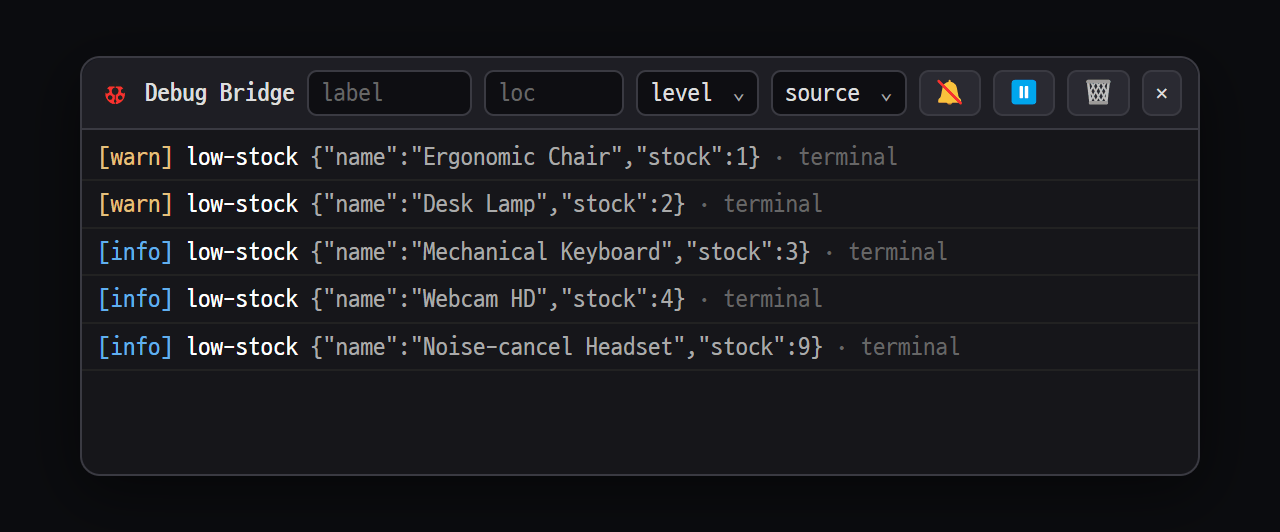
- Filters — label · loc boxes, level · source pickers / 🔕 auto AI investigation · ⏸ Pause · 🗑 Clear · ✕ Close
- One record — [step] name value · source (terminal / preview)
This lets the AI read values inside a running program (variable values and so on) directly. Put a one-line record shaped like @BLYCK@ … in the code, and when that line is printed in a Blyck terminal or the web preview, Blyck collects it and the AI reads it to find the cause. Usually the AI adds these lines itself and removes them itself when it’s done.
Ctrl+Shift+Dopens the 🐞 Debug Bridge window, where you watch the collected records in real time (free). You can filter by name, location, and level.- Turn on 🔔 Auto AI investigation (Pro, off by default) and the AI starts investigating automatically whenever an
errororassertrecord appears. It uses the AI, so it costs money. - Records printed in the ▶ Run output window or outside Blyck are not collected.
For details, see AI Debug Bridge.
Web preview (Live Preview)
Section titled “Web preview (Live Preview)”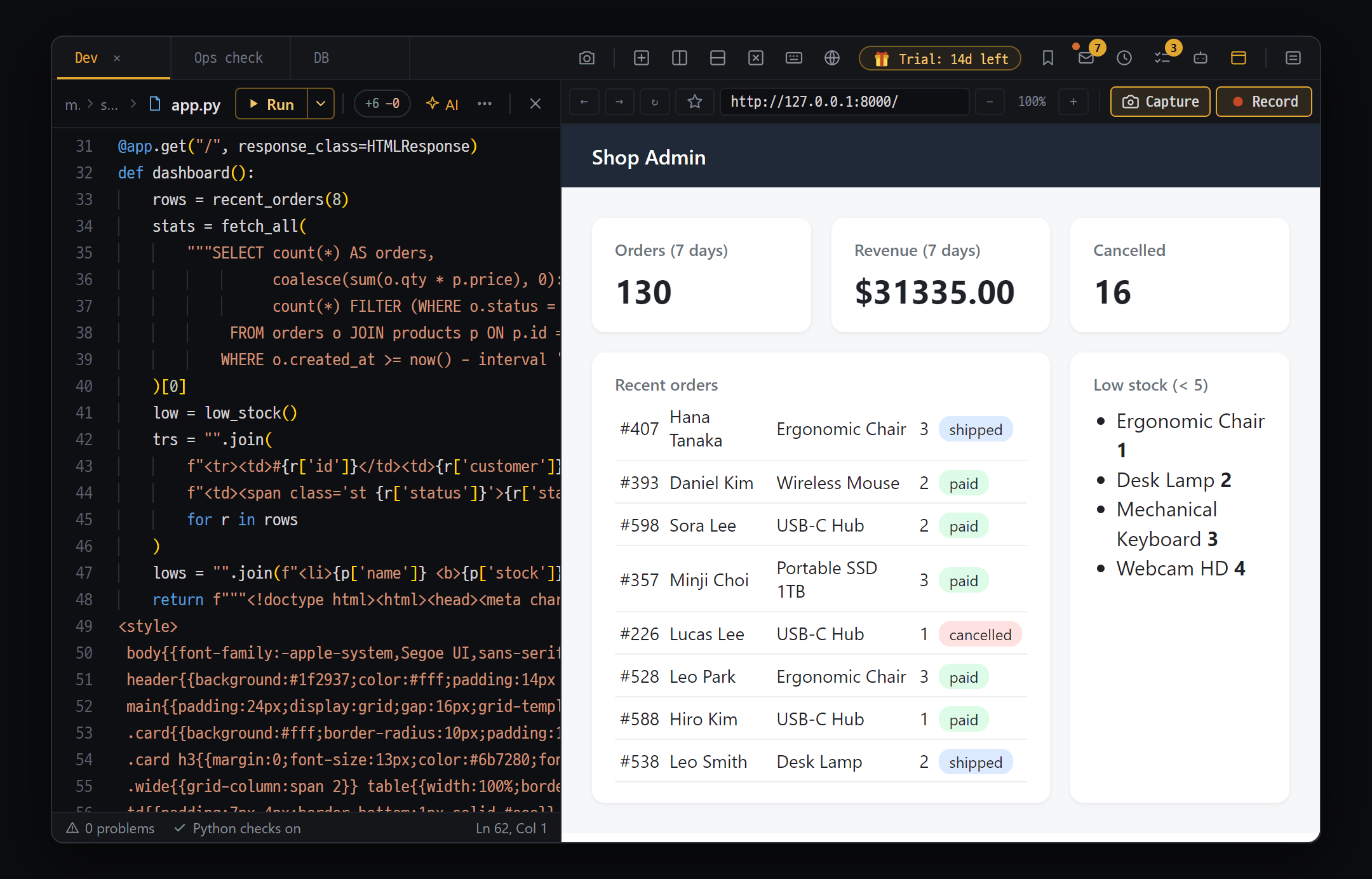
- Editor — the code that builds the page (app.py)
- Web preview bar — ← → ↻ ☆ · address box · − 100% + · 📷 Capture · Record
- The page you're developing, shown in a small browser inside Blyck
A small browser that shows the website you’re building inside a Blyck panel. You can click around yourself, and the AI can also see and operate the screen. The preview itself is free.
- Start your dev server first (for example,
npm run devin the terminal). - Press
Ctrl+Alt+B(or new tab menu → the Web preview tile). - Type the address (default
http://localhost:3000). Press [Open].
- If you leave out
http://, it’s added automatically. Open HTML files on your PC likefile:///C:/…/index.html.
Top bar
Section titled “Top bar”| Button | What it does |
|---|---|
| ← / → / ↻ | Back / forward / reload |
| ☆ | Bookmarks (import from your browser) |
| Address box | Type an address and press Enter |
| − / 100% / + | Zoom out / zoom level (click to reset to 100%) / zoom in. 25%–500% |
| 📷 Capture | Takes a screenshot, opens the capture editor, then attaches it to AI chat |
| Red dot Record | Takes a screenshot every 0.5 seconds (up to 60 frames, about 30 seconds) → pick the frames to send and attach them to AI chat |
- Sending captures and recordings to the AI is Pro. Open the AI chat panel first before sending (otherwise your drawing is lost).
- ☆ Bookmarks: the first time you press it, an [Import from {browser}] button appears. It imports bookmarks from the default profile of Chrome·Edge·Brave·Vivaldi (and Safari on a Mac). Firefox isn’t supported.
- Logins that open a new window, like Google or GitHub, open in a real window so you can log in.
- The most recent 200 console records and 200 network records are kept (the AI reads them).
- When you restart the app, only the address is restored.
The AI sees and operates the preview (Pro)
Section titled “The AI sees and operates the preview (Pro)”AI chat looks at the web preview directly, clicks, types, and reads console errors to fix things.
Fill in the login form with the test account and submit it. If there are console errors, find the cause and fix it.The AI goes in this order: input → wait → screenshot → read the console.
| What it can do | Approval |
|---|---|
| Take screenshots, read console and network records, go to an address, wait | Not needed |
| Click elements, type text, run JS on the page | Needed in ⚡ Act mode |
- Clicking, typing, and running JS are blocked in 💬 Chat and 📋 Plan modes.
- For the AI to take a screenshot, the preview panel must be visible on screen.
Visual regression — compare the screen before and after a fix (Pro)
Section titled “Visual regression — compare the screen before and after a fix (Pro)”Save the screen before you change the code as a baseline, compare it with the screen after the change, and find out “whether the screen broke unintentionally”. Works in the web preview, desktop mirror, and design workbench.
You ask the AI to do this in words. There’s no button for you to press.
- Ask something like “take the current screen as the baseline, change the button color, then compare”.
- The AI saves the baseline, changes the code, then compares.
| Result | Meaning |
|---|---|
| Pass | 2% or less changed |
| Needs review | More than 2% |
| Regression | The screen size itself changed (likely a broken layout) |
The comparison image shows BEFORE on the left and AFTER on the right, with red boxes where things changed. The baseline is kept only in memory, so it disappears when you close the panel or restart the app.
Design workbench (Pro)
Section titled “Design workbench (Pro)”A panel that gathers the design parts the AI made (tokens such as colors and spacing, components such as buttons, screens, and screen flows) into a card list so you can preview and review them at web, tablet, and phone sizes (labeled Design, 🎨).
- Put the design list file
_ds_manifest.jsonin thedesign-systemfolder of your project folder. Usually the AI (Claude·Codex) makes it for you. - Tell AI chat (in ⚡ Act or 🚀 Auto mode) “open the design panel”. It can’t be opened from the new tab menu or with a shortcut.
- Click a card to see it large (for web, three panels: mobile, tablet, desktop). Go back with ← List.
| Button | What it does |
|---|---|
| [Export tokens ↓] | Export design tokens as Flutter (app_tokens.dart) and CSS (tokens.css) files |
| [Golden harness ↓] | Create iOS·Android screen comparison test files (.dart) |
| Platform picker | All / web / desktop / iOS / Android |
- While the design panel is open, the AI also gets a note telling it to reuse the tokens and components in the list.
- If the visual comparison finds a problem, [Regenerate design] / [Dismiss] buttons appear under the answer.
- The
design-systemfolder of a remote (SFTP) project folder is not read.
Frequently asked questions
Section titled “Frequently asked questions”Q. I can’t see the ▶ Run button. It’s a remote file, or an untitled file that has never been saved. It only shows for locally saved files.
Q. “No run command found” appears. It’s an unsupported type, or a CMake·Make project. Run it yourself in the terminal.
Q. My changes don’t show up when I run.
You haven’t saved. Press Ctrl+S and run again.
Q. The web preview is blank or says “Page load failed”. Check that the dev server is running and that the address and port are right, then press ↻. For a remote project, the server is running remotely, so open it with the server’s address.
Q. The AI can’t take a screenshot. The preview panel is hidden. Bring that tab to the front so it’s visible.
Q. Nothing shows up in the debug window. You ran it in the ▶ Run output window or outside Blyck. Run it in a Blyck terminal or the web preview.
Q. The visual comparison says “No baseline”. The baseline disappeared because the app restarted or the panel was closed. Have the AI set the baseline again first.
Q. The design panel won’t open. You’re in 💬 Chat or 📋 Plan mode. Switch to ⚡ Act mode and ask again.
Q. (Mac) Safari isn’t in the bookmarks. Allow Blyck in System Settings → Privacy & Security → Full Disk Access.