
Remote Desktop · Windows Servers
This page covers the features for working with screens and Windows servers.
| Feature | What it does |
|---|---|
| WinRM | Sends PowerShell commands to another Windows PC (server) and gets the text results back |
| VNC | Shows another PC’s screen inside a Blyck pane, and lets you control it with your mouse and keyboard |
| Desktop mirror | Shows another program window or monitor on your PC live inside a Blyck pane |
| 📷 Screen region capture | Captures part of the screen, lets you mark it up, then attaches it as an image to AI chat |
WinRM — remote Windows PowerShell
Section titled “WinRM — remote Windows PowerShell”A console that sends PowerShell commands to another Windows PC, runs them, and shows you the text results. You don’t see the screen — only commands and results go back and forth.
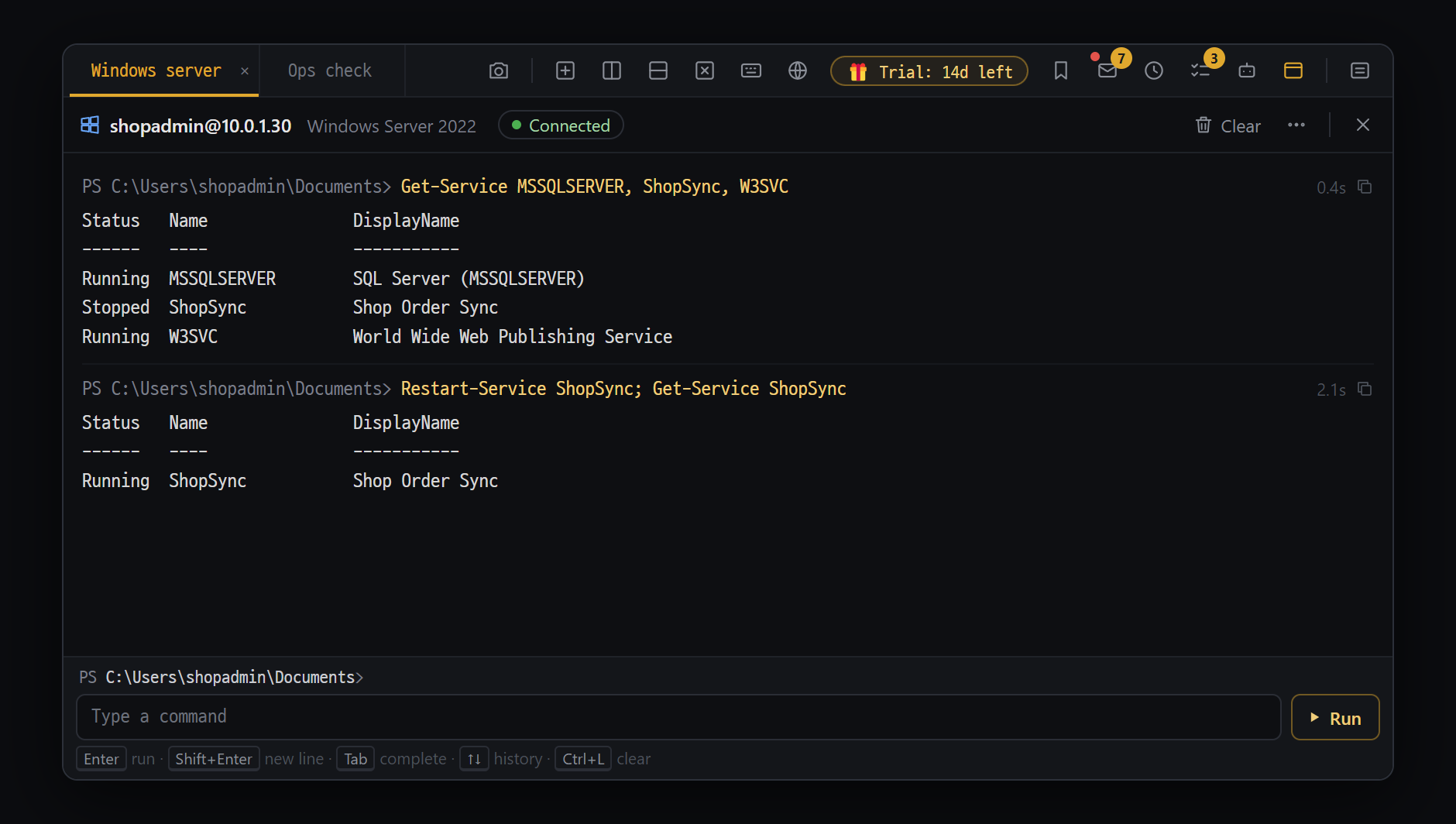
- "user@address" and status ("● Connected" / "Running")
- Each command is one block (command · output), stacked in order — errors in red
- Type a PowerShell command in the input box and press Enter or "▶ Run"; ↑↓ for earlier commands
Before you start
Section titled “Before you start”| Requirement | Description |
|---|---|
| Run Blyck on Windows | It doesn’t work in Blyck on a Mac |
| Turn on WinRM on the other PC | On the other PC, run Enable-PSRemoting in an administrator PowerShell beforehand |
| Trusted list (TrustedHosts) | Automatic between domain PCs. When connecting in a workgroup or by IP address and it’s needed, add it with the Add to this PC’s trusted hosts (admin) button that appears when the connection fails |
| Ports | HTTP 5985, HTTPS 5986 (must be open in the other PC’s firewall) |
- Press
Ctrl+Alt+R(or the [Choose new tab type] menu → the WinRM tile). - Enter Host (IP or name), User (e.g.
Administrator,DOMAIN\user), and Password. If you need an encrypted connection, turn on Use HTTPS (5986). If you’ll use it again, also fill in Save as. - Click Connect. The pane opens and connects to the remote PC right away (header Connecting… → ● Connected). The connection stays open until you close the pane.
- Type a command in the input box at the bottom and press
Enteror click ▶ Run. The current folder shows above the input box, likePS C:\Users\Administrator\Documents>. - Each command becomes one block (command · time taken · copy button · output), and output appears as it arrives.
cdand variables carry over to the next command (e.g. aftercd CSV,lslists the CSV folder). From the second command on it doesn’t reconnect, so it’s fast.
| Where | What’s there |
|---|---|
| Header | user@address · Windows version · status (● Connected / Running / Not connected / Disconnected) · 🗑 Clear · ⋯ (Reconnect · Edit connection · Add to this PC’s trusted hosts · Copy all output) · × |
| Errors | One red ⚠ line (the first line of the PowerShell error) + Details ▸ (the full error) · ✦ Ask AI |
| Bottom | Current folder · input box · ▶ Run (■ Stop while running) |
| Key | What it does |
|---|---|
Enter / Shift+Enter | Run / new line (multi-line commands) |
Tab | Auto-complete — commands and paths as the remote PC knows them. If there are several, pick from a list |
↑ / ↓ | Earlier commands |
Ctrl+L | Clear the output (the connection stays) |
Ctrl+C | Stop, while a command is running |
Stop a long command with ■ Stop (or Ctrl+C). The command on the remote PC stops too, and the output received so far stays. The connection stays open, so you can type the next command right away.
When it can’t connect
Section titled “When it can’t connect”A red box with the reason and fix buttons appears in the pane.
| Box title | Meaning | Buttons |
|---|---|---|
| Could not connect to {host} (trusted list) | Connecting in a workgroup/by IP, and the other PC isn’t in this PC’s trusted list | Add to this PC’s trusted hosts (admin) → UAC Yes → reconnects by itself |
| WinRM on {host} is not responding | WinRM is off on the other PC · firewall · wrong address | Copy command (Enable-PSRemoting -Force) · Reconnect |
| The user name or password is incorrect | Sign-in failed | Edit connection · Reconnect |
| The connection was lost | The network dropped or the other PC restarted | Reconnect |
Good to know
Section titled “Good to know”- Closing the pane closes the remote connection too.
- Commands that wait for input, such as
Read-Host, can’t be used. - One command runs at a time. Commands you type have no time limit.
- The password is saved with OS encryption only when you fill in Save as. If it’s saved, the pane comes back and reconnects automatically when you relaunch the app (starting from the first folder).
- The AI (Pro) sees this pane’s current folder, Windows version and recent output, and sends commands over the same connection. So the AI runs in the folder you
cd’d into. Commands the AI runs get an ✦ AI mark; if your command is still running, the AI’s command waits its turn. Read commands run right away; commands that change something ask for confirmation first.
VNC remote desktop
Section titled “VNC remote desktop”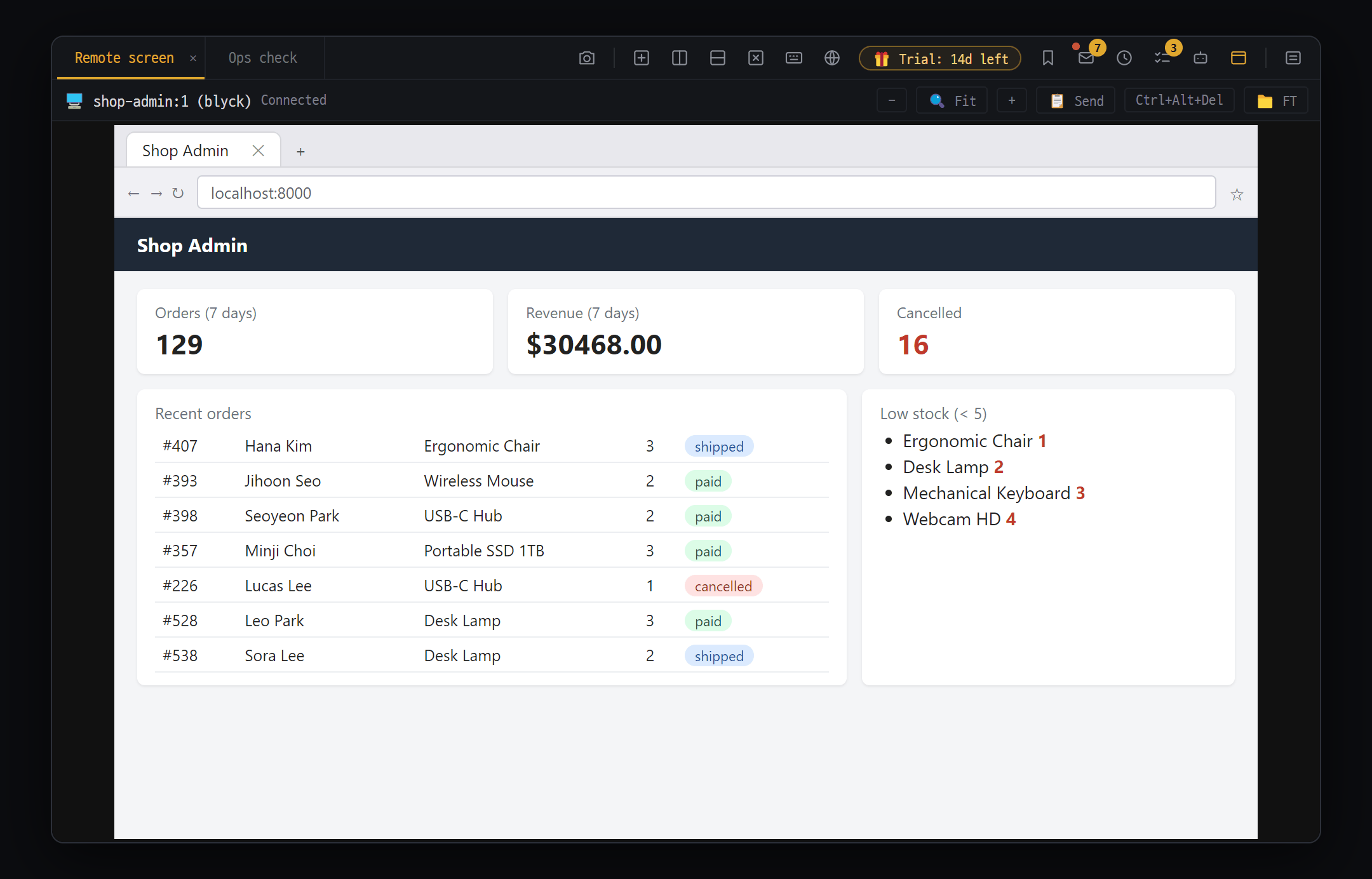
- Screen name reported by the remote PC, and status ("Connected")
- Header buttons — "−" · "🔍 Fit" · "+" to zoom, "📋 Send" (send clipboard), "Ctrl+Alt+Del", "📁 FT" (file transfer)
- Remote screen — click into it and your mouse and keyboard go to the remote PC
View and control another PC’s screen (Windows, Linux, or Mac) inside a Blyck pane. A VNC server (e.g. TightVNC, or Screen Sharing on a Mac) must be running on the other PC.
- Press
Ctrl+Alt+V(or the [Choose new tab type] menu → the VNC tile). - Enter the Host and Password (Port defaults to 5900). Only when connecting to Mac Screen Sharing, enter the Mac account name in Username.
- Click Connect. When the screen appears, “VNC connected” shows up.
- Click inside the screen and your mouse and keyboard go to the remote PC.
Connecting to a PC on an internal network (SSH tunnel)
Section titled “Connecting to a PC on an internal network (SSH tunnel)”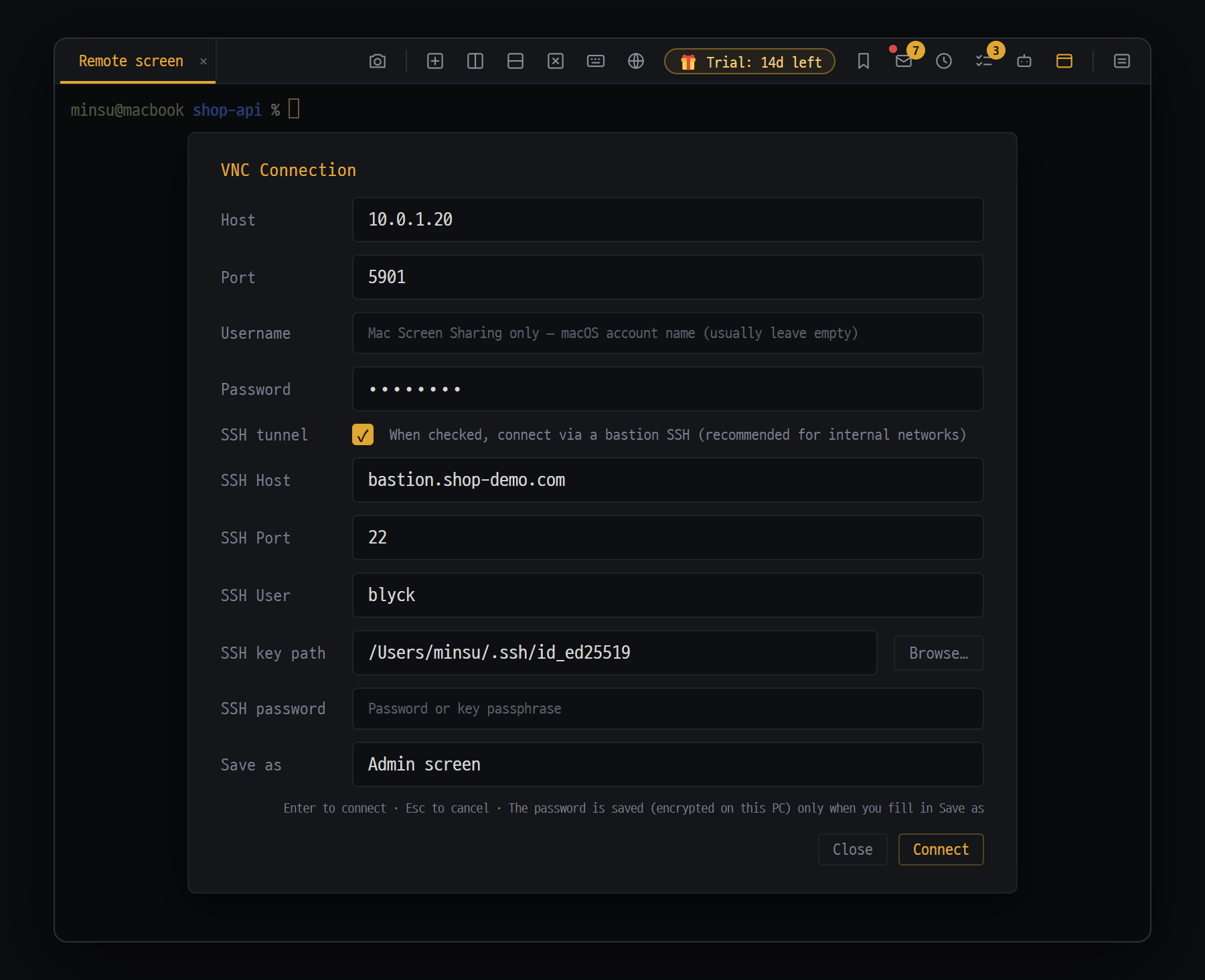
- Host·Port — address of the VNC PC on the internal network (as seen from the bastion)
- "SSH tunnel" checkbox — connect through the bastion SSH server
- SSH Host·Port·User·key path — the bastion to go through. A key or password is required
- Save as — fill it in to add it to "Saved connections"; the password is encrypted on this PC
For a PC you can’t reach directly, such as one on a company internal network, you connect through an SSH server you can reach from outside (a bastion, or jump server).
- Check SSH tunnel.
- In Host/Port, enter the address of the VNC PC on the internal network (the address as seen from the jump server).
- Enter the jump server’s details in SSH Host/Port/User, and enter an SSH key path or SSH password.
- Click Connect. The pane name gets
address:port (via SSH host)added.
The tunnel requires a key or a password (ssh-agent isn’t used).
Header buttons
Section titled “Header buttons”| Button | What it does |
|---|---|
− / + | Zoom out / zoom in (Ctrl+wheel also works) |
🔍 Fit | Toggle between fitting the whole screen ↔ actual size (100%) |
✋ | Only shown while zoomed in. When on, drag with the left button to move the view |
| 📋 Send | Sends your PC’s clipboard to the remote PC (Ctrl+Shift+V) |
| Ctrl+Alt+Del | Sends Ctrl+Alt+Del to the remote PC (for the lock screen or Task Manager) |
| 📁 FT | Opens/closes the file transfer window |
- The default is Fit. The remote PC’s resolution isn’t changed. Zoom levels range from 50% to 200%.
- While zoomed in, move the view with the scrollbars, by dragging with the wheel button, or with
✋.
Clipboard
Section titled “Clipboard”| Direction | How |
|---|---|
| Remote → your PC | Copy on the remote PC and it goes into your clipboard automatically |
| Your PC → remote (including paste) | Ctrl+V in the VNC pane |
| Your PC → remote (send only) | 📋 Send or Ctrl+Shift+V |
Only text is exchanged. On a Mac, press these two shortcuts with Ctrl too.
File transfer (TightVNC 2.x)
Section titled “File transfer (TightVNC 2.x)”Click 📁 FT in the VNC pane header to open a window for exchanging files with the connected PC. Only TightVNC 2.x servers are supported (UltraVNC and older versions don’t work).
| What you want to do | How |
|---|---|
| Go into a folder | Double-click the folder; ↑ goes to the parent folder |
| Download one file | Double-click the file → choose where to save |
| Download several files | Click each file once to select it → Download selected → choose the destination folder |
| Upload | ⬆ Upload → pick files (several allowed) |
| Rename · delete | Right-click → Rename… / Delete… |
| New folder | ➕ |
- If Korean file names come out garbled, try changing the encoding (
windows-949for Korean Windows servers). - If you upload a file with the same name, you’re asked whether to overwrite it. When downloading, it overwrites without asking.
- You can’t download or upload whole folders (files only). A folder must be empty before you can delete it.
Good to know
Section titled “Good to know”- If the connection drops, “VNC disconnected” appears. There’s no automatic reconnect, so close the pane and connect again.
- If you fill in Save as, the VNC password and SSH password are also saved with OS encryption, and from then on it connects right away without the window. When you relaunch the app, it reconnects automatically.
- The AI (Pro) can only view this screen (it can’t control it).
Desktop mirror (🖥️ Desktop capture)
Section titled “Desktop mirror (🖥️ Desktop capture)”Shows another program window or an entire monitor on your PC live inside a Blyck pane. It’s view-only, so you can’t control that window from inside Blyck.
- Press
Ctrl+Alt+C(or the [Choose new tab type] menu → the Desktop tile). - Click one of the preview cards (screen or window) and it shows live in the current pane.
| Header button | What it does |
|---|---|
| Capture | Takes one shot of the current screen and opens the capture editor → attach to AI chat |
| Record | Takes one shot every 0.5 seconds (up to 120 shots, about 60 seconds). Click again to stop, and the frame selection screen appears |
- Choosing recorded frames: Click only the frames you want to send (none are selected at first), edit with 🔍, then click Send to AI ({n}).
- Desktop mirror panes don’t come back when you relaunch the app.
📷 Screen region capture
Section titled “📷 Screen region capture”Drag to capture any part of your monitor screen, mark it up with a pen, arrows, or text, and then attach it to AI chat as an image. You can also capture other programs outside the Blyck window and external monitors.
- Open the AI chat pane first (
Ctrl+Shift+A). Without it, only “Open an AI chat panel first — nowhere to attach” appears and the capture doesn’t start. - Click the camera icon (📷) in the tab bar at the top, or press
Ctrl+Shift+C. All monitors dim slightly. - Drag over the area to capture with the mouse. The selected area shows with a red border and its size.
- The moment you release the mouse, it’s captured and the capture editor appears.
- Draw markings if needed, then click Send to AI. The image is attached to the AI chat input box.
- Type your question and send it (Pro).
- To cancel, press
Escor right-click. - You can only select within one monitor at a time.
Ctrl+Shift+Cdoesn’t work inside the code editor or SQL editor, or while a dialog box is open. Use the 📷 button or the command palette.
Capture editor
Section titled “Capture editor”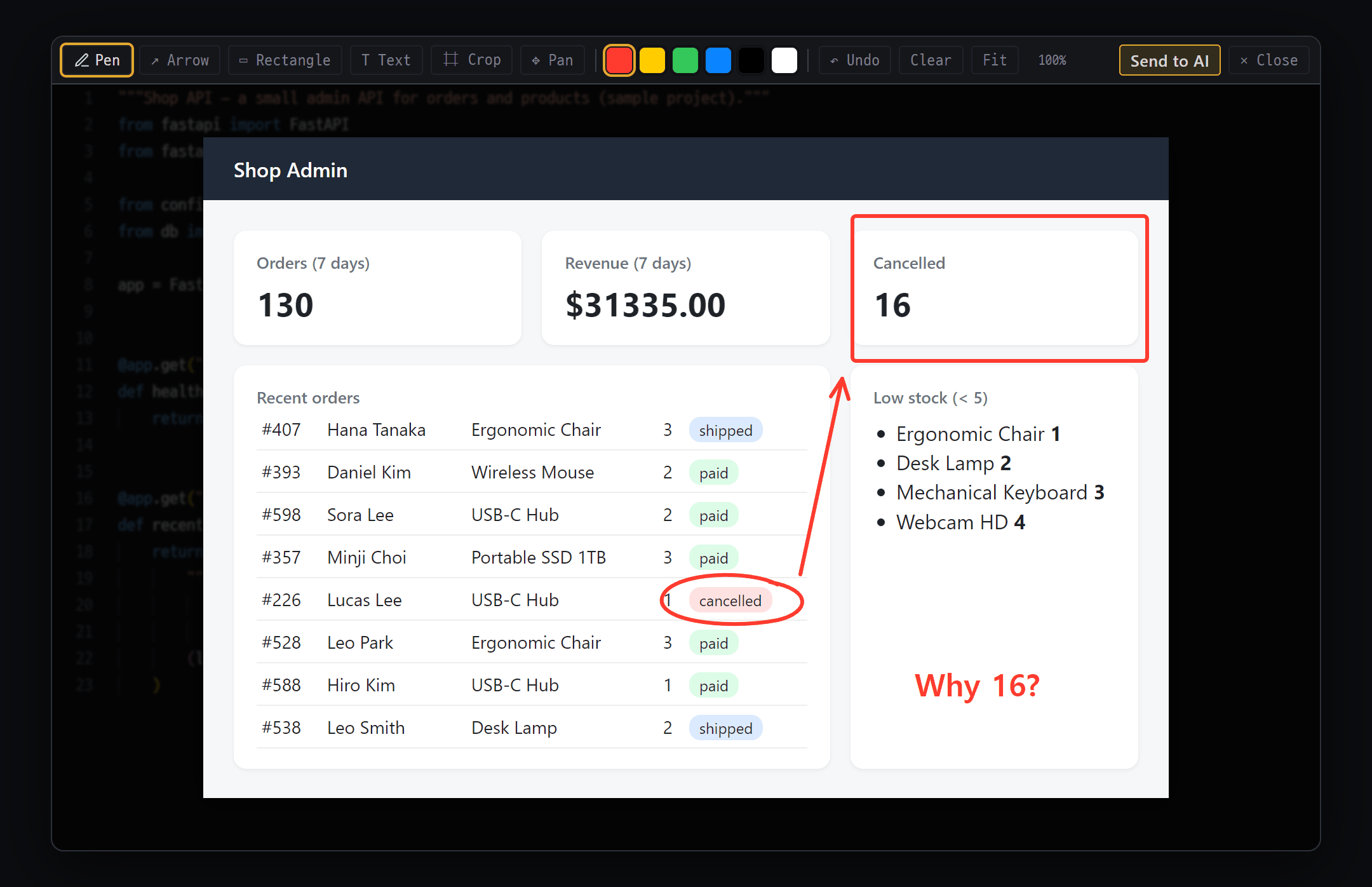
- Tools — Pen · ↗ Arrow · ▭ Rectangle · T Text · ⌗ Crop · ✥ Pan, 6 colors, ↶ Undo · Clear · Fit
- Mark up the capture — show the AI where to look with a drawing
- Send to AI — merges the picture and your marks into one image and attaches it to the AI chat input
| Button | What it does |
|---|---|
| Pen | Freehand drawing (default) |
| ↗ Arrow / ▭ Rectangle | Arrow / box outline |
| T Text | Adds text where you click (confirm with Enter) |
| ⌗ Crop | Keeps only the area you drag |
| ✥ Move | Moves a zoomed-in view (Space+drag also works) |
| 6 colors | Red (default) · yellow · green · blue · black · white |
| ↶ Undo / Clear | Undo one step (up to the last 40 steps) / clear all markings |
| Fit | Fit to the screen (zoom from 10% to 800% with Ctrl+wheel) |
| Send to AI | Merges the image and markings into one image and attaches it to AI chat |
| ✕ Close | Closes without sending |
- The editor has no button to save to a file or copy to the clipboard. Captured images only go out as AI chat attachments.
- The editor doesn’t close with
Esc. Click ✕ Close. - Capture in the desktop mirror and capture in the web preview use the same editor.
Q. WinRM says “Could not connect” (trusted list). Click Add to this PC’s trusted hosts (admin) in the box → Yes in UAC. It reconnects by itself.
Q. WinRM says “WinRM is not responding”.
Check that Enable-PSRemoting -Force (Copy command in the box) was run on the other PC, and that 5985/5986 are open in the firewall.
Q. A WinRM command never finishes.
Click ■ Stop (Ctrl+C). The command on the remote PC stops too, and the connection stays.
Q. WinRM doesn’t work on my Mac. WinRM only works in Blyck for Windows.
Q. Mac Screen Sharing (VNC) keeps failing authentication. Mac Screen Sharing signs in with a Mac account. Enter the Mac account name in Username and the Mac login password as the password, and allow the account in the Mac’s System Settings → General → Sharing → Screen Sharing.
Q. VNC text is too small.
Zoom in with + or Ctrl+wheel, then drag with the wheel button to move around.
Q. VNC file transfer doesn’t work (“Server does not support Tight Security(16)”). It’s not a TightVNC 2.x server. Use a TightVNC 2.x server.
Q. (Mac) When I try to capture, a “Screen Recording permission required” window appears.
Click Open Screen Recording settings ↗ → turn on Blyck in the list and restart Blyck. If the same window still appears after an app update even though the permission is on, turn the Blyck toggle off and on again, quit completely with Cmd+Q, and launch it again.