
Other PCs · Phone
This feature lets you pair with another PC running Blyck so that from this PC you can view its AI chats, talk to them directly, press approval cards, and hand work to that PC’s AI. You can also view, talk and approve from the phone app (coming soon). (Pro)
For example, from the laptop you use when you’re out, you can carry on with an AI chat you left open on your home PC (or Mac mini).
| Term used on this page | Meaning |
|---|---|
| Receiving PC | The PC where the chat actually runs (e.g. your home PC). You turn on “Allow connections” here |
| Connecting PC | The PC that looks into and uses another PC’s chats (e.g. your laptop) |
| Pairing | Registering the two devices with each other, once, the first time. Done with a 6-digit pairing code |
| Permission level | ”How much is allowed,” set by the receiving PC for each device (levels 1–4) |
What you can and can’t do
Section titled “What you can and can’t do”| Task | Permission level needed |
|---|---|
| See the list of AI chats open on the other PC | Level 1 |
| Hand work to the other PC’s AI and get a reply (including file attachments) | Level 1 |
| Watch the other chat live (read only), see images in the chat | Level 2 |
| Talk directly · stop an answer · allow/reject approval cards | Level 3 |
| Change model · reasoning effort · mode | Level 4 |
What no level allows: creating or deleting chats; handling the other PC’s terminal, SSH, DB, editor or files; changing the other PC’s Blyck settings or permissions. If you need something like that, ask that chat’s AI in the remote chat window. Even then, it goes through that chat’s mode and approval cards as usual.
Setup: install Tailscale (every device)
Section titled “Setup: install Tailscale (every device)”Tailscale is a free program that securely links only your own devices together (think of it as building your own private tunnel over the internet). It lets devices reach each other even if your home PC is behind a router or your laptop is on café Wi-Fi, and it encrypts everything that passes between them.
For safety, Blyck accepts connections only from Tailscale addresses (starting with 100.). So you need Tailscale even on the same home Wi-Fi. Tailscale is not included in Blyck, so install it separately on each device.
- Install Tailscale on both PCs (and on the phone you’ll use the phone app on) from the official Tailscale website.
- Sign in with the same Tailscale account on every device.
- Check that Tailscale is on (connected).
Remote access settings screen
Section titled “Remote access settings screen”Where to open it — ⋯ at the top right of the AI chat panel → Chat settings → 🌐 Remote access in the left menu. These settings apply to the whole PC.
| Card | Contents |
|---|---|
| ① This device | Allow other PCs to connect to this Blyck (off by default), status line, Device name, [Create pairing code], Hide this chat (“title”) from other PCs |
| ② Add another PC | Enter the other PC’s address and 6-digit pairing code, then [Connect] |
| ③ Connected devices | List of paired devices. For each device: Permission for this device, Allow switching to Auto mode remotely, [Check connection] · [Chats] · [Disconnect] |
| Status line | Meaning |
|---|---|
| Off. | Allow connections is off |
| Accepting connections — 100.x.x.x:47820 | Normal. Give this address to the other device |
| No Tailscale address found. … | Tailscale is off or not signed in (retried every minute) |
| Port {number} is used by another program. | Another program is using the same port number |
Pairing (once, the first time)
Section titled “Pairing (once, the first time)”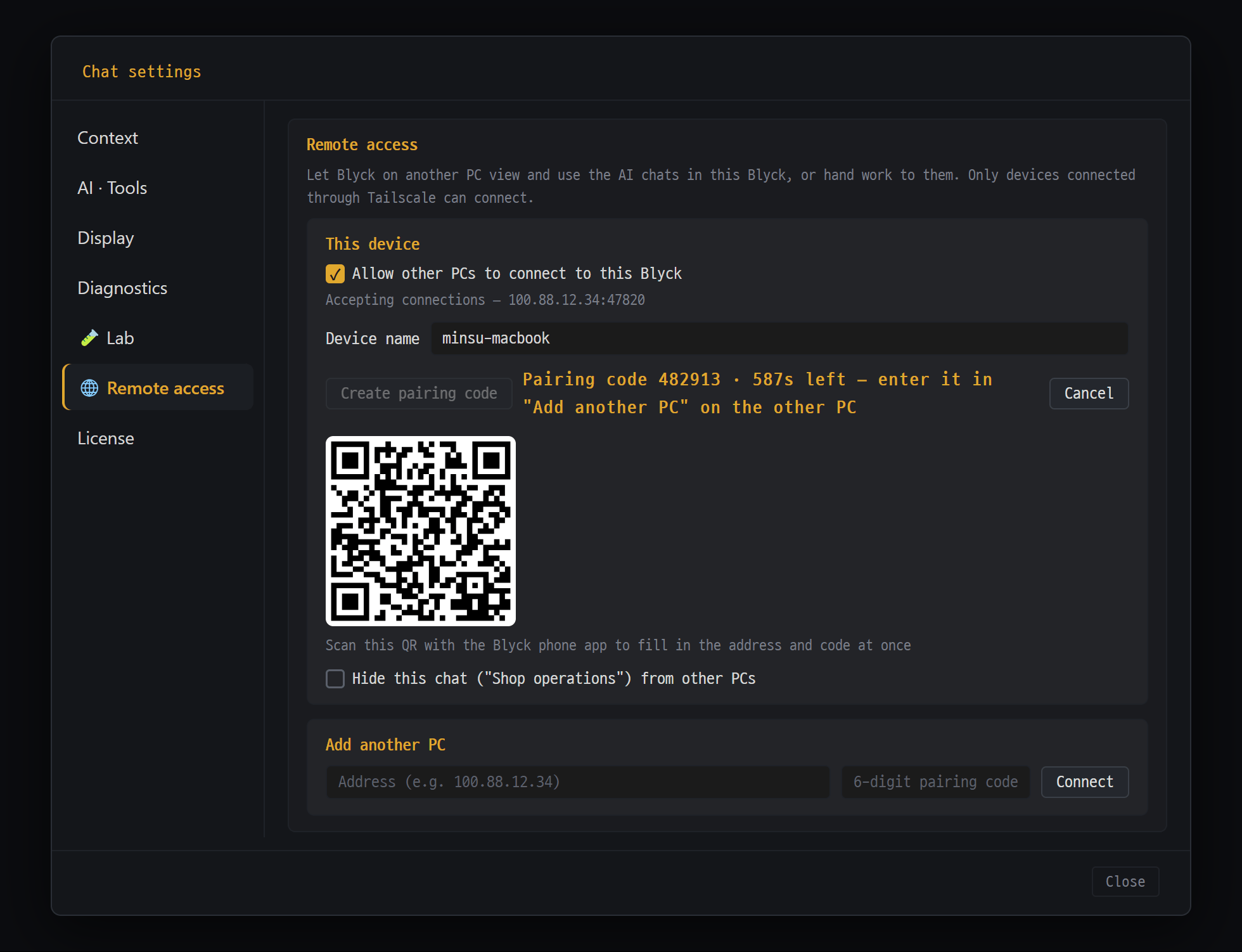
- Turn on "Allow other PCs to connect to this Blyck" and "Accepting connections — address" appears (Tailscale required)
- [Create pairing code] — the 6-digit code works for 10 minutes, one time only
- Scan this QR with the Blyck phone app to fill in the address and code in one go
- Add another PC — enter the other PC's address and code, then [Connect]
On the receiving PC (e.g. home PC)
- Open ⋯ → Chat settings → 🌐 Remote access.
- Turn on Allow other PCs to connect to this Blyck.
- When the status line changes to Accepting connections — 100.x.x.x:47820, note down this address.
- Press [Create pairing code]. A 6-digit code, the time left and a QR for phones appear.
On the connecting PC (e.g. laptop) 5. Open the same screen, enter the address from step 3 and the code from step 4 in Add another PC, and press [Connect]. 6. If “Connected to {name}. …” appears, it worked.
Back on the receiving PC 7. Find the laptop in Connected devices and raise Permission for this device to the level you want. It starts at level 1, which can’t see chat contents.
- A pairing code can be used for 10 minutes, once. After 5 wrong tries it’s discarded, so make a new one.
- After pairing, both sides set each other to level 1. Each side raises permissions only in front of its own PC.
- If you only want to view, talk and approve, the connecting PC doesn’t need Allow connections turned on. Turn it on only when the other AI should send replies to this PC, or when you use the mail PC-in-charge feature.
Permission levels
Section titled “Permission levels”| Level | What it allows |
|---|---|
| 1. Delegate | Send work to the other AI and get replies. Only the chat list is visible |
| 2. View | 1 + watch whole chats live (read only), images in chats |
| 3. Use | 2 + talk directly, stop, approve |
| 4. Settings | 3 + change model, reasoning effort, mode |
- Even at level 4, the other side can switch to 🚀 Auto mode only if Allow switching to Auto mode remotely is on (off by default).
- Hiding just one chat: in the chat you want to hide, ⋯ → Chat settings → 🌐 Remote access → Hide this chat (“title”) from other PCs. That chat is then not visible to any device.
- Permissions are checked by the receiving PC itself on every request.
Viewing and using another PC’s chats — the remote chat window
Section titled “Viewing and using another PC’s chats — the remote chat window”This window shows another PC’s AI chat as is, in a panel on this PC. It looks the same as a normal AI chat.
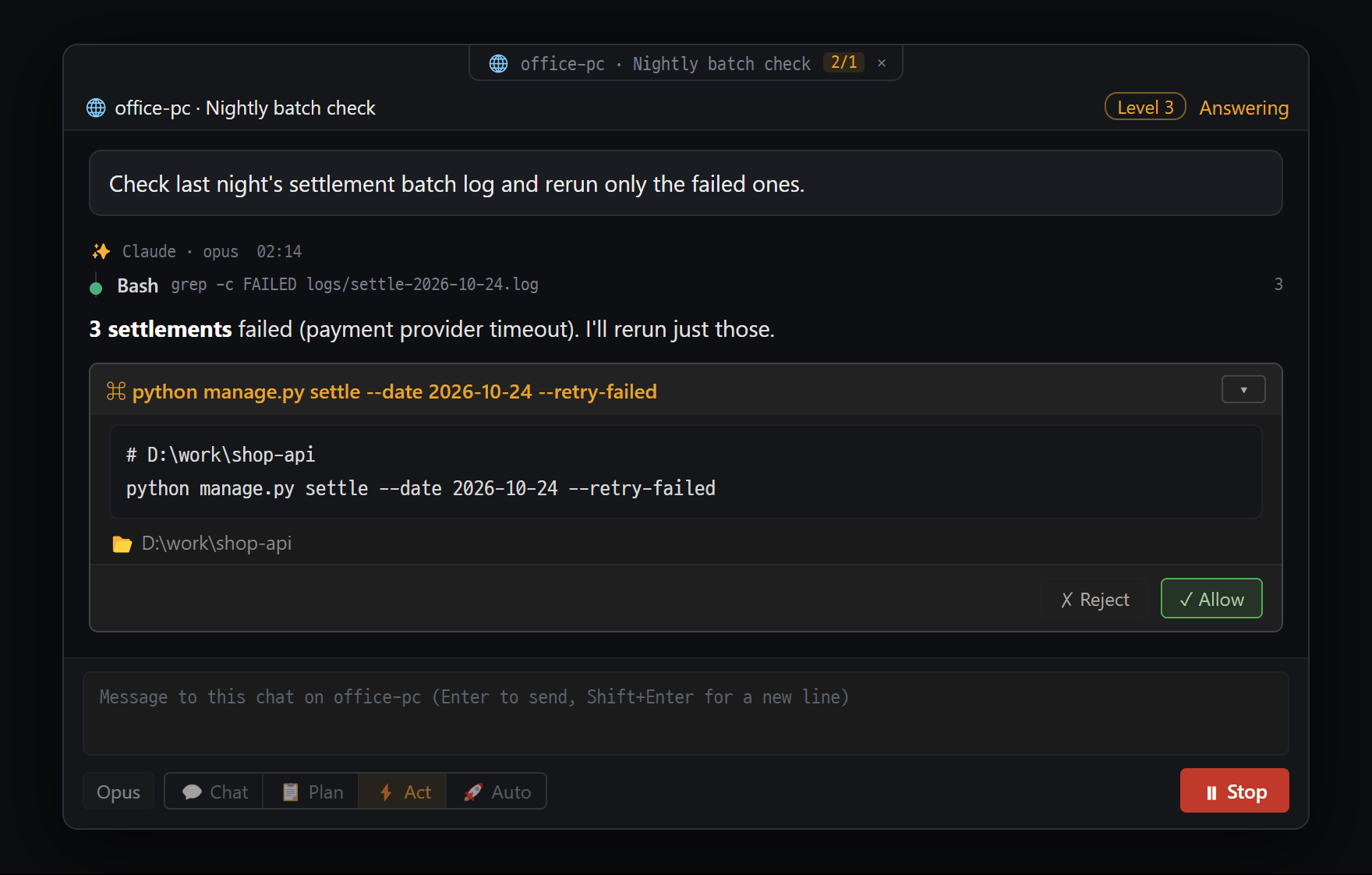
- The pane label reads "🌐 device · chat title" — showing it's another PC's chat
- The "Level N" the other PC gave this device, and its current state (Answering / Idle)
- Approval cards come through too — from level 3 (Use) you can ✓ Allow / ✗ Reject on this PC
- Talk to the other PC's AI directly in the input. Changing model and mode needs level 4
Where to open it — ⋯ → Chat settings → 🌐 Remote access → Connected devices → [Chats] → [Open], or the 🌐 Remote teammates row in the Agent Board. When you restart the app, remote chat windows you had open reopen too.
- The panel is named 🌐 {device name} · {chat title}, and its header shows Level N and the status (Answering / Idle / Not connected — retrying).
- Talk (level 3): type in the input box and press
Enter. If the other side is answering, it’s sent automatically when it finishes. In the remote chat window you can send text only. - Stop (level 3): while the other side is answering, Send changes to ⏸ Stop.
- Approval cards (level 3): the same cards as in a normal chat — ✓ Allow / ✓ Apply / ✗ Reject. Whichever is pressed first, here or by the person at the other PC, takes effect.
- Change model · mode (level 4): the model button and mode button below the input box.
- The remote chat window doesn’t receive the AI’s thinking process and shows only the 60 most recent messages.
What the receiving PC sees — When another device views a chat, sends a message or approves something, a notice like ”🌐 {device} sent a message to “{title}"" appears at the bottom of the screen for 3 seconds. Who did what is also kept in the activity log.
Handing work to another PC’s AI
Section titled “Handing work to another PC’s AI”Just as AIs pass work to each other in the Agent Board (beta), you can also hand work to another PC’s AI chat and get a reply.
- Pair the two PCs (level 1 is enough).
- Open the Agent Board on the PC handing over the work. A 🌐 Remote teammates row appears on the board with “{device} · {chat title}” buttons.
- To receive replies, also turn on Allow connections on the PC handing over the work.
- Ask from an AI chat inside the board. For example: “Ask the ‘Mac build’ chat on my home PC to run the build and bring back the result.”
- The work goes into that chat on the receiving PC, and when it’s done the reply comes back into the chat that handed it over.
- The receiving chat’s mode and approval cards apply as usual.
- If the PC that handed over the work is off when the reply is sent, the reply isn’t thrown away; it’s kept and sent once connected (for 24 hours).
- To stop endless back-and-forth, the loop guard applies to remote work exactly the same way.
Sending files
Section titled “Sending files”When the AI hands over work or replies, it can send the files themselves along with it. They’re attached to the receiving chat just like attachments you add yourself. If you need a file from the other PC, ask its AI to “attach it to the reply” (there’s no way to pull the other PC’s files directly).
| Rule | Value |
|---|---|
| Files per send | Up to 10 |
| One file | Up to 20MB |
| Total per send | Up to 50MB |
| Keeping received files | The receiving PC’s attachments folder, cleaned up automatically after 30 days |
Secret files that are always blocked: files inside folders like .ssh, .aws, .kube, .docker; .env (sample files such as .env.example are allowed); SSH keys like id_rsa; key files like .pem, .key, .p12, .pfx.
Phone app (coming soon)
Section titled “Phone app (coming soon)”The Blyck phone app is a remote-control app for viewing, talking to and pressing approval cards on your PC Blyck’s AI chats from your phone. When you’re out, you can see how far the AI running on your home PC has gotten, send a quick “keep going”, or give permission to run commands and change files right from your phone.
The phone connects to the PC’s remote access as a “connecting device.” So pairing, permission levels and security rules are the same as for other PCs.
What you need
Section titled “What you need”| Item | Details |
|---|---|
| PC Blyck | The PC the phone connects to is on Pro (or in its trial) |
| Allow connections on the PC | On the PC, ⋯ → Chat settings → 🌐 Remote access → turn on Allow other PCs to connect to this Blyck |
| Tailscale on the phone | Install the Tailscale app on the phone too, sign in with the same account as the PC, and keep it on |
| PC Blyck must be running | If the PC is off, the phone can’t reach it |
Pairing — with a QR code
Section titled “Pairing — with a QR code”- On the PC, ⋯ → Chat settings → 🌐 Remote access → [Create pairing code]. A QR appears below the code.
- The first time you open the phone app, the Add device screen appears. Press [Scan the QR on the PC screen] and point it at the QR on the PC screen.
- The address and code are filled in at once and pairing happens right away. If the QR doesn’t work, enter the PC address and 6-digit code under Or enter it yourself and press [Pair].
- Raise the permission in front of the PC (required). 📱 {phone name} appears in the PC’s Connected devices. It starts at level 1, so only the chat list is visible. Usually raise it to 3. Use (talk, stop, approve), or to 4. Settings if you also want to change model and mode.
Screens — 3 tabs at the bottom
Section titled “Screens — 3 tabs at the bottom”| Tab | What it does |
|---|---|
| 💬 Chat | List of AI chats open on the chosen PC → open a chat. With several PCs, pick one with the PC name ▾ at the top left |
| 🔔 Approvals | Allow or reject pending approval cards from all paired PCs in one place |
| ⚙ Settings | Connected PCs, this phone’s name, security (Face ID), language |
Viewing chats — Chats look the same as the PC’s Clean layout. Tables, tool flow, images in the chat (tap to enlarge), the 📋 progress bar and the 🔄 background task bar are shown too.
- Talk (level 3): type in the input box at the bottom and tap the gold ↑ (the keyboard’s return key only adds a new line).
- Send photos (level 3): 📎 → 🖼️ photo library (up to 10) or 📷 camera. You can’t send photos alone; you must write some text with them.
- Stop (level 3): ⏹ at the top right.
- Change model · mode (level 4): the model button and the 💬📋⚡🚀 buttons above the input box.
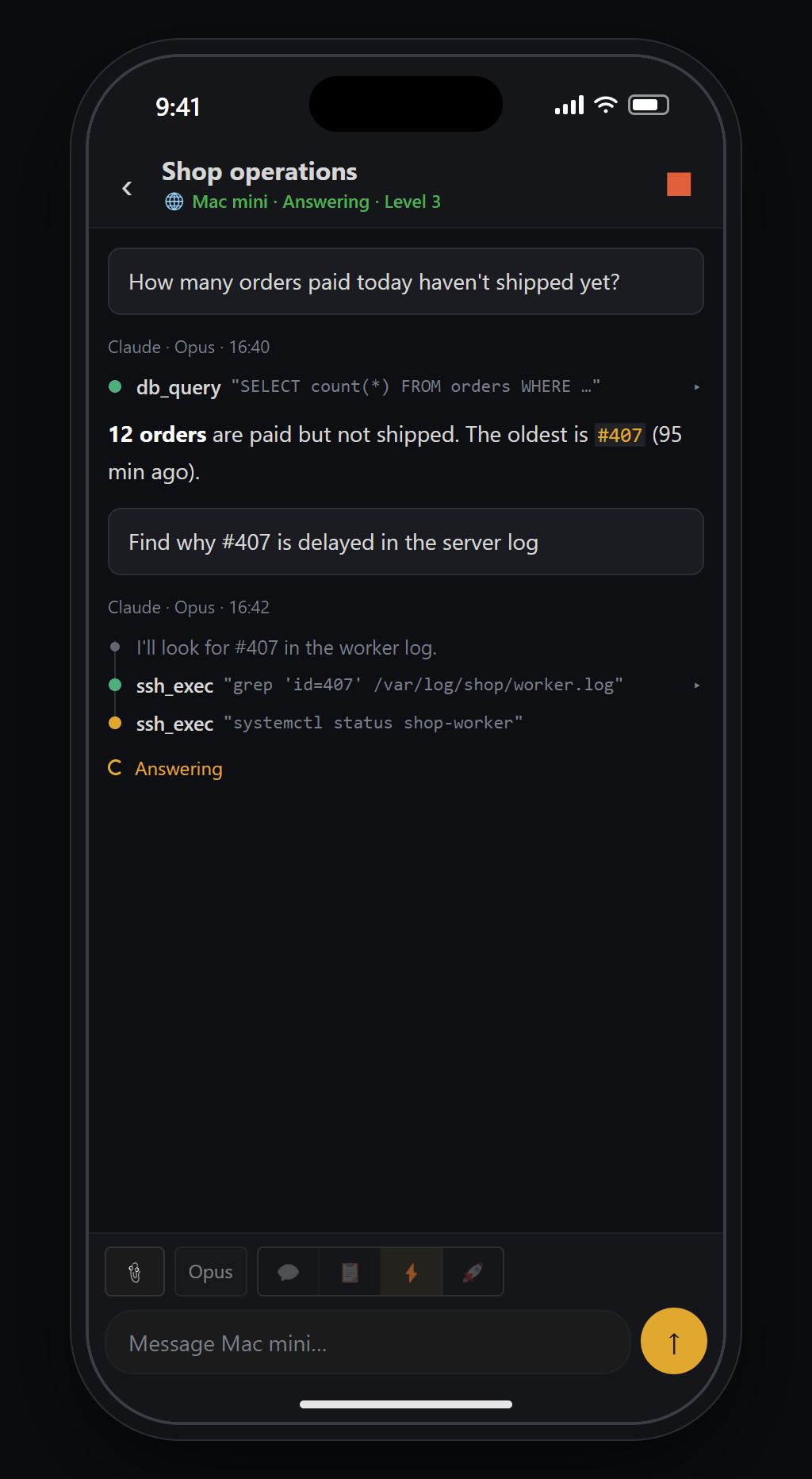
- Under the title: "🌐 PC name · Answering · Level N"
- ⏹ — stops the PC's AI from your phone while it's answering
- Tool steps and the answer fill in live, looking just like on the PC
- Give instructions right in "Message {PC name}…". Send photos with 📎 too. Model and mode can be changed from level 4
🔔 Approvals tab
- Expand a card to check the command or the changes.
- Tap ✓ Allow (or ✓ Apply) and a Face ID (fingerprint) check appears once. Once confirmed, it’s sent to the PC. ✗ Reject is sent immediately without a check.
- Handled cards leave the list, and the PC screen shows a notice: ”🌐 {phone name} allowed an approval request in “{title}"".
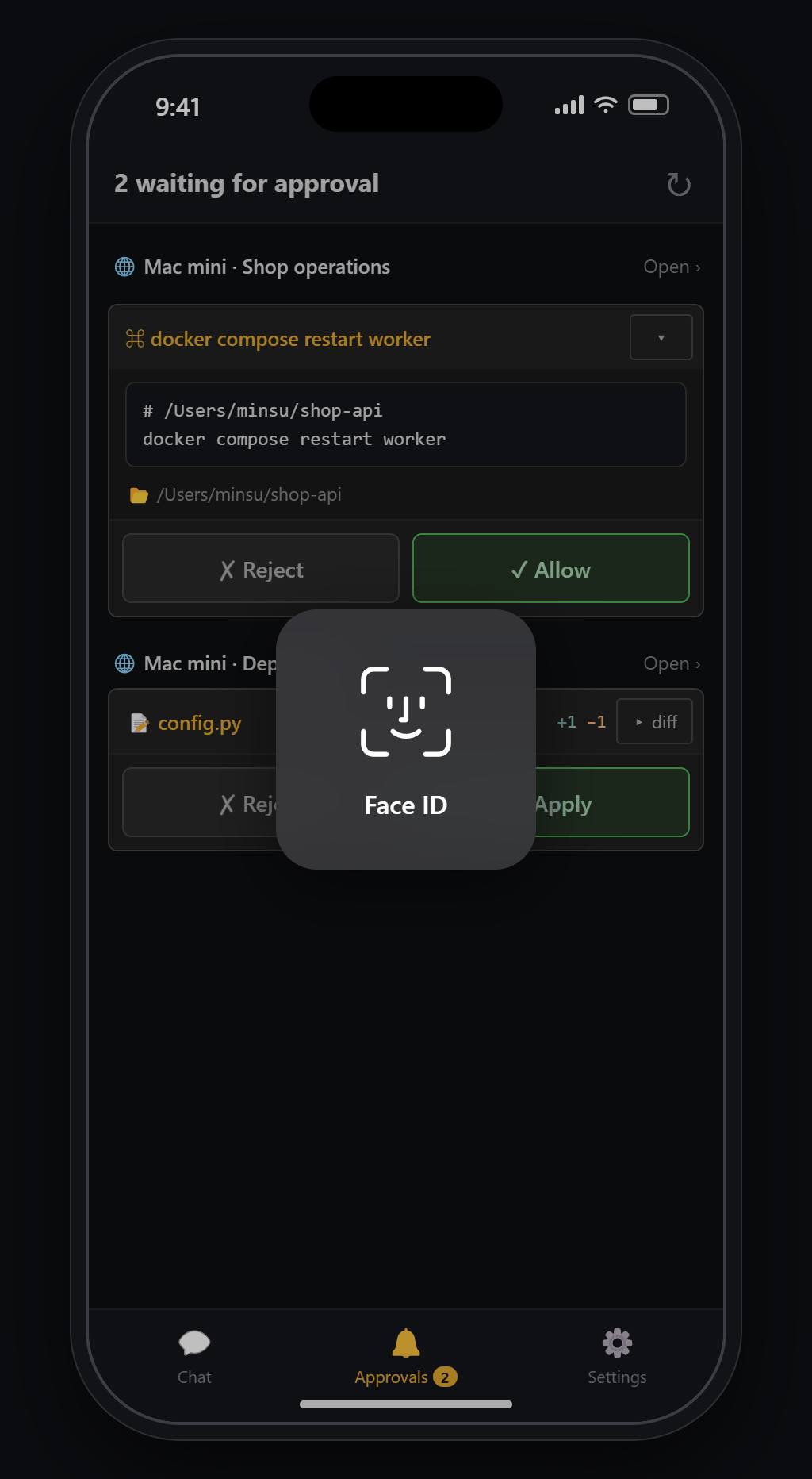
- Pending approvals from several PCs, grouped by chat. "Open ›" takes you to that chat
- [✗ Reject] / [✓ Allow] right on the card. Commands show the working folder and the full command; file changes expand with "▸ diff"
- Tapping ✓ Allow or ✓ Apply asks for Face ID once more (Settings › Security › "Use Face ID to allow", on by default)
- Bottom tabs: Chat · Approvals (pending count) · Settings
⚙ Settings tab — Security
| Item | What it does | Default |
|---|---|---|
| Use Face ID to allow | Asks you to confirm it’s you once more when you tap ✓ Allow on an approval card | On |
| Use Face ID to open the app | Locks the app when you open it or come back after more than 30 seconds in another app | Off |
- Both items also ask you to confirm it’s you when turning them off. This is so that someone who picks up your unlocked phone can’t turn off the check and approve things.
- 7 display languages (Use phone language / 한국어 / English / 日本語 / 简体中文 / 繁體中文 / Español / Deutsch).
Things to know about the phone app
Section titled “Things to know about the phone app”- The phone only views, talks and approves. The PC’s AI can’t hand work to the phone.
- Only chats open as panels on the PC are visible. Keep the chats you want to see on your phone open on the PC.
- Pairing information is kept in the phone’s locked storage (iPhone Keychain, this device only). Chat contents and images are not stored.
- If you lose your phone, press [Disconnect] on that 📱 row on the PC. From that moment on, all requests from that phone are refused.
Security — what is and isn’t sent
Section titled “Security — what is and isn’t sent”| Protection | Details |
|---|---|
| Off by default | No one can get in until you turn on Allow connections |
| Tailscale addresses only | Connections aren’t accepted from router-internal or internet addresses |
| Paired devices only | Only devices paired with a 6-digit, 10-minute, single-use code |
| Every request is signed | Signed with a per-device key created at pairing; altered or forged requests are refused |
| The receiving PC checks permissions every time | Refused if the level isn’t high enough |
| Approval cards stay | Work requested remotely still goes through that chat’s mode and approval cards |
- What is sent: the chat list; the text, tool summaries and approval card contents of the 60 most recent messages; images in the requested chat; handover and reply text, and attachments added by the AI.
- What isn’t sent: the AI’s thinking process, the contents and paths of message attachments, files not shown in the chat, terminal/SSH/DB/editor contents, connection passwords, the license, Blyck settings, hidden chats.
- Nothing passes through Blyck’s servers along the way.
Features that are easy to confuse
Section titled “Features that are easy to confuse”| Feature | What it does |
|---|---|
| Remote access (this page) | View, use and hand work to AI chats running right now on another PC, in real time. The other Blyck must be running |
| Chat sync (Backup · Chat Sync) | Keeps chat history files in step between devices through a shared folder. Works even if the other device is off; no live control |
| Remote desktop · Windows servers (Remote desktop) | Controls another computer’s screen or command window itself. Works on computers without Blyck too |
| Remote project folder (AI Chat) | Sets an AI chat’s working folder to a folder on an SSH server |
Troubleshooting
Section titled “Troubleshooting”What to check when it can’t connect (in order)
- Is the other PC on and is Blyck running?
- Is Allow connections on in the other Blyck, and does its status line say “Accepting connections”?
- Is Tailscale on, with the same account, on every device? (Phones often have Tailscale turned off, so check this first)
- Is the address you entered the same as the one on the other side’s status line?
- Is company security software or a firewall blocking it?
| Message on screen | Cause | Fix |
|---|---|---|
| No Tailscale address found. | Tailscale off or not signed in | Turn on Tailscale and sign in (retried automatically within a minute) |
| [Create pairing code] can’t be pressed / Turn on “Allow other PCs to connect” first. | Allow connections is off | Turn on Allow connections and check the status line |
| The pairing code expired. / The pairing code is wrong. | 10 minutes passed / entered wrong | Create a new code on the other side |
| Cannot reach the other PC. / Can’t reach the PC. | See “can’t connect” above | Check in the order above |
| The Blyck license on {device} is not activated, so it cannot be used remotely. | The receiving PC is neither on Pro nor in its trial | Start Pro on the receiving PC |
| Remote access is part of Pro. | This PC isn’t on Pro | Start ✨ Pro on this PC |
| This device has level 1 permission, so it cannot view the conversation. | Level 1 | Raise it to level 2 or higher on the receiving PC |
| View only (level 2) — … | Level 2 | To talk, raise it to level 3 on the receiving PC |
| This chat was closed on {device} or hidden from other PCs. | The panel was closed or hiding turned on at the receiving PC | Reopen the chat on the receiving PC or turn hiding off |
| The other PC does not know this device. / This PC doesn’t know this phone. | One side disconnected | Disconnect on both sides and pair again |
| Your phone’s time is more than 5 minutes off from the PC. / Failed (clock). | A clock is more than 5 minutes off | Turn on automatic time on both sides |
| No reply to handed-over work | Allow connections is off on the PC that handed it over | Turn on Allow connections on that PC too (replies are kept for 24 hours) |
The phone won’t scan the QR The QR is shown only while the code is alive, for 10 minutes. If you close and reopen the settings window, the QR is gone, so press [Cancel] and then [Create pairing code] again. If it still doesn’t work, enter the address and code under Or enter it yourself.
The phone has no input box and only shows “View only (level 2)…” / there are no approval buttons On the PC, raise that 📱 row’s permission to 3. Use. The phone follows within a few seconds.
Do I need Tailscale even in the same home (on the same router)? Yes. Blyck accepts connections only from Tailscale addresses.
I only want to view my home PC’s chats from the laptop. Does the laptop need Allow connections on too? No. Only the home PC does. The laptop needs it only to receive replies or to use the mail PC-in-charge feature.
Can I view any chat on the other PC? Only AI chats open as panels on the other PC are visible. Chats with “Hide from other PCs” turned on aren’t visible.
If I approve remotely, does the person at the other PC know? Yes. A notice appears on the other PC’s screen, and the card in that chat also changes to handled.
Do I have to buy Pro for the phone app too? The phone app has no payment or license. It’s enough that the PC Blyck the phone connects to is on Pro (or in its trial).
Where do I get the phone app? It’s not on the stores yet. It’s planned to be released soon.