
Code Editor
Blyck’s code editor is built on the Monaco engine (the code-editing component made by Microsoft), the same one VS Code uses. You can fix files you opened from the file tree or terminal right where they are, save them, run them, and ask the AI to fix them.
Opening files
Section titled “Opening files”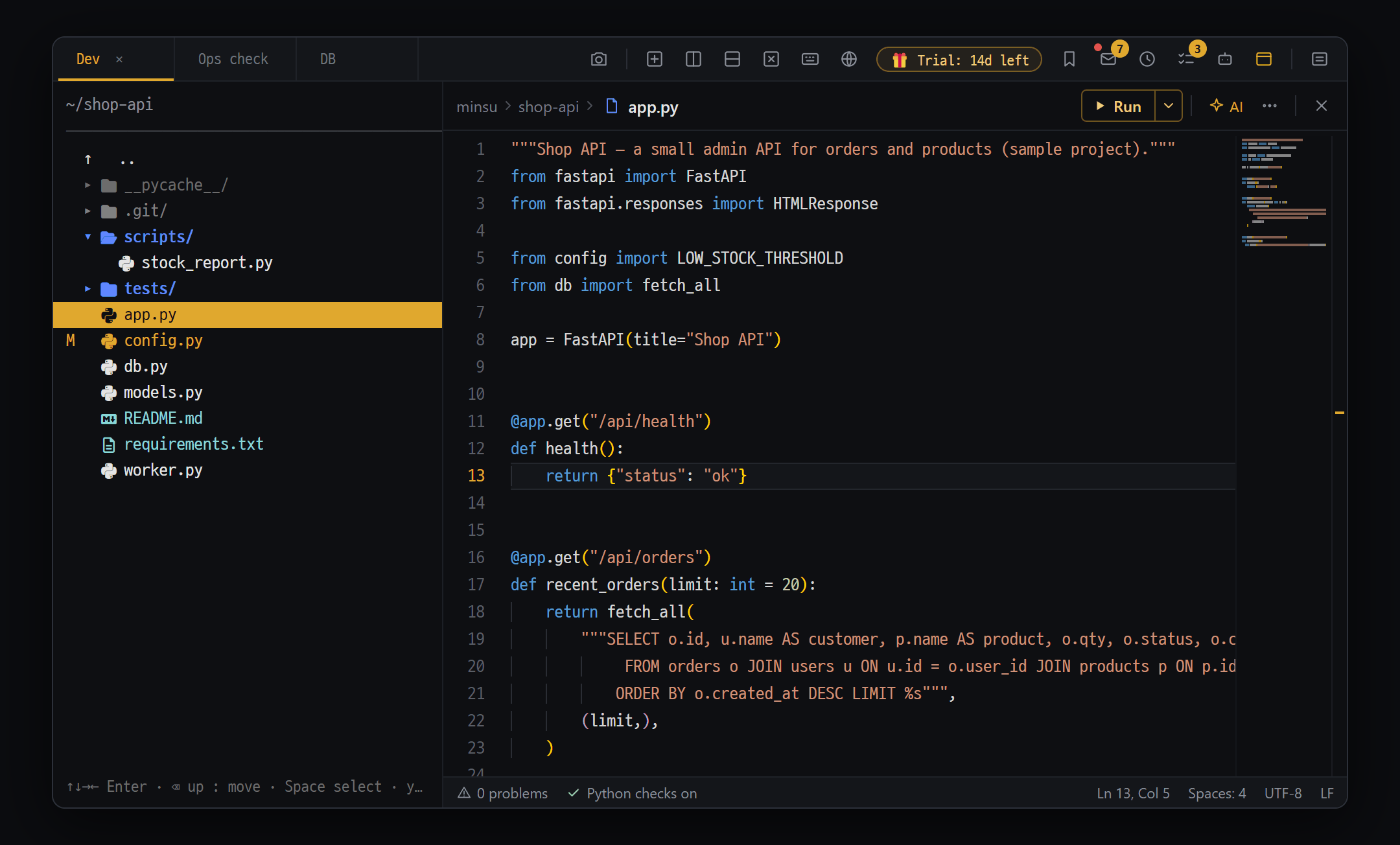
- File tree — Enter expands/collapses folders (▾/▸) and opens files in the code editor (Esc takes you back to the tree)
- Editor header — folder › file name on the left, ▶ Run ▾ · AI · ⋯ · × on the right. The status bar at the bottom shows problems · Python checks · line and column
- Git marks — edited files get an M on the left and the whole row turns yellow
The editor opens as a new sub-tab of the panel you started from (tree or terminal). The original screen stays where it was, and Esc takes you back.
| Way | How |
|---|---|
| File tree | Double-click a file, or select its row and press Enter (works in both local and SFTP trees) |
| Terminal output | Double-click a file name printed by ls and similar commands |
edit command | Type edit filename in the terminal. If the file doesn’t exist, an empty editor opens and the file is created when you save |
| Empty new file | Type just edit in the terminal (an untitled file) |
| AI chat code block | [📝 Editor] / [📝 New editor] under the code block |
| Search results | Click a result row from folder search (Ctrl+Shift+G) |
File size and type
Section titled “File size and type”| File | What happens |
|---|---|
| Text/code up to 2MB | Edit freely |
| 2MB – 32MB | Opens read-only ((read-only) after the file name) |
| Over 32MB | Only the first 32MB is shown, read-only |
| Images (up to 12MB) · PDF | Blyck’s built-in viewer |
| Office files · spreadsheets · archives | Your computer’s default program |
Pressing n (new file) in the file tree only creates an empty file on disk. Double-click the new file to open it.
Saving and closing
Section titled “Saving and closing”- When you make changes, a gold dot and [Save] appear after the file name in the header row (not saved).
- Press
Ctrl+Sor [Save] in the header row. A “Saved — {file name}” notice appears. - Press
Esc(or the × at the right end of the header row) to close and go back to the original screen. If you haven’t saved, it asks first.
- Saving records the change in change history (except files over 1MB).
- When you restart the app, tabs for locally saved files reopen (with the content on disk). Remote files and untitled files do not reopen.
Editor header and status bar
Section titled “Editor header and status bar”| Spot | What it does | Shown when |
|---|---|---|
| folder › file name | Where the file is and which file. Hover for the full path | Always |
| Gold dot · [Save] | You have unsaved edits — click to save (Ctrl+S) | After you edit |
| ▶ Run ▾ | Run (Ctrl+F5, Run · Preview). Debug (F5) from the ▾ | Locally saved files (▾ for Python · JavaScript) |
| +N −N | Lines changed since the last commit — click for the compare window | When a file in a Git repository has changed |
| Preview / Edit | Turn Markdown preview on and off | .md files |
| AI | Inline AI (Ctrl+I) (Pro) | When not read-only |
| ⋯ | Compare with last commit · DB for SQL in code · hide the minimap · show this file in the tree · copy path | Always |
| × | Close and go back to the original screen (Esc) | Always |
- Bars next to line numbers: green for lines added since the last commit, blue for changed lines, a red triangle where lines were deleted.
- Status bar at the bottom: N problems (click to go to the next one) · language checks on / starting / off (click “off” to turn them on again) · line and column · spaces · UTF-8 · line endings.
Markdown preview and comparing with the last commit
Section titled “Markdown preview and comparing with the last commit”- Press [Preview] and a
.mdfile turns into a formatted view. It shows the content at the moment you pressed it (it does not update live). Press [Edit] to go back. - Press +N −N in the header row or ⋯ → Compare with last commit and the Git diff — left: HEAD · right: current window opens. The left side is the last commit; the right side is the current editor content (including unsaved parts).
Find · Replace
Section titled “Find · Replace”Inside a file
Section titled “Inside a file”| Shortcut | What it does |
|---|---|
Ctrl+F | Find in this file |
Ctrl+H | Find and replace |
Ctrl+G | Go to line number |
Folder-wide search · replace (Ctrl+Shift+G)
Section titled “Folder-wide search · replace (Ctrl+Shift+G)”Find and replace text across many files at once. Works for both local folders and remote (SFTP·SSH) folders.
Where to open it: press Ctrl+Shift+G while a file tree or terminal is selected (it doesn’t work inside the editor), or Command Palette → Search text in folder.
Where it searches: from a file tree, the items you picked with Space, or else the folder of the tree’s top path (the folder of the file you picked, or the folder you picked). From a terminal, the terminal’s current folder.
- Type the text to find and press
Enter. Results appear asfile:line content. Click a row to open that line in the editor. - To replace, type the new text in the second box. Each row shows a preview of how it will look after the change.
- Use the checkboxes to pick the rows to change, then press [Replace selected] or [Replace all].
- In the confirmation window, check “{n} file(s) · ~{n} occurrence(s)” and press [Replace].
- Search is a case-insensitive, plain-text match. There are no options such as regular expressions.
- Results appear as they are found, and you can click a line to open it meanwhile. ■ Stop ends the search and keeps what was found. Results are capped at 500, and both local and remote searches show what they found so far after 5 minutes. The replace buttons are disabled while searching.
- Searching uses the fast search tool built into Blyck (ripgrep), and files directly in the current folder come first. Folders such as
node_modules,.git,dist,build, files over 50MB, and binary files are skipped; text files saved as “Unicode” (UTF-16) in Notepad are found too. Remote searches use the server’srg(orgrep) with the same rules, and stopping also ends the search running on the server.
Language intelligence (LSP)
Section titled “Language intelligence (LSP)”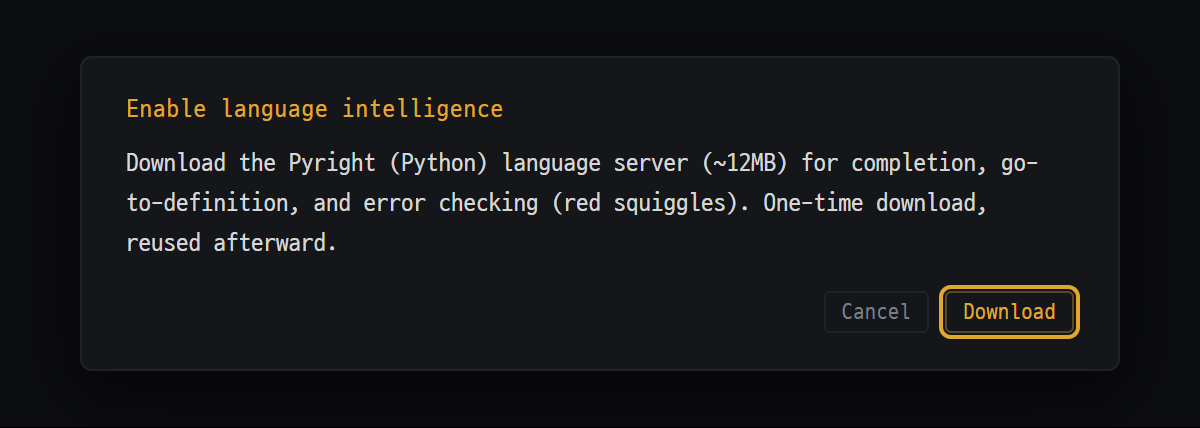
Language intelligence gives you autocomplete, hover info, red error underlines, and go to definition. Each language uses a language server (LSP — a small program dedicated to analyzing code) that you download once. It is free.
| Language | Language server | What installation needs |
|---|---|---|
| TypeScript / JavaScript | Built into the editor (no install) | Nothing |
| Python | Pyright | npm (Node.js) on your computer |
| Go | gopls | Go installed |
| C# | csharp-ls | .NET SDK installed |
| Rust | rust-analyzer | Nothing (downloaded from the internet) |
| C / C++ | clangd | Nothing (downloaded from the internet) |
| Lua | lua-language-server | Nothing (downloaded from the internet) |
| Shell · JSON · YAML | Bash · JSON · YAML language servers | npm on your computer |
The first time
Section titled “The first time”- Open a file in a supported language (a locally saved file).
- When the Enable language intelligence window appears, press [Download]. It installs in the background and turns on as soon as it’s done.
- It won’t ask again. If a language server is already on your computer, Blyck uses that one.
What works and what doesn’t
Section titled “What works and what doesn’t”- Works: autocomplete, hover info, red wavy error underlines, go to definition (
F12orCtrl+click — opens in a new tab if it’s another file), function parameter hints (when the server supports them). - Doesn’t work (downloaded language servers): rename everywhere, auto-format, find references, quick fixes. For TypeScript/JavaScript, these also work through the editor’s built-in features.
- For JavaScript, only syntax errors are shown.
- Untitled files have no language intelligence. Save first.
Remote file editing (SFTP)
Section titled “Remote file editing (SFTP)”Edit server files directly without downloading them. Double-click a file in the SFTP tree, or type edit filename in an SSH terminal. The tab label gets (remote), and pressing Ctrl+S overwrites the server file right away.
| Item | For remote files |
|---|---|
| Size | Same as local (edit up to 2MB) |
| ▶ Run · debug · compare with last commit | Not available (local only) |
| Language intelligence | Python (needs python3·pip3 on the server) + TypeScript/JavaScript |
| Change history | Recorded only up to 1MB |
| Changes made elsewhere | Edits by Blyck’s AI are caught right away; anything else is checked when you click back into the editor or save, and it asks first |
If “Save failed: no connection” appears when you save, the SFTP connection has dropped. Reconnect, then save (the editor content is still there).
Inline AI — Ctrl+I (Pro)
Section titled “Inline AI — Ctrl+I (Pro)”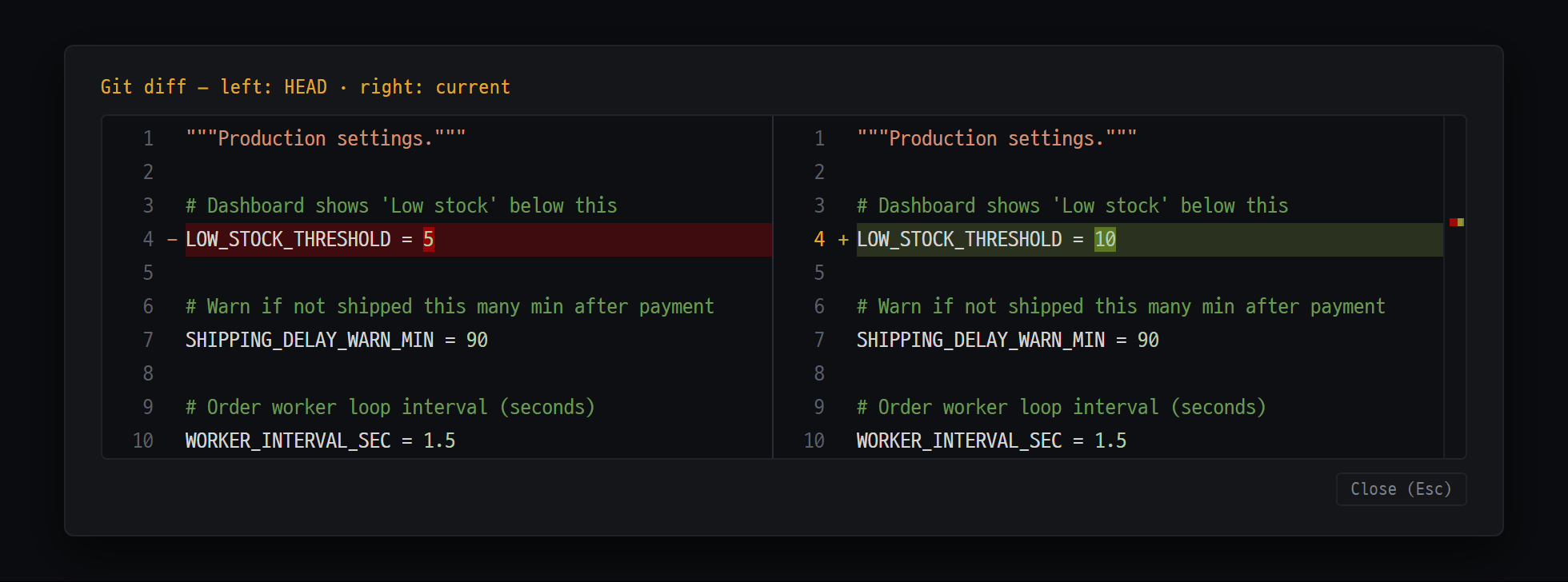
- Left (HEAD) — content of the last commit, changed lines in red
- Right (current) — what's in the editor now (including unsaved parts), changed lines in green
Ask the AI right inside the editor to “fix this part / explain this”. Changed lines are shown in place in green and red, and you decide whether to apply them.
- Select the code to fix. If nothing is selected, the whole file is used.
- Press
Ctrl+I(or AI in the header row) and a small box appears near the cursor. The top row has ✦ input · ↑ (send) · ×; the bottom row has the chips that go along (selected lines or the whole file · the last run error · squiggles) and the model name at the right end. Drop any chip with ×. - Type what to do and press
Enter(Shift+Enterfor a new line). For example: “add error handling”, “explain this code”. Click the model name to switch models. While sending, ■ Stop takes the place of ↑, so you can cancel, edit your request, and send again. - Only the changed lines are compared in place, and a small card right below shows one line on why and the changed-line count (+N −N) → Apply Tab · Discard Esc · Continue in chat (puts the request · original code · fixed code · why · what went along into the chat input). If you asked for an explanation, the code stays as is and the answer comes in a card; type in Ask a follow-up… at the bottom to ask again with the earlier question and answer sent along.
- At the end of an error line the reason shows faintly with ⚠, and Fix with AI appears on that line only when the cursor is in that error or the mouse is over it (so buttons don’t pile up on every error line). It is also on the ▶ Run result bar. Clicking it opens the box with “Fix this error” already filled in — no need to copy and paste the error.
- While the input box is open, the editor is briefly read-only (to protect the original).
- If the AI isn’t ready, the button looks dimmed, and pressing it takes you to the AI Readiness Wizard.
- It also works in the DB SQL editor. There it sends table info and the last error along, and only checks the fixed SQL’s syntax without running it (Databases).
SQL autocomplete inside code (DB link)
Section titled “SQL autocomplete inside code (DB link)”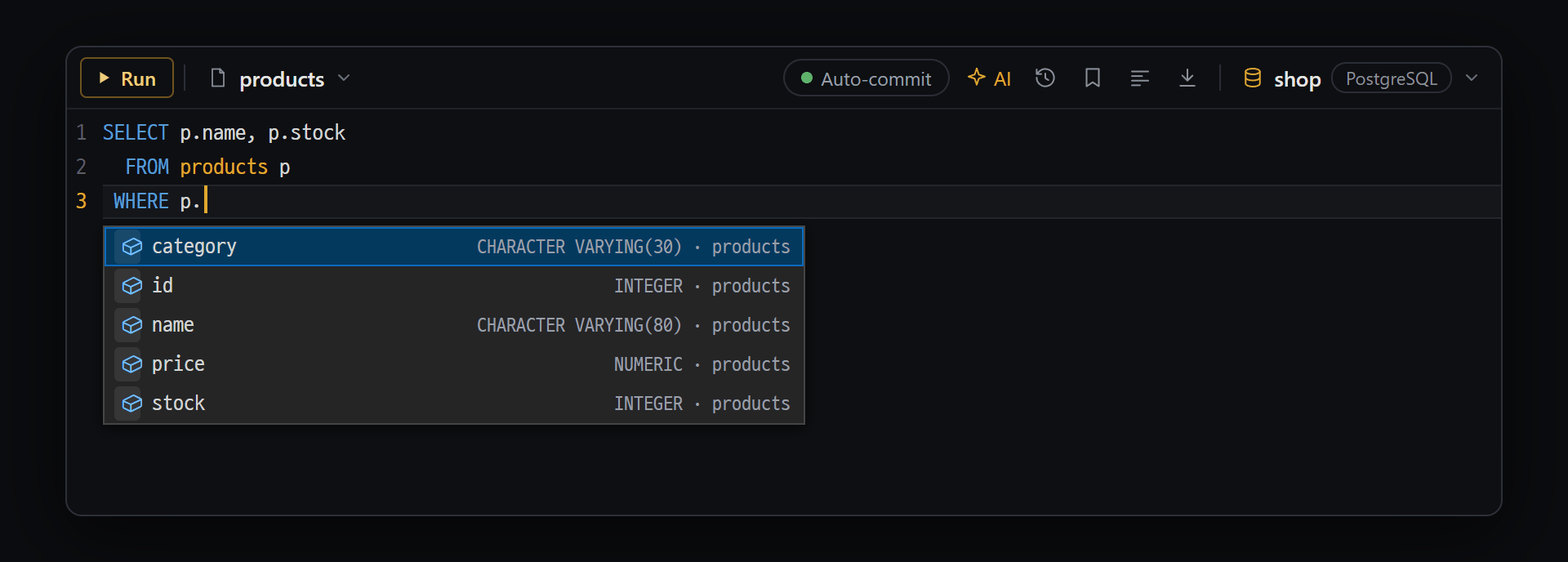
- Type a dot after an alias (p) to see only that table's columns — name · type · table name
SQL written inside code such as Python or Java also gets autocomplete with the real table and column names from your DB. It is free.
- First connect to the DB in the DB tree.
- In the editor header row, pick the connection under ⋯ → DB for SQL in code.
- Write SQL in your code and suggestions appear — tables and views after
FROM·JOIN·UPDATE·INTO, columns aftertable..
▶ Run (the small button above SQL)
Section titled “▶ Run (the small button above SQL)”▶ Run appears above SQL statements written without quotes. Press it and the SQL runs in a new SQL editor tab, showing a results table.
| SQL type | What happens |
|---|---|
Queries (SELECT·WITH) | Runs right away |
INSERT·MERGE, UPDATE·DELETE with WHERE | Confirm SQL execution window → [▶ Run] |
UPDATE·DELETE without WHERE | Same window, with a strong red warning |
- The DB link is not remembered. Pick it again when you reopen the editor.
- SQL inside strings (
cur.execute("SELECT …")) gets autocomplete only, with no ▶ Run. For.sqlfiles, use the DB SQL editor.
Other connected features
Section titled “Other connected features”Ctrl+L: attaches the current file as@filepathto Claude Code running in the terminal of the same tab. It types text into the terminal. The header-row button is gone — AI Chat already sees the open file, selected lines and cursor automatically.- Semantic code search preview: in files without language intelligence, hovering over a word of 3 or more characters shows up to 3 related results from unified search. Free.
- AI chat sees the editor: AI chat automatically sees the open editor’s file path, visible lines, and selection (AI Chat).
Editor settings
Section titled “Editor settings”- Font size:
Ctrl+=/Ctrl+-/Ctrl+0(default 14, range 10–40). The editor and the DB SQL editor share the same value, and it’s remembered. - There’s no separate editor settings screen. It’s fixed to a dark theme, minimap on, tab size 2, and long-line word wrap off.
Editor shortcuts
Section titled “Editor shortcuts”On a Mac, use Cmd instead of Ctrl.
| Shortcut | What it does |
|---|---|
Ctrl+S | Save (to the server for remote files) |
Ctrl+I | Inline AI (Pro) |
Ctrl+F5 / F5 | Run / run with the debugger (continue when paused) — debugging for Python · JavaScript |
F9 | Toggle a red dot (breakpoint) on the line |
F10 / F11 / Shift+F11 / Shift+F5 | Next line / step into / step out / stop debugging |
Ctrl+L | Attach this file to Claude in the terminal |
Esc | Close the editor and go back to the original screen |
Ctrl+Shift+W | Close the current tab |
Ctrl+F / Ctrl+H / Ctrl+G | Find in file / replace / go to line |
Ctrl+Shift+G | Folder-wide search and replace (from a tree or terminal) |
Ctrl+K | Unified search |
Ctrl+Shift+H | Change history (ChangeSet) |
Ctrl+` / Ctrl+PgUp · Ctrl+PgDn | Tab switcher / previous · next tab |
Ctrl+= / Ctrl+- / Ctrl+0 | Larger / smaller / default font |
Frequently asked questions
Section titled “Frequently asked questions”Q. Autocomplete and red underlines don’t show up. Check that the file extension is supported and that the file is saved. If you pressed [Cancel] in the install window, restart the app and press [Download].
Q. I get “Language server install failed: npm install failed”. Your computer doesn’t have Node.js (npm). Install Node.js and reopen the file. The Go and .NET language servers need the Go and .NET SDKs.
Q. I can’t see the ▶ Run button. It isn’t available for remote files or untitled files. It only shows for locally saved files.
Q. Pressing Ctrl+Shift+G says “Search is only available in …”.
You pressed it inside the editor. Select a file tree or terminal tab, then press it.
Q. The AI changed a file I was editing at the same time. The editor doesn’t overwrite anything — a gold notice bar asks first. Merge both sides with Compare and choose, or pick one. Anything already overwritten can be reverted in ChangeSet.
Q. There are no connections in the DB picker. Connect in the DB tree first. The list is reloaded every time you open it.
Q. I want to undo a change made with inline AI.
Open ChangeSet with Ctrl+Shift+H and revert it (Change History · Git).