
Terminal · SSH · SFTP · Files
Blyck treats the window where you type commands (terminal), the window that connects to another server (SSH), the window that shows a server’s files (SFTP remote tree), and the window that shows your PC’s files (file tree) all as the same kind of pane. You can split the screen to watch several servers at once, or send files back and forth between your PC and a server.
Local terminal
Section titled “Local terminal”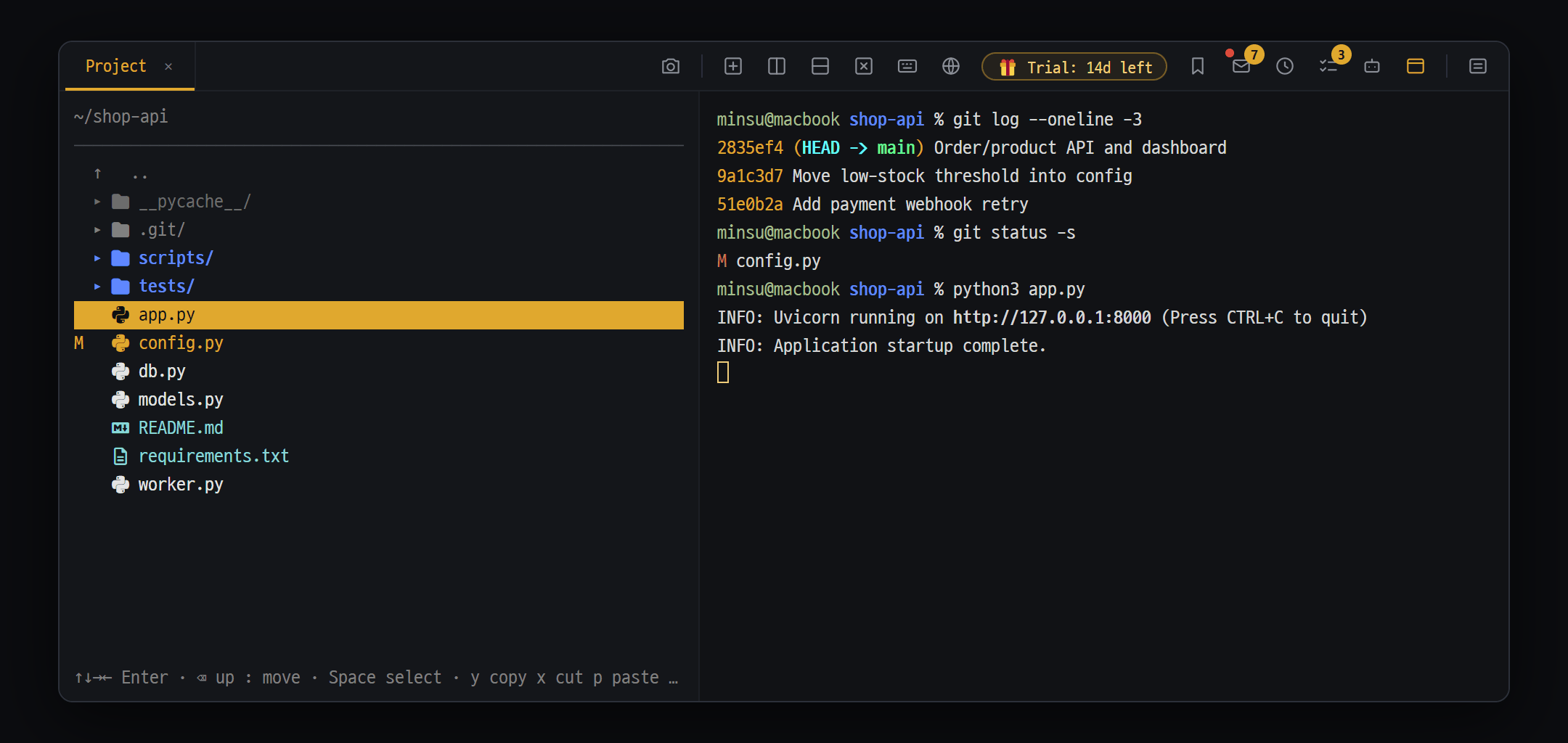
- File tree — move with the keyboard (↑↓→← Enter); the bottom line shows the keys you can use
- Git marks — edited files show an M in yellow
- Your PC's terminal — the shell you already use, as is
A window where you type commands on your PC and see the results.
Where to open it
Section titled “Where to open it”| How | Description |
|---|---|
Ctrl+Shift+T | A new terminal in a new tab |
Ctrl+\ / Ctrl+Shift+- | Split the current pane left/right / top/bottom and open a terminal in the new pane |
+ in the pane header (the top row) | Stack one more terminal in the same pane (New shell tab in this pane) |
Which shell opens
Section titled “Which shell opens”Blyck picks one automatically. There is no setting for choosing the shell.
| OS | Order it tries |
|---|---|
| Windows | PowerShell 7 → Windows PowerShell 5.1 → cmd.exe as a last resort |
| macOS · Linux | Your usual shell (usually zsh or bash). /bin/bash if there is none |
- If you want a different shell, type it yourself inside the terminal, such as
cmd,bash, orwsl. - Korean text: The terminal starts in UTF-8 from the beginning so Korean text doesn’t break. The Korean monospace font D2Coding is included, so you don’t need to install it. However, in PowerShell 5.1, Korean text from some programs such as
ipconfigmay come out garbled — installing PowerShell 7 fixes this (winget install Microsoft.PowerShell).
Copy · paste
Section titled “Copy · paste”| Action | Result |
|---|---|
Drag to select text → Ctrl+C | Copy |
Ctrl+C with nothing selected | Stop the running command |
Ctrl+V | Paste |
| Right-click | Menu (Copy text, paste, Select all, etc.) |
Working with file names in the output
Section titled “Working with file names in the output”You can pick file and folder names shown in ls or dir output with the mouse and work with them directly.
- Click a name once to select the whole name; use
Ctrl+clickto pick several andShift+clickto pick a range. - With items selected, press
Ctrl+C/Ctrl+X→ go to another folder and pressCtrl+V. Within the same PC or the same server, the copy/move command is only typed in, and you pressEnterto run it. Between your PC ↔ a server, the files are sent right away. F2renames andCtrl+Ddeletes. Local files go to the Recycle Bin (recoverable); SSH files are deleted immediately (not recoverable).- Double-click a folder name to go into that folder and list it; double-click a file name to open it in the editor.
- Type
edit filenameto open that file in the editor. In an SSH terminal, the server file is opened over SFTP. - Click an
http://orhttps://address in the output to open it in your browser.
Searching past output — Ctrl+F
Section titled “Searching past output — Ctrl+F”A search bar appears and searches as you type. Enter for next, Shift+Enter for previous, Esc to close. Up to 10,000 lines of past output are kept.
When the shell ends
Section titled “When the shell ends”When you run exit, you see [Shell exited — exit {code}] Enter to restart · Ctrl+Shift+W to close. Press Enter to start again in the last folder.
Password input protection
Section titled “Password input protection”If you type a password while your keyboard is in Korean input mode, Korean characters go in without showing on screen, and login keeps failing. When Korean characters come in on a prompt line such as password: or 비밀번호:, Blyck doesn’t send them and shows a notification saying it didn’t type them into the password. Switch to English with the Korean/English key and type it again from the start.
Calling AI from the terminal
Section titled “Calling AI from the terminal”① AI analysis of selected output — Ctrl+I (Pro)
- Select an error message or log with the mouse.
- Press
Ctrl+Iand the Terminal output → AI analysis window appears. The default request is “Analyze this output and explain the problem, cause, and solution”. - Press
Enterto send it, and the answer fills in live. If the selection is too long, only the last 12,000 characters are sent.
② The /claude command (free — uses the claude program installed in that shell)
| Input | What it does |
|---|---|
/claude question | Only answers (uses read-only tools) |
/claude? question | Asks while also showing the terminal’s last 25 lines of output (for error analysis) |
/claude! question | Also allows editing files and running commands |
/claude!? question | Both of the above |
The claude program must be installed in that shell. In an SSH terminal, it must be on the server. Usage comes out of that Claude account.
SSH connections
Section titled “SSH connections”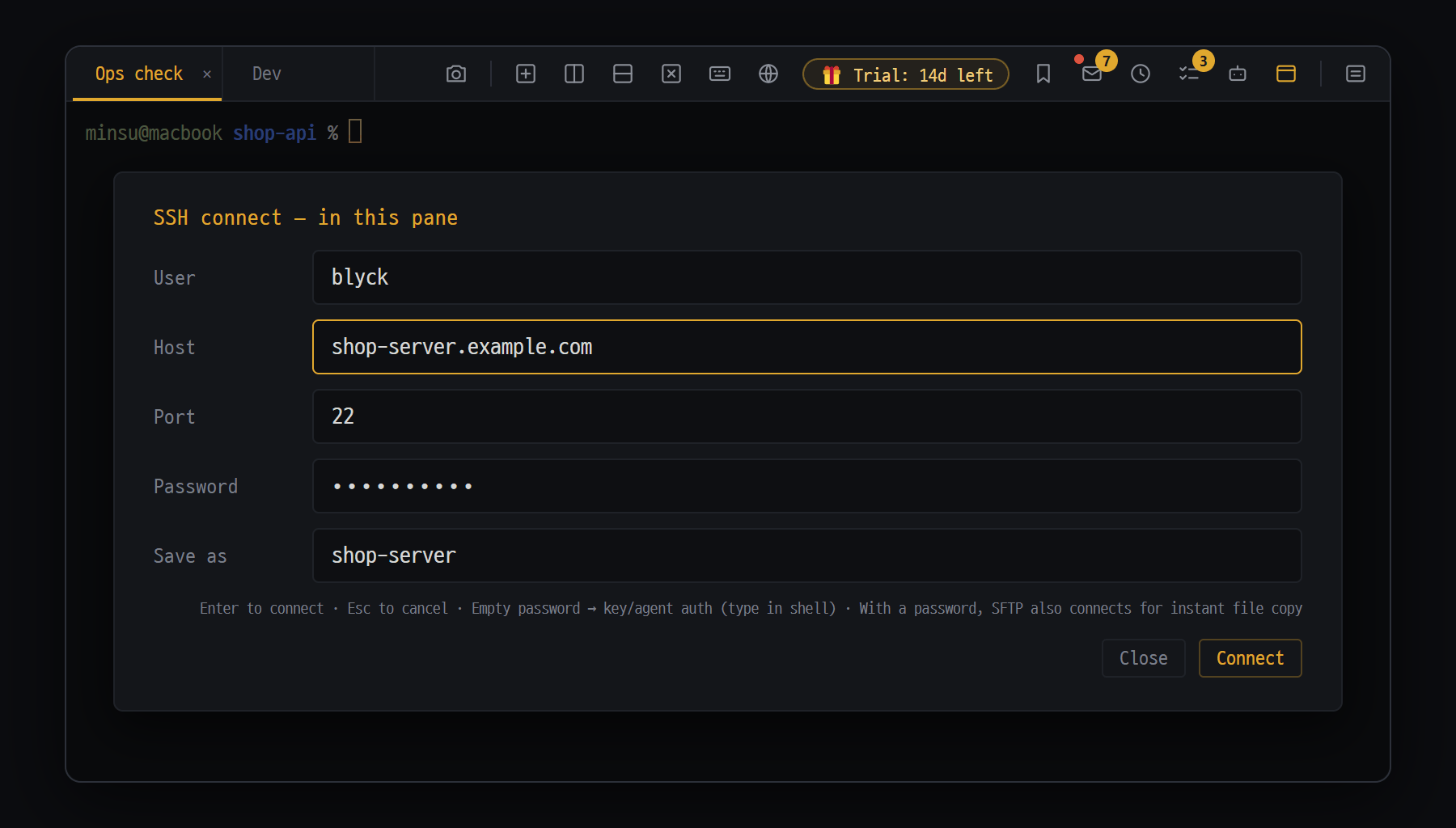
- User·Host·Port — the server address. Host takes an IP, address or alias
- Password — if filled in, it's typed for you and SFTP connects too. Leave it empty for key/agent auth
- Save as — fill it in to add the server to "Saved connections" in the new tab menu (password encrypted on this PC)
A terminal that connects to another server so you can type commands there. It uses the ssh program installed on your PC as-is, so your usual ~/.ssh/config settings and keys apply as they are.
- Press
Ctrl+Shift+S(in the current pane) orCtrl+Shift+Alt+S(in a new tab). - Enter User and Host (and Port if needed, default 22). For Host, an alias from
~/.ssh/configalso works. - If the server uses key login, leave Password empty. If it uses a password, enter it — Blyck types it in for you once when the server asks for it.
- If you’ll use it again, enter a name in Save as.
- Press
Enter.ssh user@addressappears at the top of the pane and the server prompt shows up.
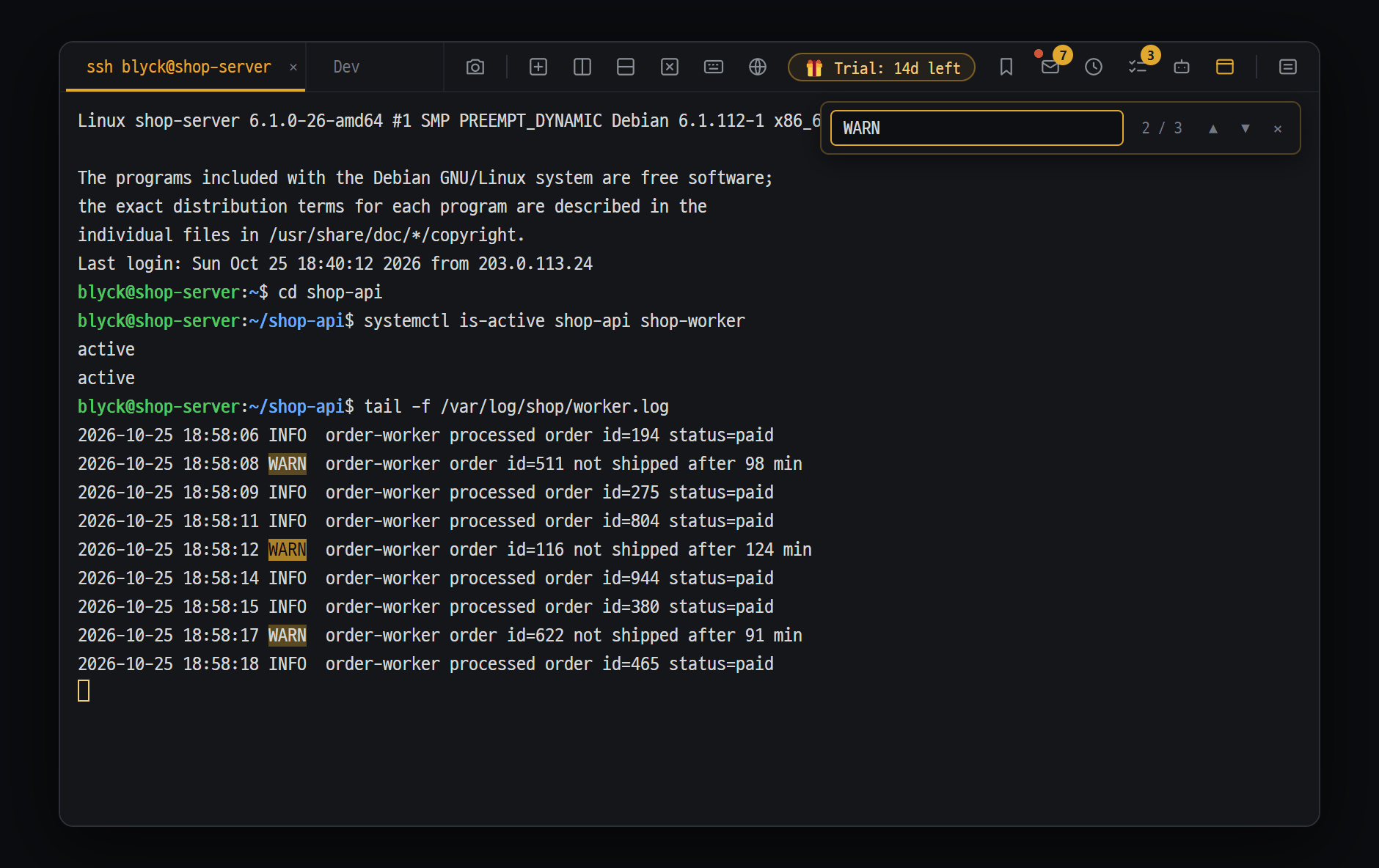
- SSH pane — the server shell, as is
- Following the worker log live with tail -f
- Ctrl+F terminal search — matches are highlighted in yellow and the position is shown like "2 / 3"; move with ▲▼
SFTP connects too
Section titled “SFTP connects too”When you connect over SSH, a file transfer channel (SFTP) to the same server opens in the background as well. That’s why edit, double-clicking a file, and pasting files work right away in the SSH terminal. If you connected with a password, a ”✓ SFTP connected — copy/paste files instantly” notification appears.
When the connection drops (auto-reconnect)
Section titled “When the connection drops (auto-reconnect)”If the session ends abnormally, for example because the network dropped, Blyck reconnects automatically.
1s → 2s → 4s → 8s → 16s → 30s → 30s … (10 tries in total, about 3 minutes)- While it’s waiting, press any key to cancel the reconnect.
- If all 10 tries fail, press
Enterto try again. - If you end normally with
exit, it doesn’t reconnect.
Good to know
Section titled “Good to know”- Set options such as keep-alive (KeepAlive) and host key checking in your PC’s
~/.ssh/config. The only option Blyck adds is the port. - The “yes/no” question for a server you connect to for the first time appears in the terminal as-is. Just answer it yourself.
- When you relaunch the app, SSH panes reconnect on their own.
Saved connections
Section titled “Saved connections”A list where you save the SSH, SFTP, DB, VNC, WinRM, and mail connections you use often under a name, and connect with one click.
- Where to open it: Saved connections at the bottom of the [Choose new tab type] menu at the top.
- Create: Fill in Save as in the connection window and connect, and it’s registered. SQLite files are saved automatically when you open them.
- Connect: Click one in the list or press
Ctrl+Alt+1–9. If the password is saved, it connects right away without a prompt. - Edit: ✎ on the row. If you leave the password field empty, the existing password is kept.
- Organize: Create folders with + Folder to the right of the list heading, and drag items into them. Click a folder and a folder panel opens to the left of the menu (it shows addresses too, and you can search with Search this folder).
- Delete: ✕ on the row (appears with ✎ when you hover over it).
How passwords are stored
Section titled “How passwords are stored”Passwords and key passphrases are locked with your operating system’s encryption before they’re saved (Windows = DPAPI, macOS = Keychain). The file (connections.json) only contains the locked values. If you leave Save as empty, the password isn’t saved.
File tree (your PC)
Section titled “File tree (your PC)”A window that shows the folders and files on your PC as a tree. You can work quickly with just the keyboard.
Where to open it: Ctrl+Shift+E (in the current pane) / Ctrl+Shift+Alt+E (in a new tab). It starts in your home folder the first time, and returns to the folder you were viewing when you relaunch.
Keyboard
Section titled “Keyboard”| Key | What it does |
|---|---|
↑ ↓ / PgUp PgDn / Home End | Move |
→ / ← | Expand / collapse a folder |
Enter (or double-click) | Expands a folder, opens a file |
Backspace | Go up one folder |
: | Go to any path (other drives too) |
Space | Select/deselect |
y / x / p | Copy / cut / paste (Ctrl+C/X/V also work) |
d | Delete (asks for confirmation) |
r or F2 | Rename |
n / N | New file / new folder |
R | Refresh |
u / g | Upload / download (see below) |
c | Type the selected file’s path into the shell pane |
a | Type the selected file into the shell pane as @path (for attaching it to Claude Code or similar running in the shell) |
Ctrl+Shift+G | Search for text in the items you picked with Space, or else in the folder of the top path |
/ or Ctrl+F | Search box — find in the folder of the top path and every folder below it. Name (as you type) / Content (text inside files, starts with Enter) |
-
Top path = where you are: the path at the top follows the row you pick in the tree. Pick a file and it shows the folder that file is in (e.g.
D: › Desktop › VNITM_stats); pick a folder and it shows that folder. When the tree has just opened, it’s the folder you opened. The search box andCtrl+Shift+Gsearch from this path. Click the first piece (e.g.D:) to set the path back to that folder. -
Search box: in the results,
Enter(or double-click) opens a file or goes into a folder. Content search uses the ripgrep built into Blyck, so results appear as they are found, and you can click a line meanwhile to open the editor at that line. ■ Stop in the header ends it and keeps what was found (up to 500 results · 5 minutes; files over 50MB are skipped; files directly in the current folder come first).Escclears it and returns to the tree. Name search skipsnode_modules·.gitand the like and stops at 1,000 results. Works in the SFTP remote tree too (searches on the server). -
Hidden files (such as
.git) are always shown (in gray). -
The right-click menu also offers copy, cut, rename, delete, new file, new folder, and refresh.
-
Deleting a local file sends it to the Recycle Bin (recoverable).
Opening files
Section titled “Opening files”| File | How it opens |
|---|---|
| Text and code files up to 2 MB | Edited in the code editor |
| Text files from 2 MB to 32 MB | Read-only in the editor |
| Over 32 MB, or binary | A text viewer inside the tree pane (read-only) |
| Images (up to 12 MB) | Image viewer (wheel to zoom, drag to move) |
| Built-in PDF viewer | |
| Office · archive files | Your PC’s default program |
Git markers (local tree only)
Section titled “Git markers (local tree only)”If the folder you opened the tree on (the tree’s top folder) is inside a Git repository, a status symbol appears to the left of each file.
| Symbol | Meaning |
|---|---|
? | New file (Git doesn’t know it yet) |
M | Modified |
+ | Added (staged) |
- | Deleted |
R | Renamed |
! | Conflict |
SFTP remote tree and editing remote files
Section titled “SFTP remote tree and editing remote files”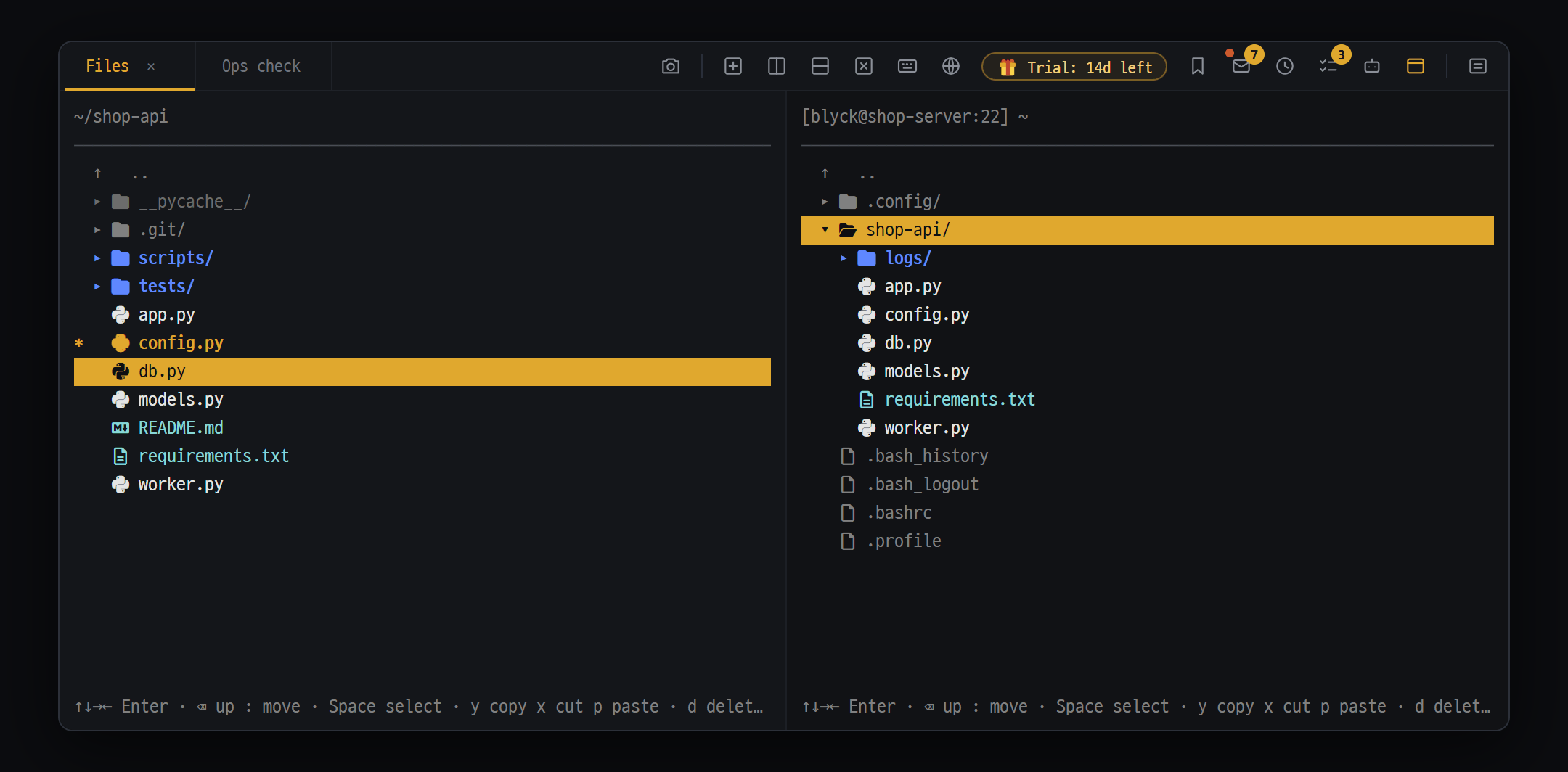
- Your PC's file tree
- Files picked with Space (marked *) — press u to upload them to the folder under the cursor in the server tree
- SFTP remote tree — the [user@host:port] path on the top line. Same keys; press g to download from the server to your PC
Shows a server’s folders and files with the same look and keys as the file tree for your PC. The top path follows the row you pick and search starts from that path, the same way.
- Click 📁▾ in front of the path to see places on that server: one row per disk (
/·/dataetc., with a free-space bar — yellow above 90% used) and frequent places (home · logs/var/log· settings/etc· programs/opt· temp/tmp— only folders the server has). A Windows server showsC:D:. If the server’s disks can’t be read, only/and home appear.
Connecting
Section titled “Connecting”- Press
Ctrl+Shift+F(in the current pane) /Ctrl+Shift+Alt+F(in a new tab). - Enter User and Host (required), Port, password (leave empty for key authentication), key path (if empty, the default key in
~/.ssh), key passphrase, and Save as. - Press
Enter. It tries password → key → ssh-agent in that order, and fails if it can’t connect within 15 seconds.
Editing remote files
Section titled “Editing remote files”- In the remote tree, press
Enteron a file or double-click it. - After editing, press
Ctrl+Sand it’s saved straight to the server. - What you saved is kept in change history so you can revert it (files over 1 MB are not kept).
- Office and archive files are downloaded to a temporary copy on your PC and opened. Even if you edit them, they aren’t uploaded to the server automatically.
- Deleting a remote file is permanent (no Recycle Bin, not recoverable).
- If the connection drops, the path turns red and an “SFTP disconnected” notification appears. It doesn’t reconnect on its own, so reopen the tree.
Moving files (upload · download)
Section titled “Moving files (upload · download)”Method ① The u / g keys
Section titled “Method ① The u / g keys”| Direction | How |
|---|---|
| Upload (your PC → server) | Put the cursor on the destination folder in the remote tree, then select files with Space in the local tree and press u |
| Download (server → your PC) | Put the cursor on the destination folder in the local tree, then select files with Space in the remote tree and press g |
You need to have both the local tree and the remote tree open (it’s convenient to put them side by side in the same tab).
Method ② Copy · paste
Section titled “Method ② Copy · paste”In one tree press y (copy) → go to the other tree and press p. Local → server is an upload, server → local is a download, and server → another server works too.
Good to know
Section titled “Good to know”- Folders are moved whole, including everything inside.
- Files with the same name are overwritten without asking.
- If you cut and paste between different locations, the original is not deleted. Delete the original yourself after moving.
- There are only start and finish notifications; there’s no per-file progress display.
Remote project folder (for AI chat) (Pro)
Section titled “Remote project folder (for AI chat) (Pro)”Sets the folder AI chat works in to a folder on a server instead of your PC. Once set, the AI’s file reading, writing, and listing go to that server.
- Click the folder chip in the AI chat pane. The first time (a dashed + Folder) the picker opens right away; if a folder is already set, press Manage folders… → Change in the list under the chip.
- Pick a saved SSH or SFTP connection (📡), or enter a new one with ➕ Connect remote (SSH/SFTP)….
- Click into folders, and at the folder you want, choose Select this folder.
- The chip changes to a blue server icon and server · folder name. The index for code search is also built by reading the server folder over SFTP.
- The AI program runs on your PC; file operations go over SFTP, and commands go over SSH to that server.
- Changes to remote files are also kept in change history so you can revert them.
- Additional folders can also be remote folders.
With AI (Pro)
Section titled “With AI (Pro)”AI chat recognizes the SSH panes you have open. Tell it what you want, and the AI runs commands on the server, gathers the results, and answers.
▸ Check how much disk space is left on this server▸ Find out which Linux this server is runningRead commands (ls, cat, grep, etc.) run right away; commands that change something ask first with an approval card, and dangerous commands with a stronger ⚠ card. See AI Chat for details.
Q. I can’t connect over SSH.
Check Host, Port (default 22), username, and the firewall. First see whether ssh user@address works in a normal terminal on the same PC.
Q. Key login doesn’t work.
Check that the key is in ~/.ssh, and that the public key is registered in ~/.ssh/authorized_keys on the server.
Q. It asks for the password again after auto-reconnect. The password isn’t in a saved connection. Enter Save as together with the password in the connection window to save it.
Q. I connected with an alias (Host name), but edit and paste don’t work.
The SFTP that opens alongside doesn’t read ~/.ssh/config. Enter the real address and User in the connection window, or open an SFTP remote tree separately with the real address.
Q. Korean text is garbled.
On Windows, install PowerShell 7. On an SSH server, check with locale on the server and set LANG to *.UTF-8.
Q. It keeps saying my password is wrong. It may have been typed in Korean input mode. Switch to English with the Korean/English key and type it again.
Q. Pressing u/g does nothing.
Open both the local and remote trees, then press u in the local tree to upload and g in the remote tree to download.
Q. I moved my saved connections to another PC and it asks for the passwords again. This is intentional, for security. Passwords can only be unlocked on that PC and that account. Use password encryption in backup export.