
Blyck Mail is built so you can finish your mail work inside a single panel without opening a separate mail app. Of the mail you receive, it shows only what a person needs to look at as cards, and the AI attaches a one-line summary and a “what I need to do” line to each one. You write replies right there and just press [Send].
- Mail is stored on this PC only. It does not pass through Blyck’s servers.
- Viewing, writing, searching, attachments and replies are free. AI summaries, translation, the mail assistant and mail rules are Pro (or during the trial).
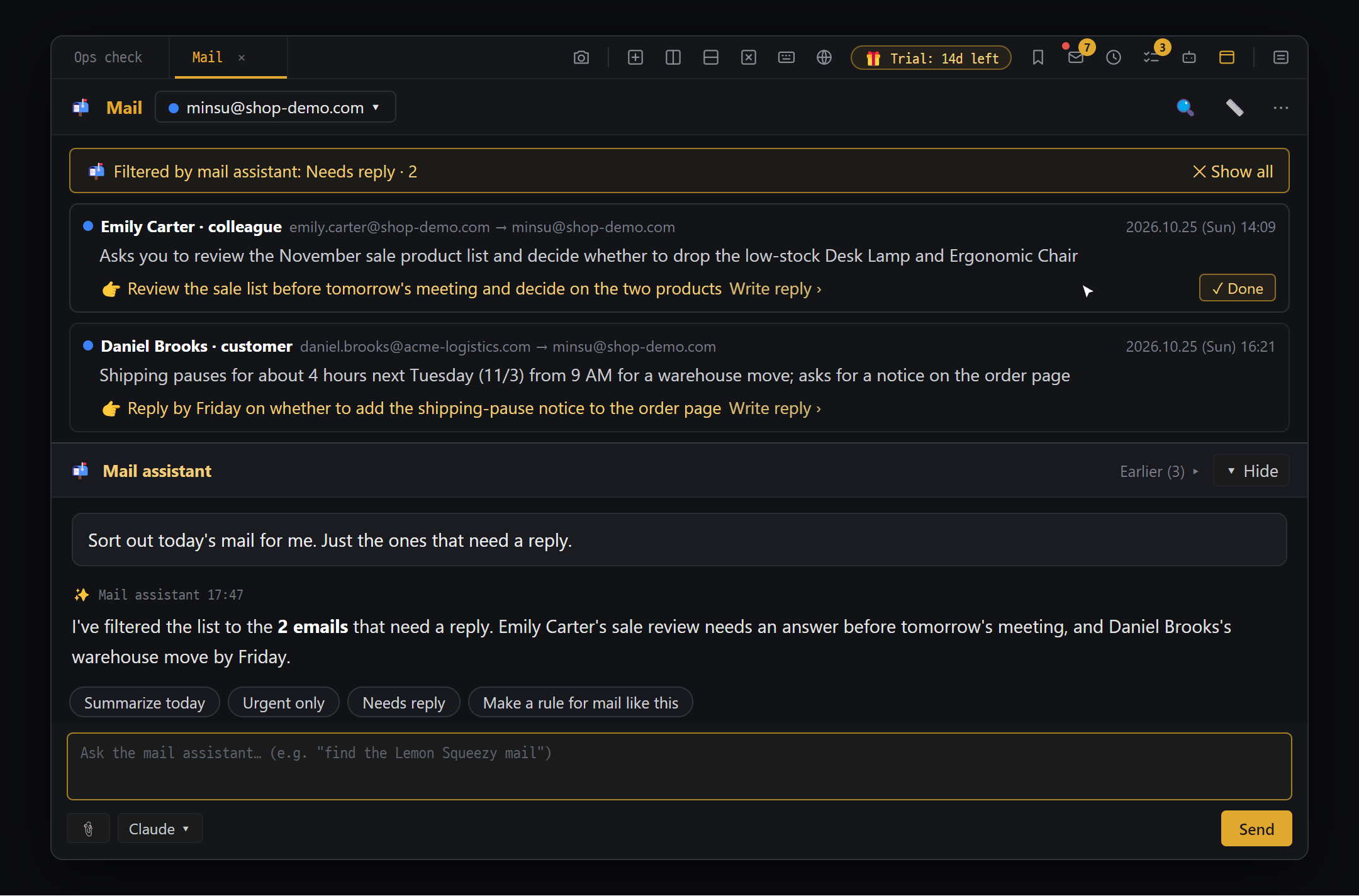
- "📬 Filtered by mail assistant: Needs reply · 2" — [✕ Show all] brings back all mail
- Mail card — sender and role, a one-line AI summary, a "👉" to-do and "Write reply ›"
- "✓ Done" — takes it out of To look at and moves it to "Done" (not deleted, [Undo] works)
- 📬 Mail assistant — just type what you want below the mail pane. Chips: Summarize today · Urgent only · Needs reply · Make a rule for mail like this
Opening the mail panel
Section titled “Opening the mail panel”| Way | Description |
|---|---|
| The envelope icon in the top tab bar | ”Mail (Ctrl+Shift+M)“ |
Ctrl+Shift+M | From anywhere (except when the cursor is inside the code editor or a DB SQL box) |
| Command palette | Mail or Add mail account |
| Saved connections list | Click a mail account to open the mail panel filtered to that account |
| PC notification | Click an urgent-mail or rule notification to open that mail |
- Only one mail panel can be open in the whole app.
- The number on the envelope icon is the count of “To look at” mail; a red dot means there is mail the AI judged urgent (Pro).
- A mail assistant box (AI chat) is attached below the mail panel.
Connecting a mail account
Section titled “Connecting a mail account”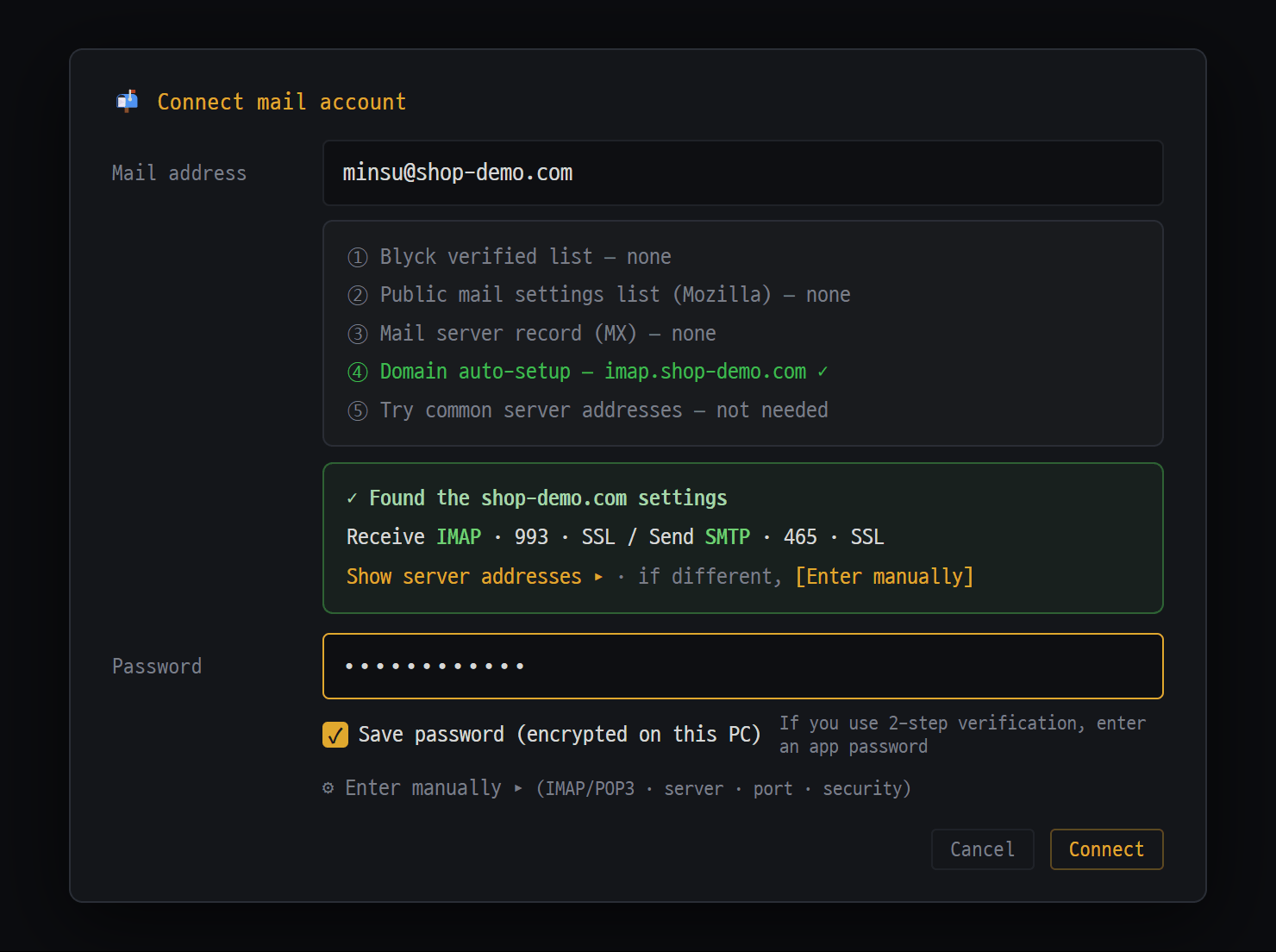
- Enter your email address and the server settings are found automatically
- The search steps are shown in order; when found, a green box (incoming IMAP · outgoing SMTP · port · security)
- The password is stored encrypted on this PC. If you use 2-step verification, enter an app password
- Not found or not right? Use "⚙ Enter manually" to enter the server, port and security
When you enter a mail address, Blyck finds the server settings on its own; when you enter the password, it actually connects to test it and then saves it.
Where to open it — [Connect mail account] when the mail panel is empty, the account menu (top left “All accounts ▾”) or ⋯ → + Add mail account, or command palette → Add mail account.
- Enter the mail address. As soon as you stop typing, the settings search starts (”🔎 Looking for server settings…”).
- When found, ”✓ Found the ○○ settings” appears with the incoming and outgoing methods. If they’re wrong, fix them with [Enter manually].
- Enter the password. If the provider needs an app password, ”🔑 This mail needs an app password.” appears, and for providers where Blyck knows where to create one, a [How to get one] button is added.
- Press [Connect] and it tests in this order: sign-in → receiving → sending (sign-in only; no mail is sent).
- If it passes, it saves the account and fetches your mail. Soon you’ll see “Last 7 days: M of N need a look”.
- Pick an account name (e.g. Work) and a color (the color dot on the left of each card), then [Open mail].
| Field | What it does | Default |
|---|---|---|
| Save password (encrypted on this PC) | Required to receive new mail, so it can’t be turned off. Stored with OS encryption | On |
| ⚙ Enter manually ▸ | Incoming method (IMAP (recommended) / POP3), server, port, security, sender name, “Show mail in other languages translated from the start” | Collapsed |
Providers that need an app password · providers where you must turn something on first
Section titled “Providers that need an app password · providers where you must turn something on first”| Provider | What you need |
|---|---|
| Gmail / Google Workspace | An app password (created in your Google account’s security settings) |
| iCloud · Yahoo · AOL · Fastmail · Daum Mail, etc. | An app password |
| Naver Mail | An app password + IMAP/SMTP set to “Use” in Naver Mail preferences |
| Kakao Mail | IMAP/POP3 set to “Use” + a Kakao account app password |
| Hiworks · Cafe24 Mail | Turn on POP3/SMTP in the webmail settings. POP3 only |
| Proton Mail | Proton Mail Bridge (paid plan) must be running on this PC |
- There is no limit on the number of accounts. Accounts also appear in the Saved connections list.
- To change settings: pick the account in the account menu, then ⚙ This account’s settings. To remove one: delete it from Saved connections (only the mail downloaded to this PC is deleted; mail on the server stays).
A tour of the mail panel
Section titled “A tour of the mail panel”Header — 📬 Mail · account menu (filter by account) · 🔍 Search · 📏 Automations (mail rules) · ⋯ More.
⋯ menu — ✏️ New mail, ↻ Check for new mail, switch view (📥 To look at / ⏰ Later / 📤 Sent / ✓ Done / 🙈 Hidden), + Add mail account.
| View | Mail it holds |
|---|---|
| To look at | Received mail a person needs to look at (default view) |
| Later | Mail put off with ⏰ Later. It returns to To look at at the time you picked |
| Sent | Mail sent from Blyck |
| Done | Mail you marked ✓ Done, mail you replied to, and mail handled by rules |
| Hidden | Mail automatically tidied away as ads, newsletters, automated reports or auto-replies |
- Urgent mail has no view of its own; it rises to the top of the list (Pro).
- Hiding is done first by rules without AI, so it works in the free version too. If important mail was hidden, press Always show this sender in the Hidden view.
- Mail sent 3 or more times by the same sender with the same subject (service alerts, etc.) is grouped into a single card with an N mails chip in the header line. Click the chip to open the individual mails in the same pane, and ← Back to grouped view to return.
To do first — “Nothing to do” is folded away
Section titled “To do first — “Nothing to do” is folded away”In To look at, cards are split into two groups (not inside a group, search results, or a list the mail assistant filtered).
| Where | What you see |
|---|---|
| Top: To do · N | Mail with something to do. Mail where a rule drafted a reply, and mail not yet summarized by the AI, also go here |
| Bottom: Nothing to do · N | Mail the AI marked ”✔ Nothing to do”. It starts folded into one dotted line: ”▸ sender · N mails · latest date” |
- Click the folded line to show those cards; click again to fold them.
- ✓ Mark all done on the right of the folded line moves all no-to-do mail to Done at once. [Undo] brings back only the mail moved this time.
- If there’s no mail without a to-do, it’s a single “To look at” group as before.
A single card
Section titled “A single card”- Header line: color dot · sender · sender address · → my address that received it · date “2026.10.24 (Sat) 20:13”
- Summary line: a one-line AI summary (Pro). If there isn’t one, the subject and the start of the body. 📎 attachment and ↩ replied marks. Only one line shows; open the card to see it all. Mail with nothing to do is in dimmed text
- To-do line: one sentence on what I need to do (Pro). The ✓ Done button shows on the right only when you hover over the card (or when the card is open)
| To-do line | Meaning | Link |
|---|---|---|
| 👉 (e.g. “Enter verification code 304001”) | Something I need to do | — |
| 👉 What to reply | The other person is waiting for an answer | Write reply › |
| 👉 Something to keep track of (deadline, payment, etc.) | Something to handle later | Add to to-dos › — adds it to the To-do window |
| ✔ Nothing to do — reason | Notifications, receipts, etc. | — |
- Click a card to expand it in place (no new window).
- ✓ Done doesn’t delete; it moves the mail to Done. [Undo] is shown for 7 seconds. For IMAP accounts, the mail is also marked as read on the mail server.
- ⏰ Later ▾: In 3 hours / This evening / Tomorrow morning / Next Monday.
- 🔍 Search: searches by sender, subject and text (with several words, mail containing all of them). It searches only within the view you’re looking at.
Reading mail
Section titled “Reading mail”An expanded mail shows, from top to bottom: AI summary → What AI read → (for foreign-language mail) translation bar → original → received attachments → reply box.
- 🤖 AI summary (Pro) — In 2–3 lines: what the mail is, what it means for me, and the one number that matters (verification code, amount, deadline). ↻ summarizes again.
- 👁 What AI read — Shows openly what the AI read. For example: “Body · 2 tables · images 3/4 · quote.xlsx ✓ · contract.hwp ✗ couldn’t read”. The AI reads body text, tables, images, and Excel, Word and Hangul files; PDFs are read directly when you use Claude.
- Original — Shows the mail exactly as received. Dangerous parts such as scripts are removed and internet access is blocked. Tables get [📊 Save as Excel] and images get [🔍 View larger]. Internet images in mail are fetched without cookies, and tracking pixels are removed.
- Received attachments — [Open], ⬇ Save as, 👁 Show to AI (attaches it to the mail assistant input box, Pro).
Translation [Original | English] (Pro)
Section titled “Translation [Original | English] (Pro)”For mail that isn’t in your display language, an [Original | English] button appears above the original (“English” changes to the name of your display language). Translation changes only the text and keeps tables, bold, line breaks and images as they are.
- Amounts and rewritten dates are highlighted in yellow so you can check them against the original. It tells you ✓ N numbers and amounts match the original / ⚠ Numbers differ from the original.
- Amounts, numbers, addresses, codes, company names and links are not translated.
- For each account you can turn on “Show mail in other languages translated from the start”.
Replies and new mail
Section titled “Replies and new mail”- Press Write reply › on the to-do line (↩ Reply in the Cards layout). If the AI judged the mail as “needs a reply”, a draft is already filled in when you expand it (Pro).
- The sending address is set automatically to my address that received the mail. You can paste Excel tables and images straight into the body, and attach files with [+ Attach].
- Press [Send] and it changes to a “Sending in Ns [Cancel sending]” bar. Cancel within 10 seconds and the reply box comes back as it was.
- When it goes out, you’ll see ”✓ Sent”. Replied mail moves to Done.
- Use [Preview as recipient] to see how it will look to the recipient.
- Reply in a foreign language (Pro): if the other person’s language is different, the reply box splits into two. Write in your own language in What I write at the top, and What they receive below (the text actually sent) is translated as you type. Numbers and dates are checked against each other, and the reply language is remembered for each sender.
- New mail: ⋯ → ✏️ New mail. A new mail card opens at the top of the list. To stop writing, press [Close] at the bottom of the card.
- Attachments in the reply box are what the recipient receives; the 📎 in the mail assistant input box is an attachment shown only to the AI.
Mail assistant box (Pro)
Section titled “Mail assistant box (Pro)”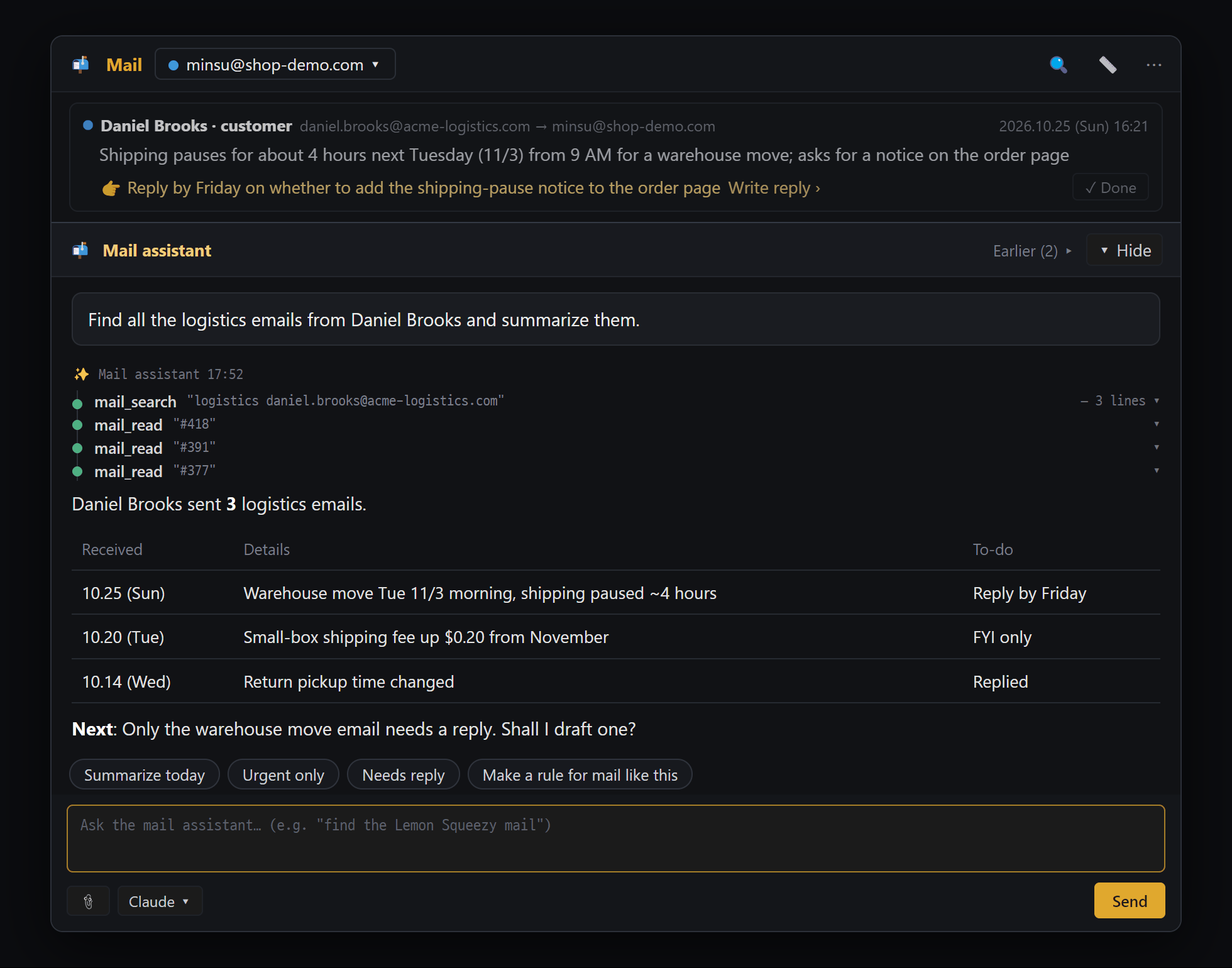
- Tell the mail assistant what you want in everyday words
- The assistant searches your mailbox itself (mail_search) and reads the mail (mail_read)
- The answer comes as a table, and it suggests what to do next
- Frequent requests are one-click chips. With a mail open they change to "Draft a reply · Shorter · In English · Add to-do"
This is a separate AI chat box attached below the mail list. This AI only does mail and to-do work (summarize, search, read, draft replies, send, mail rules, to-dos). For things like editing files or running commands, ask in the regular AI Chat.
| State | Request chips (click to send) |
|---|---|
| Normal | Summarize today · Urgent only · Needs reply · Make a rule for mail like this |
| A mail is expanded | Draft a reply · Shorter · In English · Add to-do |
- Selection requests like “Urgent only” don’t list mail as text; they filter the list itself (a ”📬 Filtered by mail assistant: … · ✕ Show all” strip at the top).
- “Draft a reply” puts the draft straight into that mail’s reply box. You press Send yourself.
- For the mail assistant to actually send (only when you clearly say “send it”), an approval card always appears, and even after approval you can cancel within 10 seconds.
- Shrink it to one line with ▾ Hide and the list uses the whole panel.
- The model and reasoning effort chosen in the mail assistant box are also used for mail AI summaries.
From other AI chats too — In any AI chat you can give mail work in plain words, like “Tidy up today’s mail”, “Find last month’s settlement mail” or “Send it as is”. Only sending always shows an approval card.
Mail rules — ”📬 When mail arrives” (Pro)
Section titled “Mail rules — ”📬 When mail arrives” (Pro)”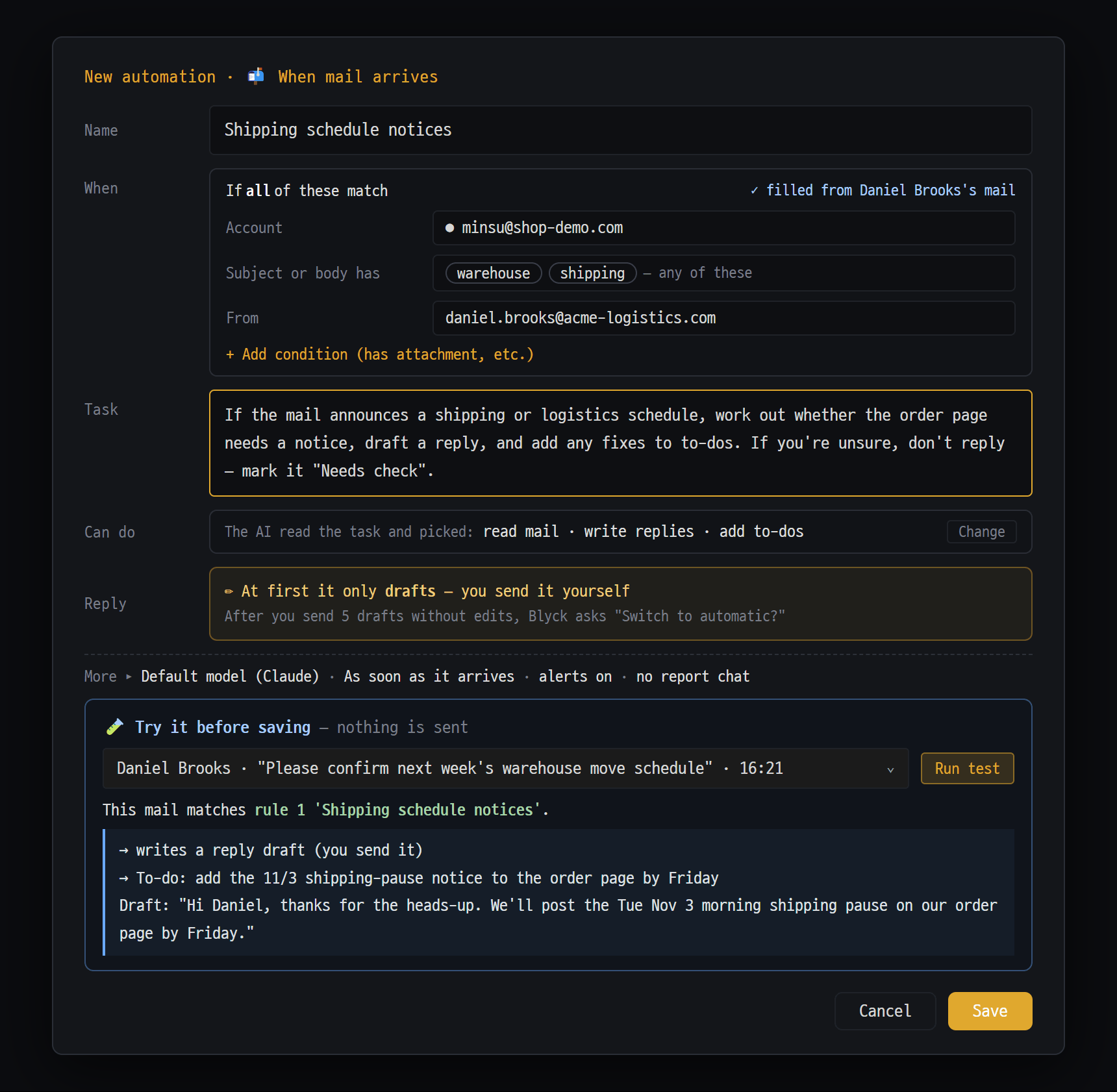
- Conditions — receiving account · words in subject/body (any of them) · sender. Opened from "📏 Make a rule for mail like this" on an open mail, they're prefilled from that mail
- Write the task as a sentence and the AI picks what it does (read mail · write replies · add to-dos). [Change] to set it yourself
- A new rule only writes reply drafts at first. After you send 5 drafts without edits, it asks "Switch to automatic?" first
- 🧪 Try it before saving — runs on one mail from the last 7 days and shows only the result (draft, to-do), without sending
When mail matching the conditions you set arrives, the AI handles it according to the rule. For example: a reply draft for license questions, or the amount from settlement mail added as a to-do.
Where to open it
- 📏 in the mail panel header → Automations window → [+ New automation] → 📬 When mail arrives
- Easier ways: 📏 Make a rule for mail like this on an expanded mail (conditions are pre-filled), or just say it in a chat (“When LS mail arrives, pull out the amount and add it to my to-dos”)
Creating one
Section titled “Creating one”- Write a name.
- Add conditions: pick the receiving account and add at least one of subject/body words (matches if any one is present), sender, or has attachment. A rule with only an account selected never matches any mail.
- In Task, write in plain words what the AI should do. For example: “For key questions, reply explaining how to enter the key. If you don’t know the answer, don’t reply; leave it as ‘Needs checking’.”
- If needed, adjust the model, processing time, notifications, the chat to report results to, and reference material (up to 5 files) under More ▸.
- Use 🧪 Try it before saving to run it on the last 7 days of mail (nothing is sent).
- [Save].
| Reply mode | Behavior |
|---|---|
| Drafts only (new rules always start here) | Puts a reply draft into that mail’s reply box. You send it yourself |
| Sends automatically | Sends automatically after 1 minute (can be cancelled within that minute). Once a day per person; never sent to noreply, ads or auto-replies — kept as a draft instead |
- When you send drafts 5 times in a row without editing, it asks “This rule is reliable. Send automatically from now on? [Automatic] [Keep as is]”.
- Rules run only the first one that matches, from the top (drag ⋮⋮ to change the order). Everything else is always at the bottom.
- Mail handled by rules (auto-replied, turned into a to-do, skipped) is gathered in ”🤖 AI handled N today ▸” at the top of the To look at view. Auto-replies can be stopped here with [Cancel sending] within 1 minute.
Safety measures
Section titled “Safety measures”- The AI that runs rules has no tools. It only reads the mail and decides “reply text / needs checking / skip”; sending and adding to-dos are done by Blyck. Even if a mail contains malicious instructions, they can’t be carried out.
- Rules run only on newly arrived mail. They don’t run on mail fetched at the first connection or on mail older than 7 days.
- Each rule has a daily processing limit (30 mails by default).
- Automated mail (noreply, bulk mail) is handled only by rules that name the sender in their conditions.
PC in charge of automations — If you have paired with another PC, you can choose which PC runs mail rules in “Runs on: [This PC (name) ▾]” at the top of the Automations window (e.g. a Mac mini that’s always on). Mail passwords aren’t sent, so the same mail account must also be connected on that PC. Because it uses remote access, this is Pro.
When does new mail come in?
Section titled “When does new mail come in?”| Incoming method | When new mail is received |
|---|---|
| IMAP (server supports instant alerts) | As soon as new mail arrives (plus one extra check every 10 minutes) |
| IMAP (no instant alerts) | Every 2 minutes |
| POP3 | At the interval you set (1, 2, 5 or 10 minutes; default 2) |
| Manually | ⋯ → ↻ Check for new mail |
- On first connection it fetches the last 30 days of mail and files anything older than 7 days under Done.
- The PC keeps only the last year of mail and deletes older mail automatically (it stays on the mail server).
- PC notifications: for new mail the AI judged urgent, and when a rule with notifications on produces “Needs checking” or a “draft” (Pro).
Free and Pro
Section titled “Free and Pro”| Feature | Free | Pro (also usable during the trial) |
|---|---|---|
| Connect accounts · multiple accounts | ✓ | ✓ |
| Receive · list · search · grouping · auto-hide | ✓ | ✓ |
| Read mail (original · attachments · save tables to Excel) | ✓ | ✓ |
| Reply · new mail · cancel within 10 seconds | ✓ | ✓ |
| Done · Later · Hide | ✓ | ✓ |
| One-line AI summary · to-do line · urgency check · urgent-mail alerts | — | ✓ |
| AI summary of expanded mail · reply drafts | — | ✓ |
| Translation · two-box foreign-language reply | — (the button shows, but “Could not translate”) | ✓ |
| Mail assistant box, mail work from other AI chats | — | ✓ |
| Running · testing mail rules | — (create and save only) | ✓ |
| PC in charge of automations | — | ✓ |
AI features need, in addition to Pro, an AI (Claude or GPT) set up on this PC.
I can’t sign in (“Sign-in failed. Check the mail address and password.”) Even with the right password, many providers require an app password. Create one via [How to get one] in the connection window and enter it. For Naver, Kakao and others, you must first turn on IMAP/POP3 in the mail website’s settings.
| Connection error | Fix |
|---|---|
| An app password is needed… | Create an app password in your mail provider’s security settings and enter it |
| IMAP/POP3 is turned off in your mail settings… | Turn it on in the mail website’s settings |
| The server certificate is not an official one. | Only if it really is your company’s own server, turn on “Connect even without an official certificate” under Enter manually |
| Can’t reach the server. Your network may block mail ports… | Company firewall. Ask your network administrator or test on another network |
| The server is not answering. | [Test again] after a moment |
There’s no [Sign in with Google] button for Gmail The current version has no sign-in button. Create an app password in your Google account and enter it in the password field.
Outlook / Microsoft 365 won’t connect It can’t be connected for now (see above). Support is planned soon.
New mail isn’t coming in
- Check whether there is a ⚠ connection error bar at the top of the mail panel. If it’s a password or settings problem, Blyck stops and doesn’t reconnect, so press [Fix settings] or [Try again].
- ⋯ → ↻ Check for new mail.
- Look in Hidden (classified as ads) or Done (handled by a rule).
- Check that you haven’t filtered to a different account in the account menu.
No AI summary appears / the to-do line is empty AI features are Pro (or during the trial), and an AI must be set up on this PC. Viewing, replying and searching work without summaries.
It’s foreign-language mail, but there’s no translate button Either Blyck judged the mail to be in the same language as your display language, or there was too little text to tell the language. Ask the mail assistant: “Explain this mail in English”.
A rule doesn’t run on mail Check that you’re on Pro, that the rule is on (if the row shows [Turn on], it’s off), that a rule higher up isn’t matching first (check with 🧪 Try it), and that today’s limit (30 mails) hasn’t been reached. If the mail panel shows “This PC only watches — automations run on ○○”, the rules run on that PC.
Auto-replies don’t go out; only drafts are left Look at the reason attached to the card. Automatic sending never goes to noreply, automated mail, ads, your own address, or someone you’ve already replied to today.
Mail was marked as read on my phone On IMAP accounts, ✓ Done or replying also marks the mail as read on the server. Mail handled by rules doesn’t touch the read status.
Pressing Ctrl+Shift+M doesn’t open mail
It doesn’t work while the cursor is inside the code editor. Click once outside the editor, or click the envelope icon.