
Getting Started
Blyck is a desktop app that puts the many programs used for development and server operations into one window. Terminal, SSH (a way to connect to another computer by typing text), file management, code editor, DB (database) tools, remote desktop (VNC), remote Windows commands (WinRM), mail, and an AI chat that works while looking at all these screens directly — all inside one window. It runs on Windows and macOS.
| If you are | Blyck helps you |
|---|---|
| Managing servers | Connect to several servers over SSH at once, edit files directly over SFTP, and send commands to remote Windows machines |
| A developer | Edit, run, preview on the web, and use Git in one window, and have AI build or fix features from plain instructions |
| Working with databases | Connect to 5 engines — SQLite · Oracle · PostgreSQL · MSSQL · MySQL — to query and edit |
| Not writing code yourself | Tell the AI chat what you want, and the AI does the work while looking at the terminal, files, and DB (after your approval) |
Installation
Section titled “Installation”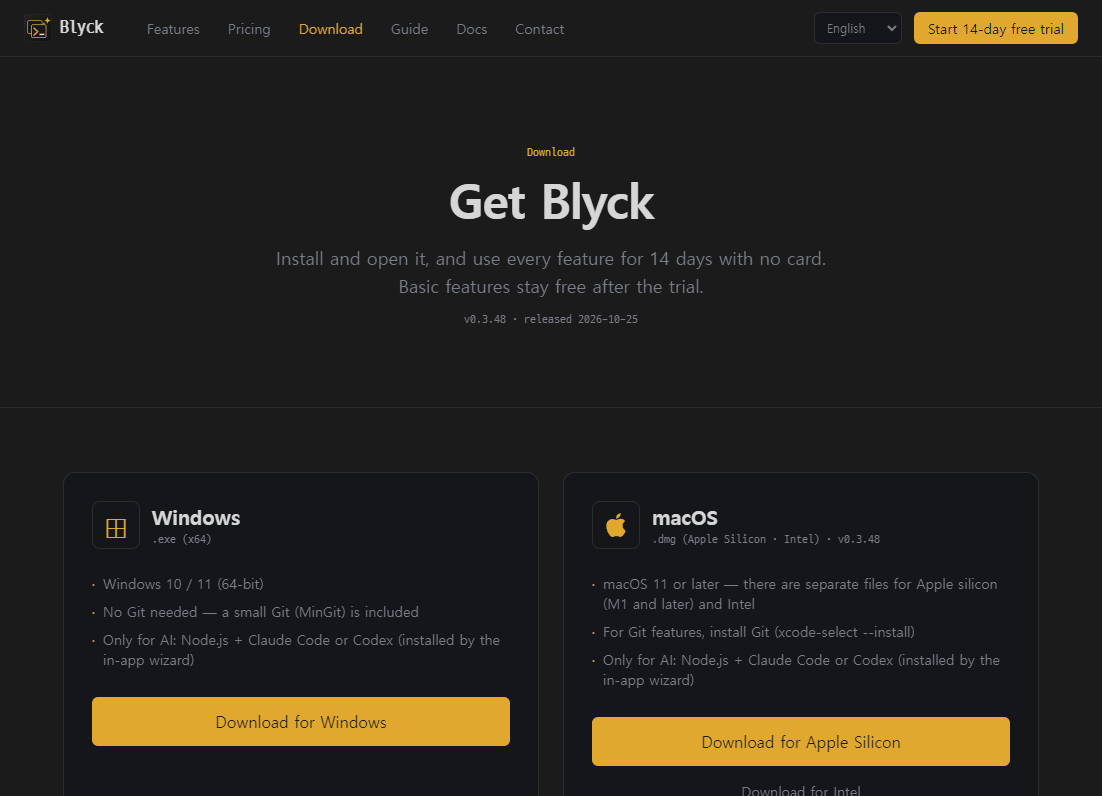
What you need
Section titled “What you need”| Item | Details |
|---|---|
| Windows | 64-bit (x64) Windows. One installer file (Blyck-Setup-<version>.exe) |
| macOS | There are two separate files: one for Apple chips (M1 and later) and one for Intel |
| Only if you use AI | Node.js, an AI program (Claude Code or Codex), and your own Claude or ChatGPT account |
| Git | On Windows, a small Git (MinGit) is included in the installer, so you don’t need to install it separately. On Mac, if Git is missing, Blyck tells you to install it with xcode-select --install |
Windows
Section titled “Windows”- Download
Blyck-Setup-<version>.exefrom the download page. - Double-click the downloaded file.
- If a “Windows protected your PC” window appears, click More info → Run anyway. This window appears because the installer doesn’t have a code signature (a digital signature proving who made it) yet. You only need to do this once.
- Follow the setup screens. You can change the install folder, and when it finishes, shortcuts are added to the desktop and the Start menu.
-
Download the file that matches your Mac.
Your Mac File to download Apple chip (M1 · M2 · M3 · M4, etc.) Blyck-<version>-arm64.dmgIntel chip Blyck-<version>-x64.dmgTo check which one you have, go to the Apple menu → About This Mac and look for “Chip” (Apple chip) or “Processor” (Intel).
-
Open the dmg and drag the Blyck icon into the Applications folder.
-
Open Blyck from the Applications folder.
-
If a “cannot be opened” warning appears: on macOS 15 and later, go to System Settings → Privacy & Security and click Open Anyway for Blyck. On earlier macOS versions, right-click Blyck and choose Open. You only need to do this once.
On first launch
Section titled “On first launch”- One tab opens with one terminal for this PC (PowerShell or similar on Windows). From then on, the layout you last used opens again as it was.
- The display language follows your computer’s language (English if the language isn’t supported).
- The 14-day free trial starts automatically. No sign-up or card required.
- The AI Setup Wizard appears the first time you open the AI chat pane (see AI Chat).
- Only one copy runs at a time. If you launch it while it’s already running, the existing window comes to the front.
Free trial · Free · Pro
Section titled “Free trial · Free · Pro”The moment you first launch Blyck, a 14-day free trial with no card starts, and you can use every feature during that time. When the trial ends, you choose one of two options.
- Keep using it for free — The basic features that don’t call AI stay free.
- Pro — Use all AI features and remote access (other PCs and the phone app). $14.99 monthly or $149 yearly (17% cheaper than monthly). One key works on up to 3 PCs. You can also see pricing on the pricing page.
| Status | When | Shown at the top | AI · remote access |
|---|---|---|---|
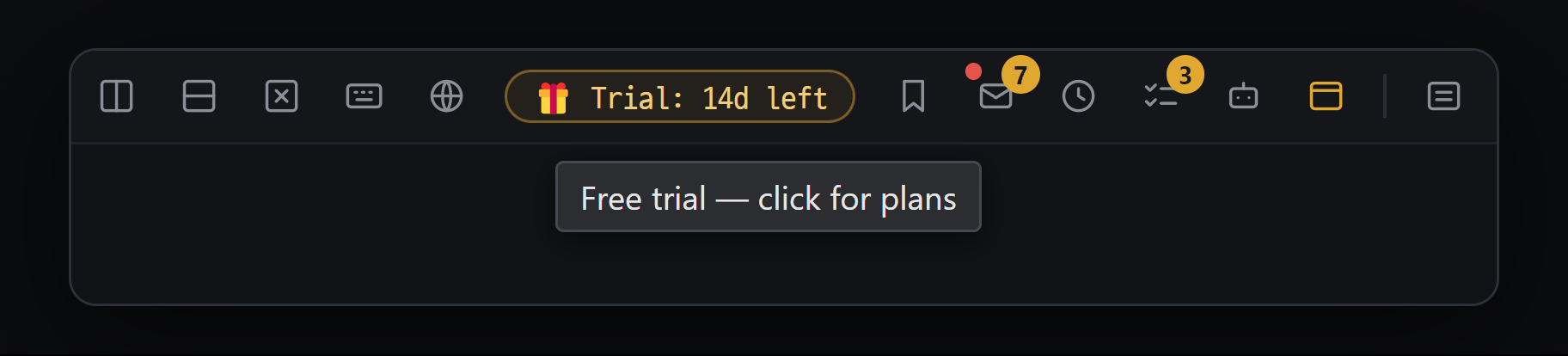
| Trial | 14 days from the first launch | 🎁 Trial: Nd left (red when 3 days or fewer) | Available |
| Free | The trial has ended and there is no license, or it has expired | ✨ Go Pro | Not available |
| Pro | You’ve activated a license key | Nothing shown | Available |
Free vs. Pro
Section titled “Free vs. Pro”| Area | Free | Pro (also available during the trial) |
|---|---|---|
| Terminal · SSH · file tree · SFTP | ✓ Everything | ✓ |
| WinRM · VNC · desktop mirror | ✓ Everything | ✓ |
| Screen region capture · editing | ✓ Capture · edit | ✓ + send captures to AI chat |
| Code editor | ✓ Edit · save · remote editing | ✓ + inline AI (Ctrl+I) |
| Run · web preview · design | ✓ Run · preview | ✓ + AI auto-investigation · auto-regeneration |
| Change history (ChangeSet) · Git | ✓ View · revert · commit | ✓ |
| 5 DB engines | ✓ Connect · SQL · result grid · editing | ✓ + SQL editor AI (Ctrl+I), AI analysis of result grids |
Unified search (Ctrl+K) | ✓ | ✓ |
| AI chat (Claude · Codex) | Read past chats only | ✓ |
| AI debate · Agent Board · scheduled runs · background tasks | — | ✓ |
| To-do window | ✓ View · add your own | ✓ |
| ✓ View · write · reply across multiple accounts | ✓ + mail assistant · AI summaries · auto-replies | |
| Remote access (other PCs · phone app) | — | ✓ |
| Tabs · panes · layouts · command palette · language · backup · chat sync | ✓ | ✓ |
Trial notifications
Section titled “Trial notifications”- A notification appears once in the bottom right when 4 days or fewer remain, and again when 1 day remains. Click [See Pro] to open the plans window.
Plans window
Section titled “Plans window”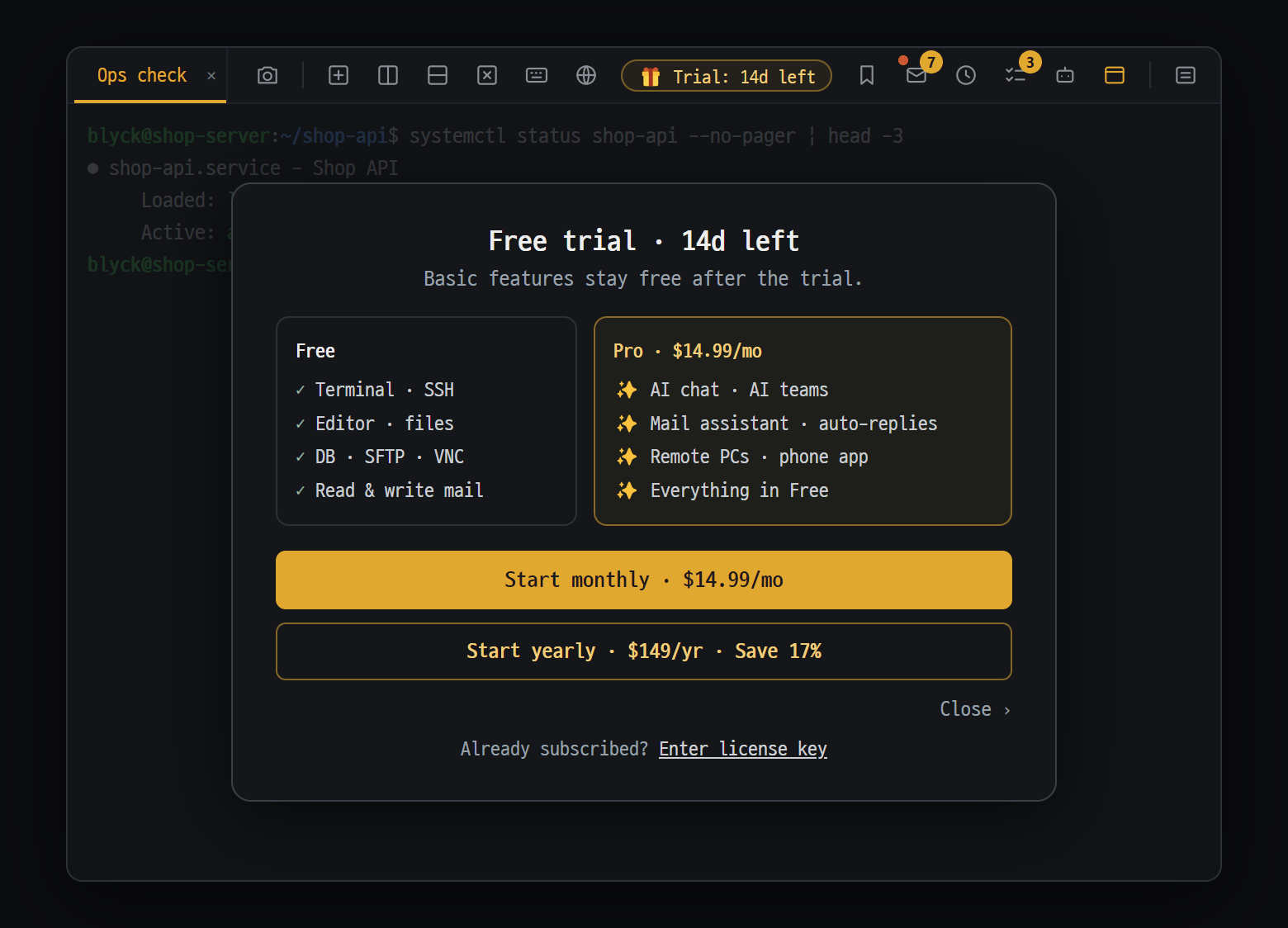
- "Free" — after the trial, terminal · SSH, editor · files, DB · SFTP · VNC and reading & writing mail stay free
- "Pro · $14.99/mo" — AI chat · AI teams, mail assistant · auto-replies, remote PCs · phone app
- "Start monthly · $14.99/mo" or "Start yearly · $149/yr · Save 17%" — the checkout page opens in your browser
Where to open it: 🎁 Trial: Nd left or ✨ Go Pro at the top.
- The features available in Free on the left and Pro · $14.99/mo on the right are shown side by side.
- Click [Start monthly · $14.99/mo] or [Start yearly · $149/yr · Save 17%] to open the payment (Lemon Squeezy) page in your browser.
- Use Enter license key at the very bottom to enter your key.
When the trial ends
Section titled “When the trial ends”The first time you launch the app after the trial ends, a “Your 14-day free trial has ended” window appears once.
- [Start monthly · $14.99/mo] / [Start yearly · $149/yr · Save 17%] — Pay, then enter the key you receive.
- ⏳ Try 7 more days (once) — You get every feature again for 7 days from that moment. This works only once.
- Continue for free — Use the app in the Free state. You can choose again at any time later with ✨ Go Pro at the top.
Even after the trial ends, your chats and connection info are not deleted, and you can still read your past AI chats.
Entering a license key
Section titled “Entering a license key”- Click Enter license key at the bottom of the plans window (or [Enter license key] in the AI chat pane while in the Free state).
- Paste the key you received after payment and click [Authenticate] or press
Enter. - When green text like ”✓ Activated! (1/3)” appears, you’re done. AI features are unlocked.
Offline · subscription expiry
Section titled “Offline · subscription expiry”- Each time you launch the app, it checks your license once over the internet. After a successful check, it works as Pro for 7 days even without internet.
- If it can’t check for more than 7 days, or your subscription ends, the app switches to the Free state. You can keep using the terminal, editor, files, and DB.
- If you subscribe again, the same key comes back to life automatically the next time you launch the app.
License management and device count
Section titled “License management and device count”Where to open it: ⋯ at the top of the AI chat pane → Chat settings → License at the bottom of the left list.
- You can see the subscription status, plan, billing cycle, and activated devices (
in use/maximum). - [Manage subscription] — Opens the customer portal in your browser to change your payment method or cancel.
- [Deactivate this device] — Releases this PC’s activation. When moving to a new PC, click this on the old PC first, then enter the key on the new PC.
- Backup/migration does not transfer the license. Enter the key again on the new PC.
Automatic updates
Section titled “Automatic updates”- About 5 seconds after launch, and then every 4 hours, the app checks for a new version and downloads it in the background.
- When the download finishes, an “Update {version} ready” box appears in the bottom right. [Restart to apply] applies it right away; [Later] installs it when you quit the app.
- There is no “Check for updates” button. If you want to check right away, restart the app.
Display language
Section titled “Display language”Use the globe icon in the top toolbar or Ctrl+Shift+J to choose from 7 languages (한국어 · English · 日本語 · 繁體中文 · 简体中文 · Español · Deutsch). It changes immediately without restarting, and the default language the AI answers in changes too. Text in panes that were already open changes when you reopen those panes.
Screen layout — tabs · panes · sub-tabs
Section titled “Screen layout — tabs · panes · sub-tabs”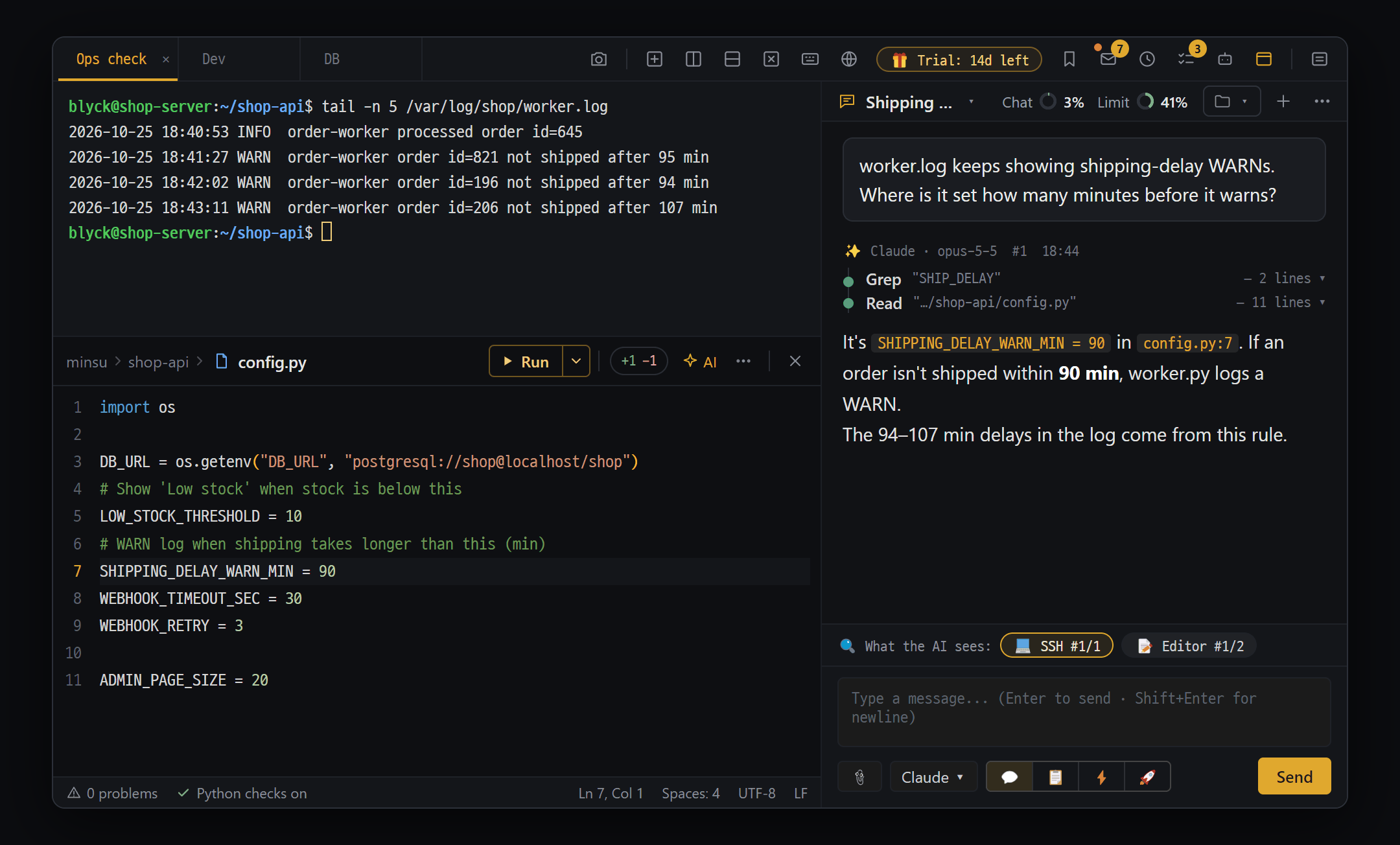
- Server terminal (SSH) — check the worker log right there
- Code editor — a pane with config.py open. Its header has "Run" · changed lines (+1 −1) · AI, with the status bar at the bottom
- AI chat — the neighboring panes (💻 SSH, 📝 editor) show up in the "🔍 What the AI sees:" row, so it answers based on what's on screen
- Top toolbar — split the current pane with "Split vertically" (Ctrl+\) · "Split horizontally" (Ctrl+Shift+-), and drag the divider to resize
The screen has 3 levels: tab → panel (pane) → sub-tab.
| Level | In simple terms | Example |
|---|---|---|
| Tab | One group of work. Each tab has its own pane layout | A “Production servers” tab, a “Development” tab |
| Panel (pane) | One section of a tab, split horizontally or vertically | SSH in the left pane, DB in the right pane |
| Sub-tab | Several screens stacked in one pane. Only one is visible; the others keep running behind it | Stack 3 SSH sessions in one pane and switch between them |
- Tabs:
Ctrl+Shift+Topens a new tab. Double-click a tab name to rename it. Closing a tab ends every session inside it. - Splitting panes:
Ctrl+\(left/right) /Ctrl+Shift+-(top/bottom). Drag a divider to resize; right-click a divider to swap the two sides. - Enlarging:
Alt+Enterin a terminal pane; in other panes, use Zoom pane in the command palette. - Notch: The small name tag at the top center of a pane. Click the name to go to the next sub-tab, or drag it to move it to another pane or another tab.
Ctrl+Shift+Ncycles through always visible → visible on hover → hidden. - Session switcher:
Ctrl+`shows the current pane’s sub-tabs as preview cards so you can pick one (it switches when you releaseCtrl). - Pin (📌): Pins one pane to the pin area on the right side of the window so it stays visible whichever tab you go to. Handy for a server-monitoring terminal or a log.
- Layouts (🗂): Save the current tab’s pane layout and connections under a name, and later open it as-is in a new tab (
Ctrl+Shift+L).
- Across the whole app, up to 24 sessions can be open at once.
- When you quit and relaunch, the tab and pane layout and the screens that were open come back, and connections reconnect (if no password is saved, you’re asked for it).
New tab menu — what you can open in a pane
Section titled “New tab menu — what you can open in a pane”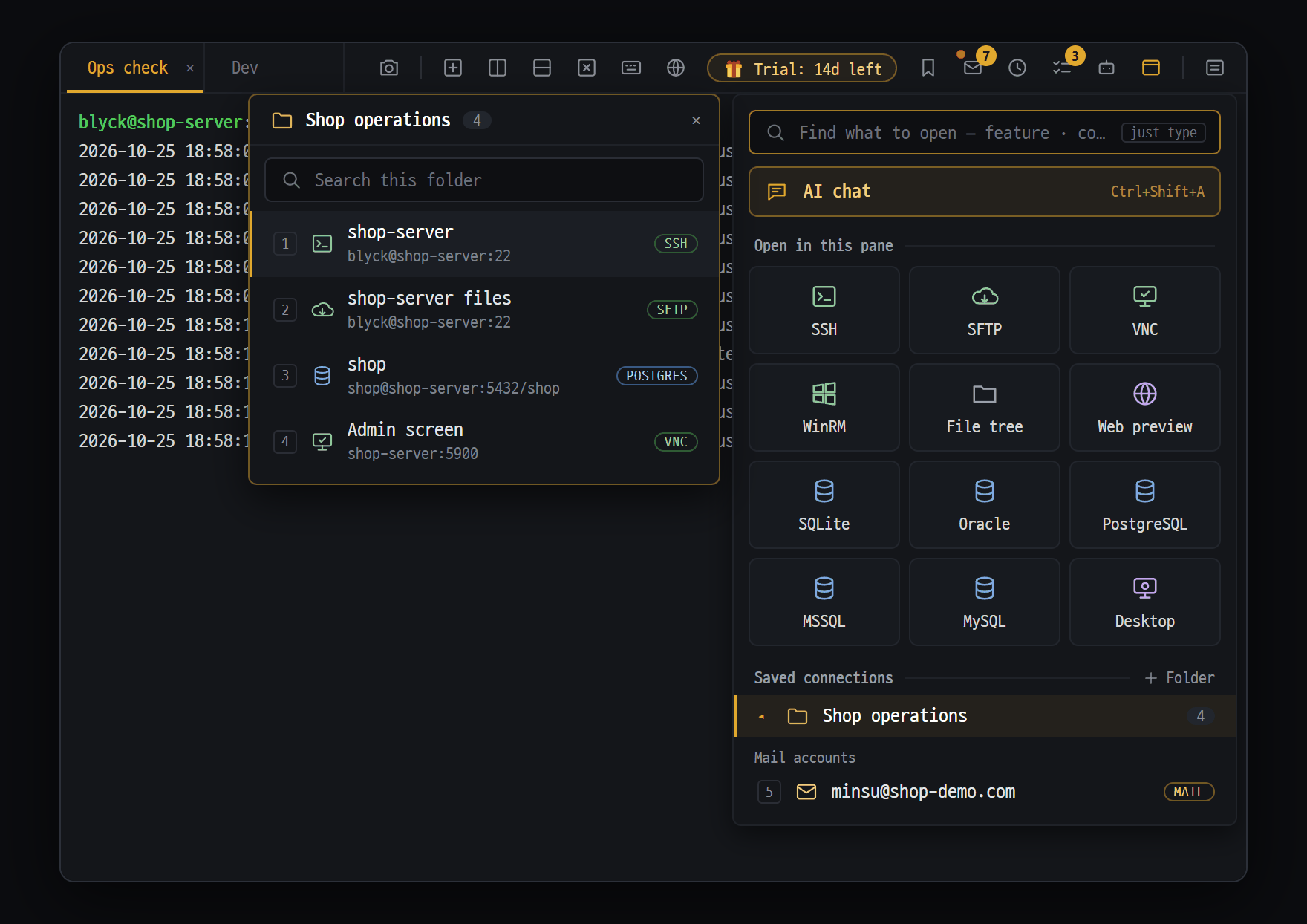
- Open the menu with the "Choose new tab type" button on the far right. Type right away in the "Find what to open" box at the top to search features and saved connections together
- "Open in this pane" — click an icon to open it as a new sub-tab in the current pane. Hover for the name and shortcut
- "Saved connections" — connections outside folders → folders → Mail accounts. Numbers 1~9 are Ctrl+Alt+number; "+ Folder" creates a folder
- Click a folder to open the folder panel on the left — addresses show under the names, and "Search this folder" searches it
Click the Choose new tab type button (a square with three lines) at the far right of the toolbar. Every item opens as a new sub-tab in the current pane.
- Search box: When the menu opens, the cursor is already in the Find what to open box at the top. Just start typing to search features and saved connections together (e.g. “ora” → Oracle and your saved Oracle connections). Pick with
↑/↓and pressEnter;Esconce clears, twice closes. - AI chat: the gold button at the top (
Ctrl+Shift+A). - Open in this pane: 12 icon tiles. Hover over one to see its name and shortcut.
| Icon tile | Shortcut |
|---|---|
| SSH · File tree · SFTP | Ctrl+Shift+S / E / F |
| VNC · WinRM | Ctrl+Alt+V / R |
| SQLite · Oracle · PostgreSQL · MSSQL · MySQL | Ctrl+Alt+D / O / P / M / Y |
| Web preview · Desktop | Ctrl+Alt+B / C |
Saved connections at the bottom of the menu lists the connections you’ve saved in this order: connections outside folders → folders → Mail accounts. Click one to connect right away (without typing a password if one is saved), and use Ctrl+Alt+1–9 to open connections 1–9 directly. The numbers follow the order you see.
- Folders: Create one with + Folder to the right of the heading. Click a folder and a folder panel opens to the left of the menu, showing each connection’s address under its name; use Search this folder to search in it. Folders inside a folder open in the same panel (‹ back).
- Move · edit: Drag a connection onto a folder. Hover over a row to see ✎ (edit) and ✕ (delete).
Command palette
Section titled “Command palette”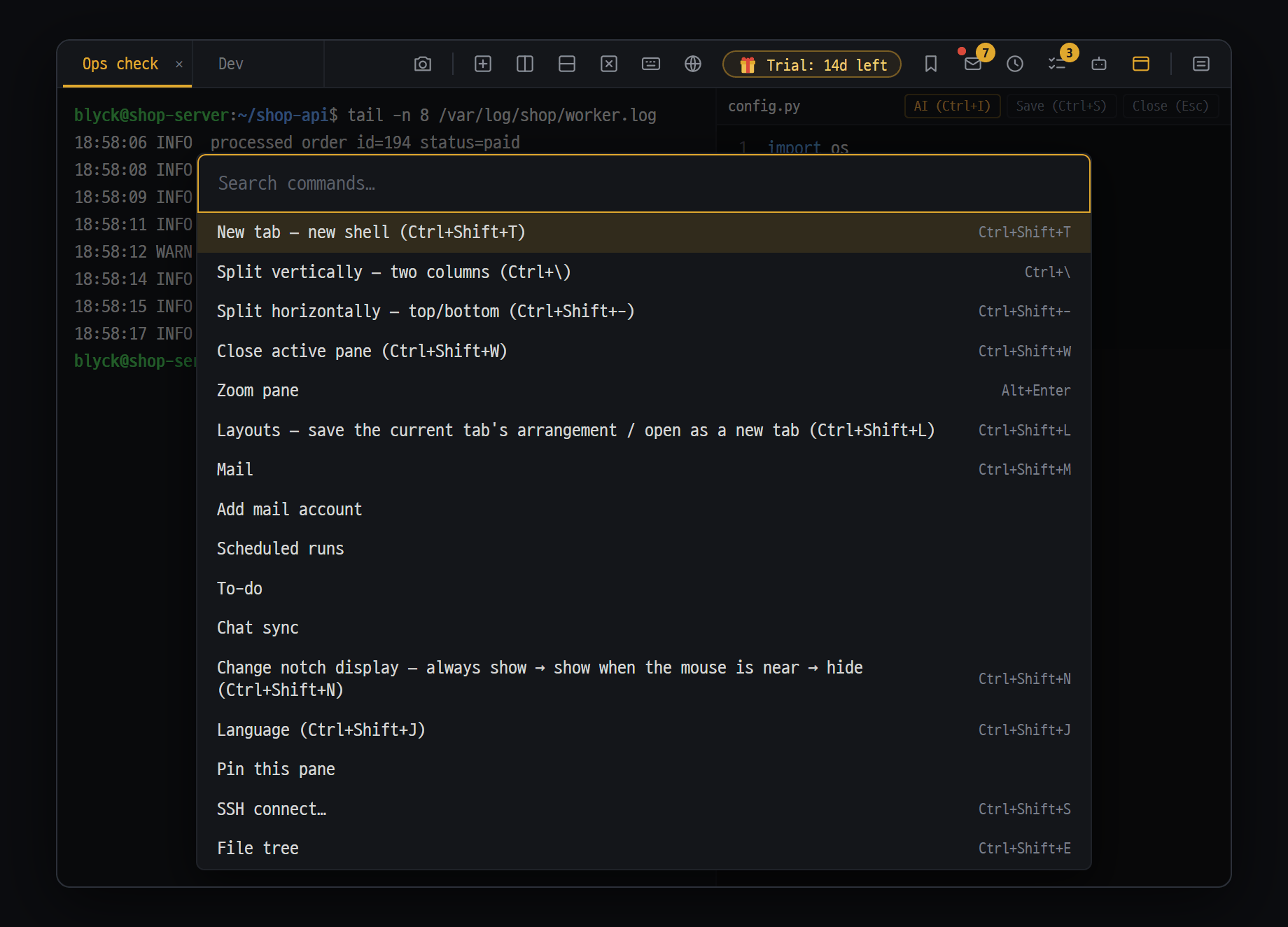
- Type a screen name or an English command name (ssh · sync · backup, etc.) in "Search commands…"
- Features with a shortcut show it on the right — pick with ↑↓ and press Enter
A window for finding Blyck features by name and running them. You don’t need to know the shortcuts.
- Open it with
Ctrl+Shift+P(anywhere) orCtrl+P(outside a terminal). - Search by the name shown on screen or by the English command name (e.g.
ssh,sync,backup), pick with↑/↓, and pressEnter. - Features that have no toolbar button (chat sync, backup/migration, background task list, etc.) are also opened here.
Common shortcuts
Section titled “Common shortcuts”On Mac, Cmd also works in place of Ctrl for most shortcuts. You can also view them inside the app with Keyboard shortcuts (the keyboard icon) in the toolbar.
| Shortcut | What it does |
|---|---|
Ctrl+Shift+T | New tab |
Ctrl+\ / Ctrl+Shift+- | Split left/right / top/bottom |
Ctrl+Shift+W | Close the current sub-tab (closes the pane if it’s the last one) |
Ctrl+Tab | Next pane |
Ctrl+PageDown / Ctrl+PageUp | Next / previous sub-tab |
Ctrl+` | Session switcher |
Alt+1–Alt+9 | Tabs 1–9 (terminal panes only) |
Alt+Enter | Enlarge the current pane (terminal panes only) |
Ctrl+Shift+P | Command palette |
Ctrl+K | Unified search (code · DB · chats · documents) |
Ctrl+Shift+H | Change history (ChangeSet) |
Ctrl+Shift+C | Screen region capture |
Ctrl+Shift+M | Mail pane |
Ctrl+Shift+A | AI chat in the current pane |
Ctrl+1–Ctrl+4 | AI mode: 💬 Chat / 📋 Plan / ⚡ Act / 🚀 Auto |
Ctrl+= / Ctrl+- / Ctrl+0 | Larger text / smaller text / original size |
- Text size changes together, and is remembered, per group of pane types (terminal / tree / editor / chat).
- There is only one color theme (dark), and you can’t choose the font (Blyck uses fonts such as D2Coding that display Korean well).
Q. What do I need to do to start the trial? Nothing. It starts the moment you first launch the app.
Q. I paid, but I still see “AI features are part of Pro”. You haven’t entered the key yet. Activate it with Enter license key.
Q. On my new PC I get “This key has reached its device limit”. Click [Deactivate this device] on the license card of your old PC, then enter the key again.
Q. I suddenly switched to Free while on a business trip. The app couldn’t check online for more than 7 days. Connect to the internet and restart the app.
Q. Alt+1 or Alt+Enter doesn’t work.
They only work in terminal panes. In other panes, click the tab name or use Zoom pane in the command palette.
Q. On my Mac the app is very slow or won’t open. You may have installed the Intel version on an Apple-chip Mac, or the other way around. Reinstall with the dmg that matches your Mac.
Next steps
Section titled “Next steps”- Terminal · SSH · SFTP — connecting to several servers, editing remote files
- Remote Desktop · Windows Servers — VNC, WinRM, screen capture
- AI Chat — AI setup, modes, tool approval
- Databases — 5 DB engines, Excel · CSV upload and download
- Troubleshooting — common errors and how to fix them