
AI Chat
AI Chat is the pane in Blyck where you work with an AI teammate by talking. It is not just for questions: the AI looks at the editor, DB, terminal, and SSH screens you have open, and — within the limits you allow — edits files, runs commands, and queries databases. (Pro)
- Blyck installs the AI companies’ own programs on your PC and calls them as they are. You need at least one of Claude Code (Anthropic’s AI program) and Codex (OpenAI’s AI program; the models are called GPT).
- AI usage is paid from the Claude or ChatGPT subscription you already have (or your own API key). Blyck does not charge anything extra for AI.
- Conversations do not go to Blyck’s servers. They are saved only on your PC.
| Feature | Free | Pro (also during the trial) |
|---|---|---|
| Ask questions and get work done in AI Chat | — | ✓ |
| Read past chats | ✓ (only the input box is locked) | ✓ |
| AI setup wizard (checks install and login) | ✓ | ✓ |
Unified Search Ctrl+K — searches your PC without calling the AI | ✓ | ✓ |
When the trial (14 days, no card) ends and you are not on Pro, the input box is replaced by the notice ✨ AI features are part of Pro and the [Start Pro] and [Enter license key] buttons. Your past conversations stay above it as they were.
AI setup wizard
Section titled “AI setup wizard”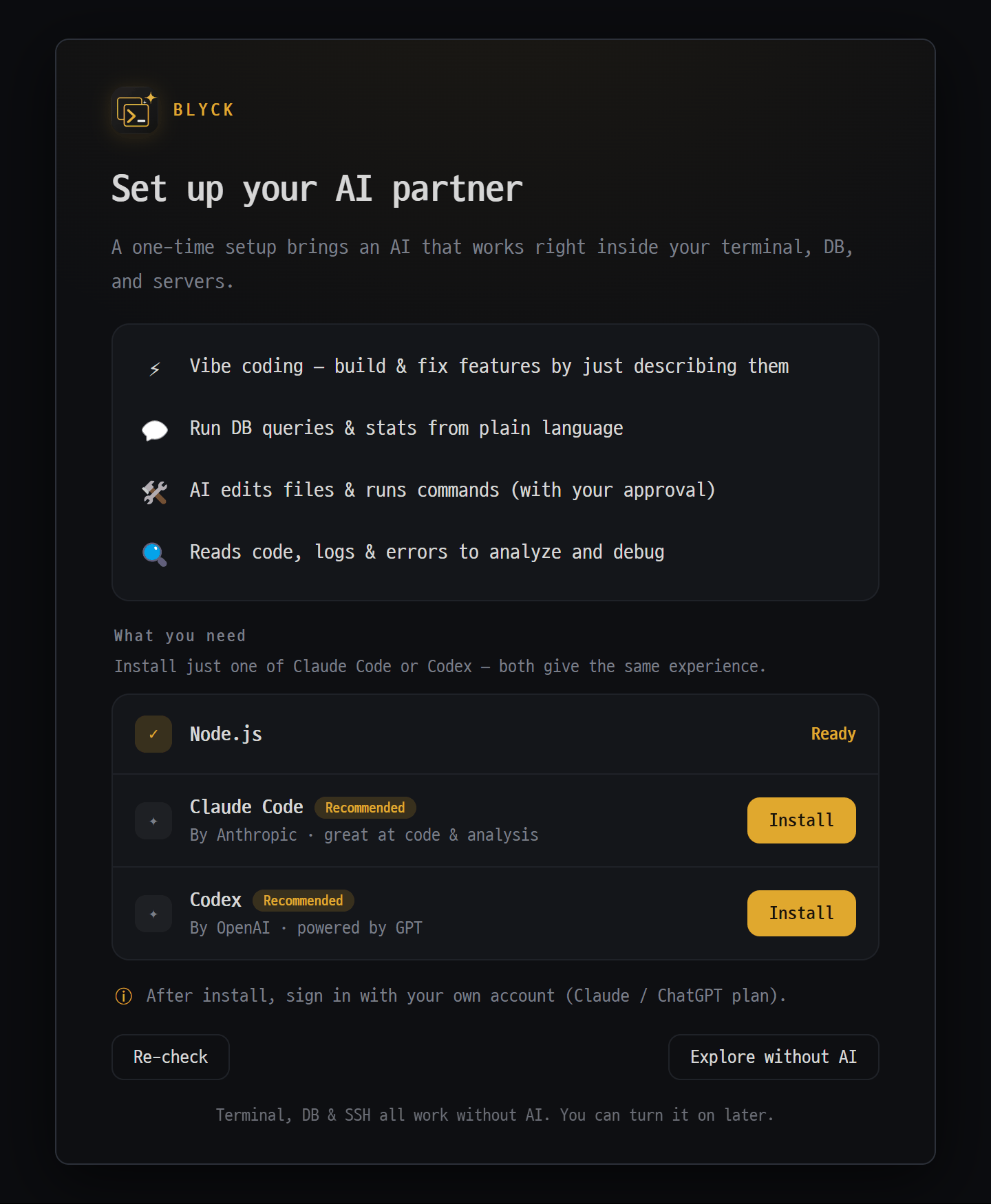
- What your AI partner can do
- What you need — Node.js, plus either Claude Code or Codex
- "Install" — after installing it turns into "Log in" (your own Claude/ChatGPT subscription)
- "Re-check" / "Explore without AI" — terminal, DB and SSH work just the same without AI
This screen checks whether the programs AI Chat needs (Node.js, plus Claude Code or Codex) are installed and logged in, and if not, helps you install and log in with buttons. AI is optional — the terminal, SSH, editor, and DB all work without it.
Where to open it
- If AI is not ready yet, it covers the AI Chat pane automatically every time you open one.
- To open it yourself: command palette (
Ctrl+Shift+P) → AI setup wizard (install · login). Use this when you add Codex while already using Claude, or when you need to log in again.
| Row | Buttons | What it does |
|---|---|---|
| Node.js | [Install Node ↗] | Opens nodejs.org in your browser (Blyck does not install it itself) |
| Claude Code | [Install] → [Log in] → [Log in again] | Installs it and logs in with your Claude account |
| Codex | Same as above | Installs it and logs in with your ChatGPT account |
Steps
- If the Node.js row is not ✓ Ready, install it with [Install Node ↗], then press [Re-check].
- Press [Install] on the Claude Code or Codex row (1–2 minutes).
- When Installed. Now log in. appears, press [Log in]. A terminal window opens and your browser pops up.
- Log in with your Claude or ChatGPT account in the browser. The wizard checks automatically every 3 seconds (for up to 3 minutes).
- When Login complete. AI is ready to use. appears, the wizard disappears and you can start chatting right away.
- Only one of the two needs to be ready. To close the wizard, press [Explore without AI].
- If the screen says Ready but you get an error that your login has expired, press [Log in again]. You don’t need to type commands in a terminal.
- If it still shows as not installed right after installing, you’ll see Installed but not detected yet — restart the app to pick it up. — close Blyck and open it again.
Opening the chat pane and its layout
Section titled “Opening the chat pane and its layout”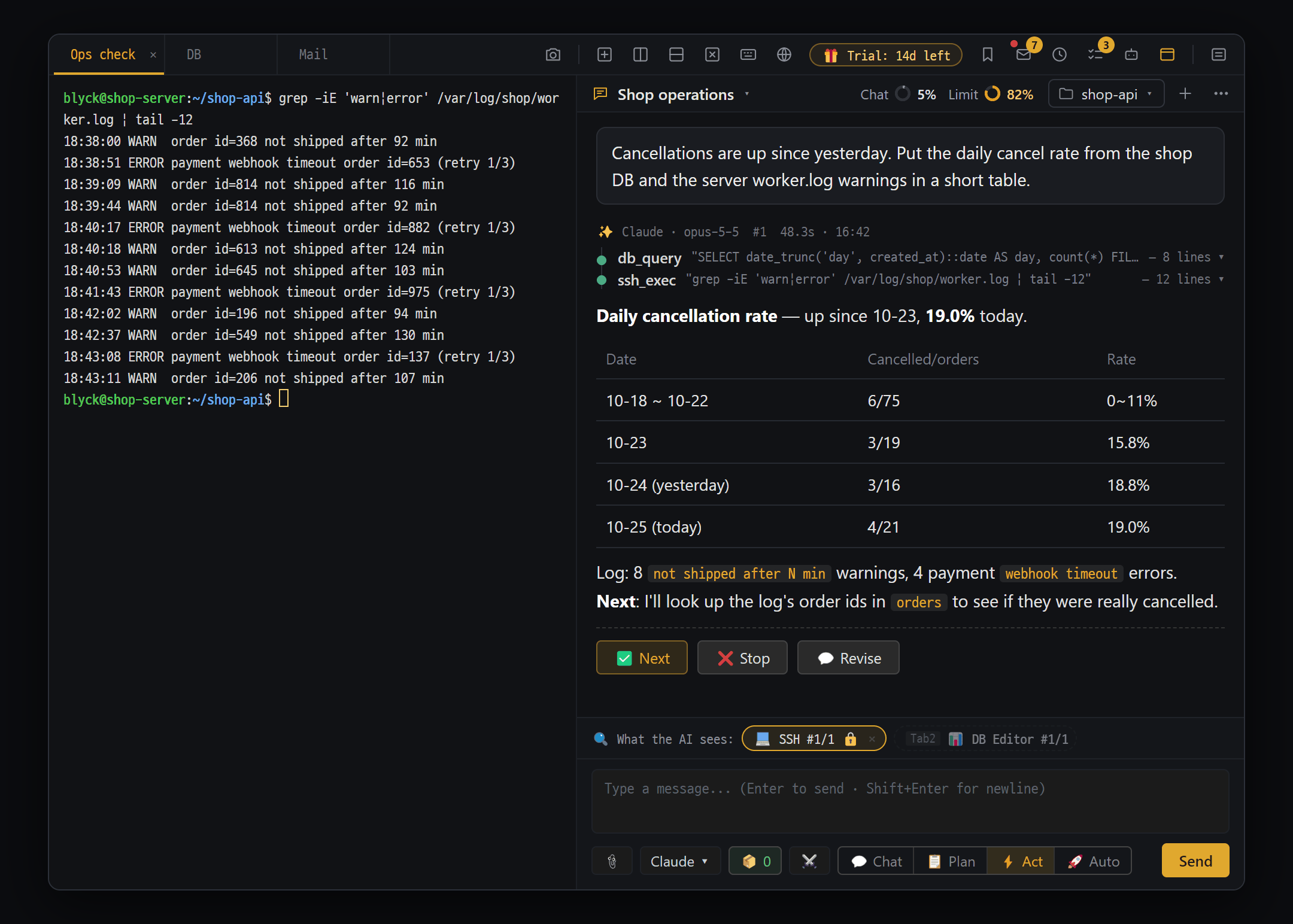
- Chat header — title ▾ · "Chat" and "Limit" rings (click for usage) · folder chip (click for "Folders for this chat") · "+" (new chat) · "⋯" (Timeline · Search chat · Chat settings)
- Tool cards — the AI checks the DB and server itself with db_query · ssh_exec (click to expand input and output)
- Answer — organized in a table. When ⚡ Act mode announces the next step: "✅ Next" · "❌ Stop" · "💬 Revise"
- Input — 📎 attach · model · 📦 · ⚔️ · 4 modes (💬 Chat · 📋 Plan · ⚡ Act · 🚀 Auto) · send
Where to open it
Ctrl+Shift+A(on macOSCmd+Shift+Aalso works) — adds AI Chat as a new sub-tab in the current pane.- The AI chat button at the top of the new-tab menu, or the command palette → 💬 AI chat (in this pane)
- You can open several AI Chat panes at once. Each one works separately.
| Where | Name | What it does |
|---|---|---|
| Top left | chat title ▾ | Click for the chat list, double-click to rename |
| Top right | Chat ◔ % · Limit ◔ % | Two rings (chat and limit) — see “Usage and limits” below |
| Top right | Folder chip | Project folder name + number of extra folders (+N) + ▾. Click for Folders for this chat. Until you set one: a dashed + Folder |
| Top right | + | New chat (keeps the current chat’s AI, model, and reasoning effort) |
| Top-right corner | ⋯ | Timeline / Search chat / Chat settings |
| Above the input box | 🔍 What the AI sees: | Chips for the screens sent to the AI along with your message |
| Row below the input box | 📎 · model button · 📦 · ⏳ · ⚔️ · 💬📋⚡🚀 · ⋯ · Send | Attach, model, change set, separate AI task, debate, modes |
- Answers appear as the text comes in. While the AI is answering, you see a progress line:
⏳ seconds elapsed · 🔧 tool in use · character count. - When the pane is narrow, the button row shrinks: first the mode buttons become icons only, and if it is narrower still, 📦, ⏳, and ⚔️ move into ⋯.
- By default the AI answers in Blyck’s display language. If you ask in another language, it answers in that language.
Choosing the AI and model · Reasoning effort
Section titled “Choosing the AI and model · Reasoning effort”Click the model button below the input box (for example Opus · high ▾) to see the Model list at the top and Reasoning effort below it. Each chat remembers its own choice.
| List | Meaning |
|---|---|
| Claude — Default / Fable / Opus / Sonnet / Haiku | Claude Code’s default model, or the latest model in that family |
| Codex — Default / GPT Astra / GPT Sol / GPT Terra / GPT Luna | Codex’s default model, or the latest version in that family |
- Only models from AIs installed on this PC are shown. If neither is installed, you see ⚠ AI not installed — set up; click it to open the wizard.
- The answer header shows the version actually used (for example
✨ Claude · opus-5-5). - If you switch between Claude and Codex mid-conversation, the conversation continues. The first message after switching re-sends the conversation so far to the new AI, so that one message uses more of your quota.
- When a new model version comes out, leave Blyck as it is and just update the Claude Code or Codex program — Blyck follows along.
Reasoning effort — sets how deeply the AI thinks before answering. Higher settings solve harder problems better, but are slower and use more quota.
| For | Levels you can choose |
|---|---|
| Claude (Default, Fable, Opus, Sonnet) | Default, low, medium, high, xhigh, max |
| Claude Haiku | Cannot be chosen |
| Codex | Default + the levels that model supports |
- The default is Default (the AI program’s own default effort). If you change it mid-conversation, the very next request uses more quota, once.
- Reasoning effort applies only to AI Chat. One-shot AI features such as
Ctrl+Iin the editor and Git commit messages always use Default effort.
The 4 modes — Ctrl+1 to Ctrl+4
Section titled “The 4 modes — Ctrl+1 to Ctrl+4”This switch decides how far the AI is allowed to go. Click one of the 4 mode buttons below the input box, or press Ctrl+1 to Ctrl+4 inside the AI Chat pane (on macOS also Control). Each chat saves its own mode, and new chats start in 💬 Chat.
| Key | Button | What the AI can do |
|---|---|---|
Ctrl+1 | 💬 Chat | Read only. Read files, DB SELECT, look at screens, search. Changing files, running commands, and changing the DB are blocked |
Ctrl+2 | 📋 Plan | Read + write document files (.md, .txt, etc.), with an approval card each time. Changing source code, running commands, and changing the DB are blocked |
Ctrl+3 | ⚡ Act | All tools. Reading happens right away; every change is confirmed with an approval card. Goes one step at a time |
Ctrl+4 | 🚀 Auto | All tools. Ordinary changes go ahead without a card; only dangerous actions are confirmed with a card |
- In ⚡ Act mode, when the AI announces its next step at the end of an answer, ✅ Next · ❌ Stop · 💬 Revise buttons appear under the answer.
- You can change modes at any time during a conversation. The change applies from the AI’s next tool use.
- If you say “fix it” in 💬 or 📋, the AI doesn’t just refuse — it tells you something like “this can be applied in ⚡ Act mode”.
- When you switch from 📋 Plan to ⚡ or 🚀, the last plan is handed to the AI so it carries it out as written.
- These always go through a confirmation dialog, whatever the mode: git push, discarding git changes, reverting change history, and sending mail.
Using the input box
Section titled “Using the input box”- Type what you want to say. For a new line, press
Shift+Enter. - Press
Enteror [Send]. - While the AI is answering, [Send] turns into ⏸ Stop. Click it or press
Escto stop. - If you send a new message while the AI is answering, it stops the current answer and starts again with the new message.
| Hover over a message | What it does |
|---|---|
| 📋 | Copy the message |
| ✏ (your message) | Edit and send again (Ctrl+Enter). Only when the very last message in the chat is yours |
| 🗑 | Delete the message (after confirming) |
- When the AI asks you to pick one of several options, a
❓ Questionwindow appears. Click an option, or type in Other (type directly)… and press [↵ Answer], or press [Skip] (the AI goes ahead with a sensible default). If you don’t answer within 5 minutes, it counts as skipped.
Slash commands and /session
Section titled “Slash commands and /session”Type / at the very start of the input box to see a list of available commands. Pick one with ↑ ↓ and press Enter. The commands are Claude Code’s and Codex’s own features (for example code-review, init) plus commands and skills you made yourself.
/session is a Blyck command that attaches another chat’s recent conversation and work log to this chat’s AI as reference. For example: letting the frontend chat know what was done in the backend chat.
- Choose
/session, then search for and pick a chat (last 30 days, up to 30 chats). - A 📎 Reference: “title” · … · 🔄 live chip appears above the input box. Every time you send a message, it updates to the latest content of the referenced chat.
- Remove it with the chip’s ✕.
Attachments — files · images · screen capture
Section titled “Attachments — files · images · screen capture”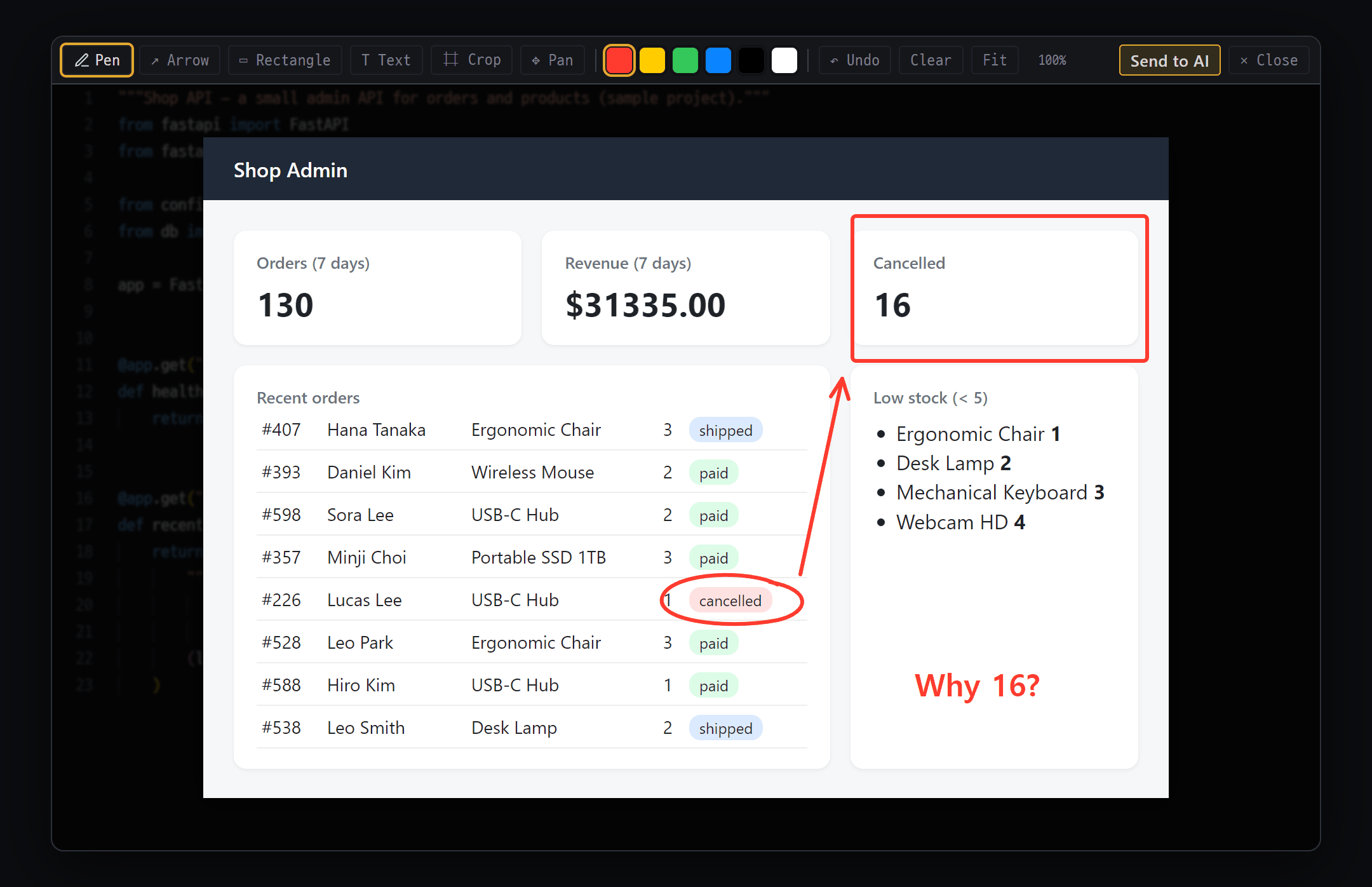
- Tools — Pen · ↗ Arrow · ▭ Rectangle · T Text · ⌗ Crop · ✥ Pan, 6 colors, ↶ Undo · Clear · Fit
- Mark up the capture — show the AI where to look with a drawing
- Send to AI — merges the picture and your marks into one image and attaches it to the AI chat input
| How | Description |
|---|---|
| 📎 below the input box | Pick files (several at once). Images, text/code, Office (docx/xlsx/pptx), PDF |
| Drag and drop | Drag files onto the input box area |
Ctrl+V | Paste images or files |
📷 or Ctrl+Shift+C | Capture a screen region → edit → send to AI (external monitors too) |
| Type | How it reaches the AI |
|---|---|
| Text and code | Up to 64 KB, the content is sent along. Larger files show 🤖 AI Read on the chip — the AI reads them itself |
| Images and PDFs | The path is given and the AI opens them itself |
| Office documents | The text is extracted when you attach and sent along (files up to 10 MB, up to 50,000 characters) |
Screen region capture
- Open an AI Chat pane first (capture won’t start without one).
- Press 📷 or
Ctrl+Shift+C→ drag over the area you want.Esccancels. - In the editor window, mark it up with pen, arrow, rectangle, text, and crop.
- Send to AI → it is added as an attachment to the current AI chat. Type your message and send.
- macOS needs the Screen Recording permission. Details on capture are in Remote Desktop · Windows Servers.
- Pasted images and captures are saved as temporary files and deleted automatically after 30 days.
”What the AI sees” — automatic awareness of your workspace
Section titled “”What the AI sees” — automatic awareness of your workspace”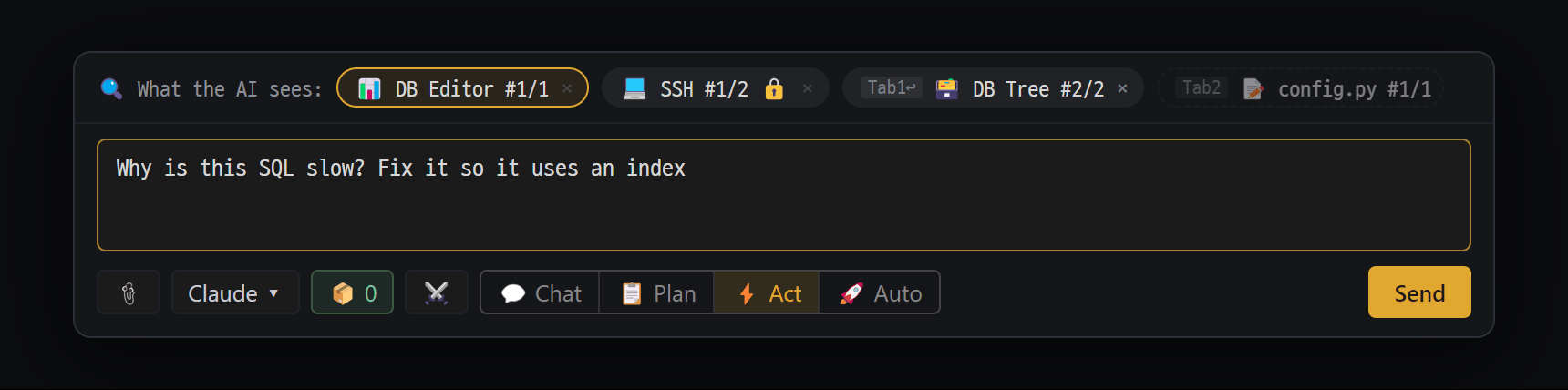
- "🔍 What the AI sees:" — solid chips are panes visible on screen (gold border = the pane you're using) and are sent with your message. 🔒 means passwords and keys are masked
- Faded dashed chips — panes in other tabs (name only). Click one to send its content too. A "Tab1↩" chip is a background pane switched to include content; × turns it off
- Model button — pick the AI, model and reasoning effort
- Modes — 💬 Chat · 📋 Plan · ⚡ Act · 🚀 Auto (Ctrl+1~4)
When you send a message, the state of the panes open in the current tab is sent to the AI along with it. That’s why you can say “why is this SQL slow?”, “the function I’m looking at”, or “on this server” and the AI knows which screen you mean.
| Pane | What is sent along |
|---|---|
| 📝 Editor | File path and language, the visible part, selected text, cursor position |
| 📊 DB editor | DB type, current SQL, result column names and row count, selected cells, first 10 result rows |
| 🗃 DB tree | DB type, expanded objects, table and view names (up to 30) |
| 💻 Shell / SSH | Connection target, current folder, last 40 lines of output, selected text |
| 📂 File tree (local / SFTP) | Current folder, Git branch |
| 🌐 Web preview | URL and title, number of console errors, last 3 errors |
| 📬 Mail pane | The mailbox you’re viewing and its count, subject and sender of the open message (the body is not sent) |
| Chip look | Meaning |
|---|---|
| Solid chip | A pane visible on screen right now — sent along. Click to preview exactly what will be sent |
| Normal chip (tab number) | Not visible, but you turned on sending its content. Turn off with × |
| Faded dotted chip | A pane in another tab or hidden behind — name only. Click to send its content too |
| 🔒 | Passwords, keys, etc. were masked |
| 🕐 Recent activity N | SQL runs, file saves, and commands from the last 5 minutes |
- Masked automatically:
password=…, tokens and API keys,Bearer …, things shaped like AWS, Google, or GitHub keys, and private key blocks are replaced with***before sending. Not every pattern is recognized, so exclude sensitive panes with the settings below. - The size limit is 4 KB per pane and 20 KB total (default). If it goes over, long outputs are trimmed first.
- To turn it off: ⋯ → Chat settings → Context → Auto-detect active panels. To exclude certain kinds of panes or specific panes, use Hide session types and Hide individual panels in the same place.
Project folder
Section titled “Project folder”Sets the folder the AI works in. Once set, the AI works inside that folder, and the code and documents in it are indexed automatically so you can find them with Unified Search.
- Click the folder chip at the top. With no folder yet (a dashed + Folder), the picker opens right away; otherwise press Add folder (or Manage folders… → [Change]) in the list under the chip.
- Choose 📁 Select local folder…, a saved 📡 SSH/SFTP connection, or ➕ Connect remote (SSH/SFTP)….
- For a remote folder, browse into it and press [Select this folder].
- You can set 1 main folder + several extra folders (for example frontend + backend).
Shift+click removes the main folder right away. - In the list under the chip, click a folder to Open in file tree in the pane next to the chat (the chat stays put).
- With a remote project folder (the chip shows a blue server icon), the AI’s file reads, writes, and command runs go to that server. However, Claude’s and Codex’s own command tools run on your PC, so their approval cards carry the warning ⚠️ This command runs locally (your laptop), not on the remote.
- A local main folder becomes the default for your next new chat.
Reading answers
Section titled “Reading answers”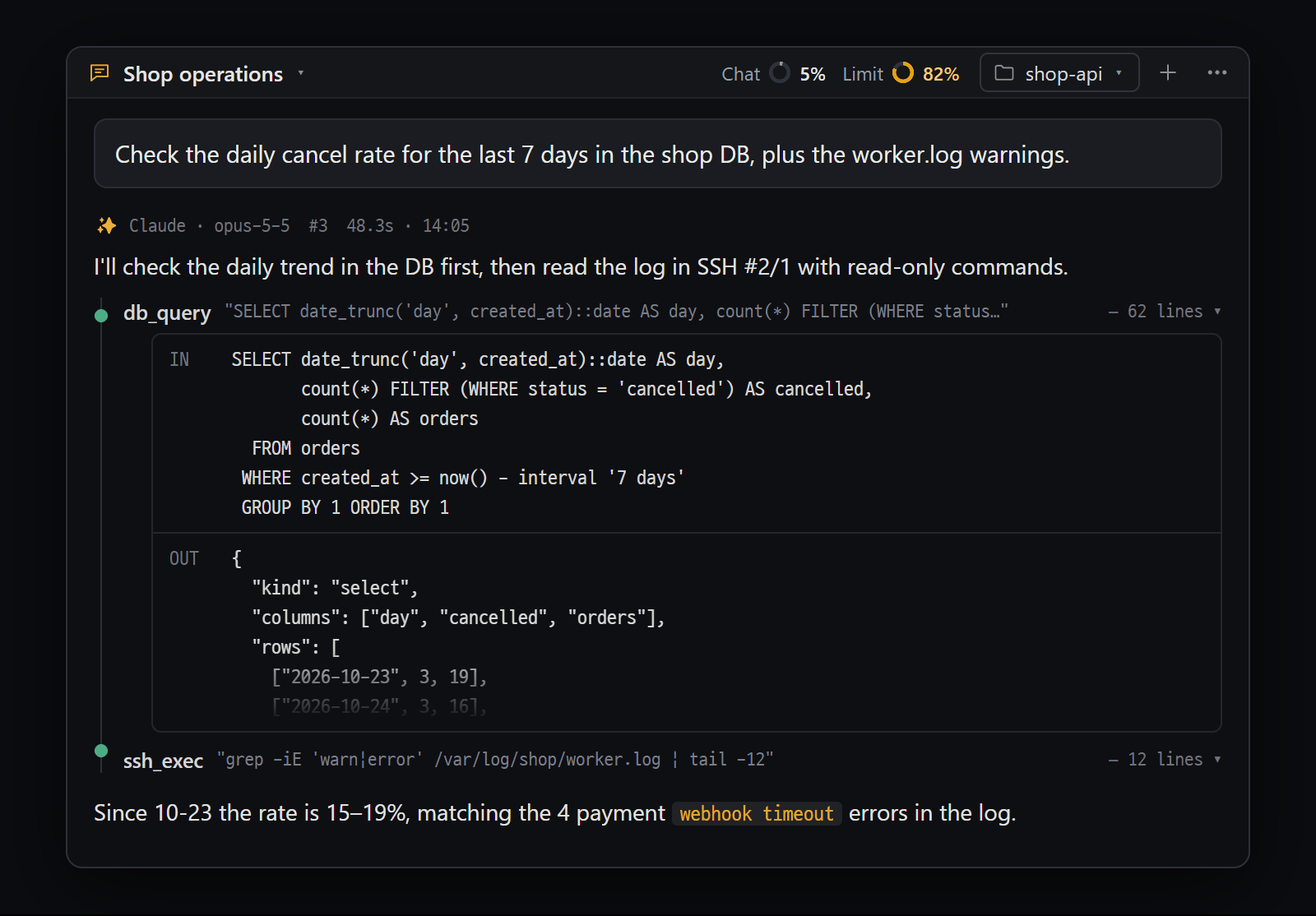
- Reply header — "✨ Claude · opus-5-5" · "#3" · time taken · time. Click #3 to copy it and refer to it, e.g. "use the #3 approach"
- One tool card line — ● tool name · input summary · number of result lines. Click to expand
- IN — the input the AI sent to the tool (SQL here)
- OUT — the result the tool returned
Answer header — looks like ✨ Claude · opus-5-5 · #3 · 48s · 14:05.
#3means this is the 3rd answer in this chat. Clicking it copies#3, and if you write something like “do it again the #2 way” in a message, the AI understands you mean that answer.- A cost (
$0.12 API) appears only when you use Claude with an API key. With a subscription you see your limit instead of a cost. - If you turn on ⋯ → Chat settings → Display → Auto git checkpoint per task (off by default), answers that changed files get a
📝 3 changeschip; click it to [Revert this answer].
💭 Thinking — when the AI sends its deep-thinking process, a collapsible section appears inside the answer. It looks the same for Claude and Codex.
Task cards — when the AI uses tools such as reading files, running commands, or querying the DB, each one shows as a line in the answer (● tool name input summary result summary). Click the header to expand IN (the input sent) and OUT (the result).
Code block buttons
| Language | Buttons | What they do |
|---|---|---|
| All | 📋 Copy | Copy to the clipboard |
| SQL | ⤓ Insert into editor | Only puts the SQL below the cursor in the SQL editor of the DB the chat ran it on (or a new SQL editor for that DB). One Ctrl+Z takes it out. You run it yourself with Ctrl+Enter |
| Shell | ▶ Run shell, 📝 Editor | Only types the command into the open shell or SSH pane. You run it yourself with Enter |
| Others | 📝 New editor / 📝 Editor | Opens it in an editor pane |
mermaidcode blocks show up as diagrams (flowcharts), and math shows up as formatted math.
Approval cards and risk levels
Section titled “Approval cards and risk levels”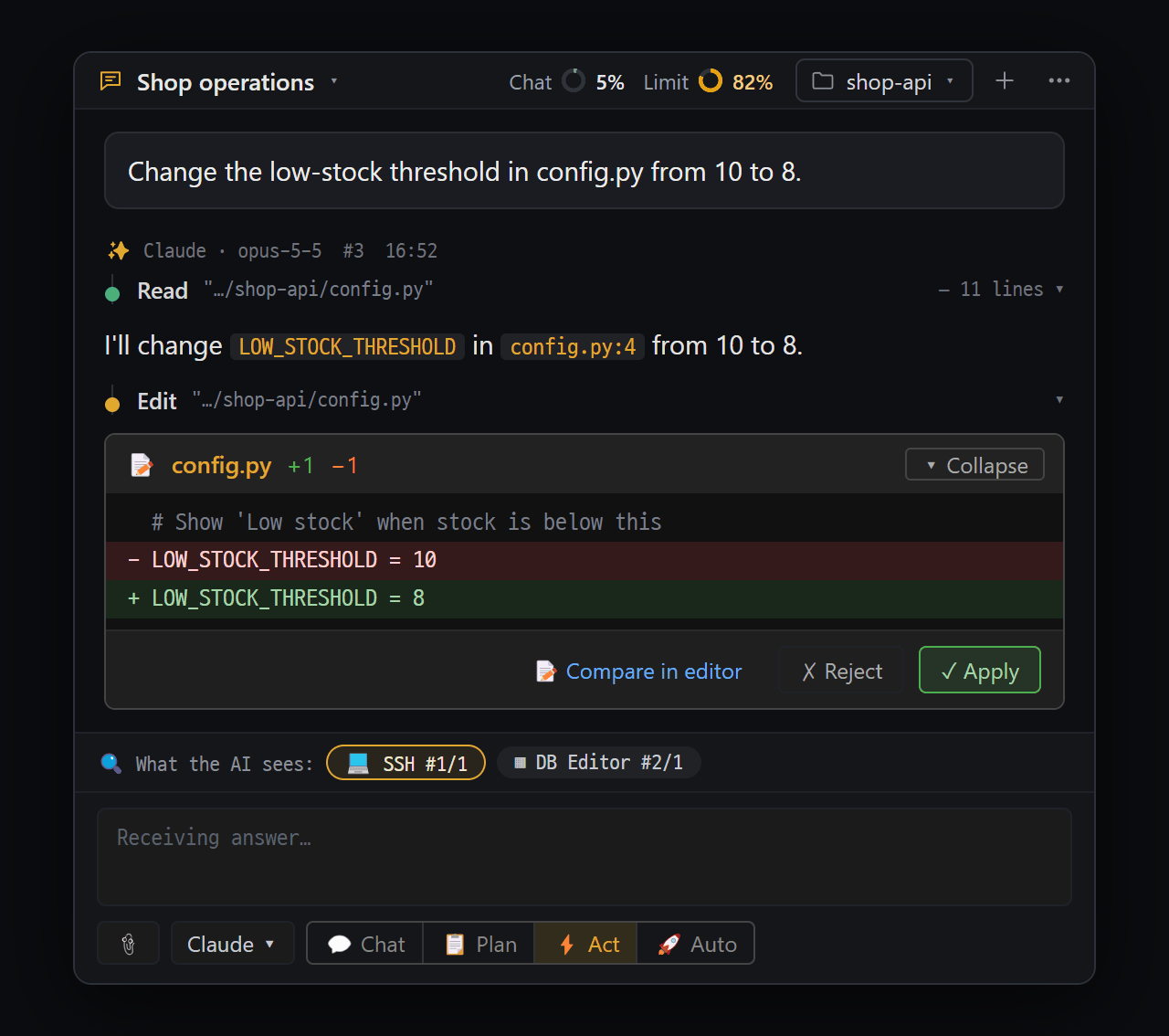
- File change card — "📝 config.py" · +1 −1, changed lines (red = lines to remove, green = lines to add)
- "📝 Compare in editor" · "✗ Reject" · "✓ Apply" — the AI waits until you choose
- Modes — ⚡ Act shows a card for every change, 🚀 Auto only for risky ones
This is the card you check before the AI changes something. The card is attached at the very end of the answer, and the AI waits right there until you choose.
| Mode | When a card appears |
|---|---|
| 💬 Chat | Never (changes are blocked from the start) |
| 📋 Plan | Only for writing document files |
| ⚡ Act | Every change: file changes, command runs, DB changes, file transfers, etc. |
| 🚀 Auto | Only dangerous actions |
- File change card — file name,
+added −removedline counts, ▸ diff (expand the changed lines). Buttons: 📝 Compare in editor · ✗ Reject · ✓ Apply. - Command confirmation card —
⌘ command, the folder it runs in, and the reason. Buttons: ✗ Reject · ✓ Allow. For DB changes you see 📊 Affected rows: ~N rows, and a DELETE/UPDATE without WHERE gets the warning ⚠ No WHERE clause. - If you reject, the AI looks for another way. To tell it why, write in the input box after rejecting.
- Pressing ⏸ Stop rejects all cards that were waiting.
| Risk level | Examples | Handling |
|---|---|---|
| Read | SELECT, reading files, screen capture | Right away, no card |
| Write | INSERT, UPDATE … WHERE, writing files, mv chmod, installing packages | ⚡ card / 🚀 goes ahead automatically |
| Dangerous | DROP, TRUNCATE, ALTER, DELETE or UPDATE without WHERE, rm -rf, stopping or restarting services, shutdown, reboot | Card in both ⚡ and 🚀 |
| Blocked | Writing to protected system paths such as /etc /usr C:\Windows C:\Program Files | Not run |
- To let 🚀 Auto mode do even dangerous actions without a card: ⋯ → Chat settings → AI · Tools → Auto-approve dangerous operations in auto mode too (off by default). Even when it’s on, protected paths stay blocked.
- You can also press approval cards in the phone app (the phone app is coming soon).
- Files and DB data the AI changed can be reverted in Change History (
Ctrl+Shift+H).
Stop · Try again · Continue
Section titled “Stop · Try again · Continue”- Stop: ⏸ Stop or
Esc. The answer received so far stays, with [Stopped by user] at the end. If a background task is running in this chat, Blyck first asks whether to stop it too. - Try again: when an answer is cut off by an error with a known cause, the notice shows [↻ Try again] (when the cause is temporary) and [Change model]. Try again asks the AI to “continue from where it stopped” (so tools that already ran don’t run twice).
- Tidying the conversation: when a conversation reaches about 85% of what the AI can remember at once, Blyck summarizes it to make it shorter before the next message (🗜️ Compacting context…). In Claude chats you can also shorten it yourself with [Compact now] in the usage window.
- When you reopen Blyck: AI Chat panes that were open reopen in the same place and the conversation continues as it was.
Usage · Limits
Section titled “Usage · Limits”With a subscription you pay nothing extra, so instead of a cost Blyck shows how much of your limit you’ve used.
- The usage chip at the top: two rings with numbers, like Chat ◔ 17% Limit ◔ 18%
- conversation% = how much of what the AI can remember at once (the context) this conversation takes up
- limit% = whichever subscription limit you’ve used the most of (for example, the higher of the 5-hour limit and the weekly limit)
- Each ring changes color on its own: chat turns yellow at 60% and red at 80%, limit turns yellow at 70% and red at 90%.
- Click the chip to open the 💰 AI usage window: Claude and GPT subscription limits with their reset times, and a token table per chat.
- Limits are for your whole Claude or ChatGPT account, and appear only after you’ve sent at least one message.
Chat list · Search · Timeline
Section titled “Chat list · Search · Timeline”- Chat list: click the chat title at the top. Most recently used first. Delete with 🗑.
- Rename: double-click the title and press
Enter. - Search chat (⋯ → Search chat): searches message content in This chat / All chats, with two or more characters. Click a result to jump to that message.
- Timeline (⋯ → Timeline): a drawer on the left shows a one-line summary of each answer. Milestones (answers that changed files or had a decision or error) / All. Click one to jump to that answer.
Chat settings ⚙
Section titled “Chat settings ⚙”⋯ at the top-right corner → Chat settings. Changes apply right away.
| Group | Main items |
|---|---|
| Context | Auto-detect active panels, send recent activity along, hide by pane type or by pane, size limits |
| AI · Tools | Auto-approve dangerous operations in auto mode too, Suggest saving to persistent memory, automatically register Blyck tools for Codex, MCP tool integration (add outside AI tools such as Context7, Playwright, Figma) |
| Display | Chat layout (Clean (default) / Cards), show the “What the AI sees” row, collapse tool details by default, typing speed, Auto git checkpoint per task, auto debug investigation, auto design-regression regeneration |
| Diagnostics | [📁 Open log folder], [📤 Send diagnostics] — Troubleshooting |
| 🧪 Lab | Agent Board (beta) — AI Teams & Automation |
| 🌐 Remote access | Connecting other PCs and phones — Other PCs · Phone |
| License | Subscription status, releasing devices |
- When you add a new MCP tool, existing Claude chats don’t pick it up right away. Open a new chat with +.
Per-chat Python environment
Section titled “Per-chat Python environment”A separate Python environment made for each chat, used when the AI runs Python code itself for calculations, organizing tables, or converting files. Even if the AI installs packages, your PC’s own Python is left untouched.
- Python must be installed on your PC. The environment is created automatically the first time it’s used (a few seconds), and each run can take up to 30 seconds.
🐍 N MBin the chat list is its size, and it is deleted together with the chat.
Related features
Section titled “Related features”- Persistent Memory — the AI remembers facts it confirmed, in later chats too
- AI Teams & Automation — debates, Agent Board, scheduled runs, background tasks, the to-do window
- Mail — the mail assistant; ask “any new mail?” from any chat
- AI Debug Bridge — the AI reads the internal values of a running program directly
AI error messages
Section titled “AI error messages”When an answer is cut off, you see a notice like these instead of the raw red error ({provider} is Claude or GPT).
| Notice | Cause | Fix |
|---|---|---|
| {provider} servers are busy right now, so the reply stopped. | The AI company’s servers are congested | [↻ Try again] after a moment; if it’s urgent, [Change model] |
| You have used up your {provider} usage limit, so the reply stopped. | Subscription limit used up | Check the reset time on the usage chip, or switch to another AI |
| Too many requests — {provider} paused them briefly. | Too many requests | Try again after a minute |
| This conversation is too long for {provider} to continue. | The conversation exceeds what the AI can remember | + new chat, or [Compact now] (Claude) |
| The connection to {provider} was lost. | Internet connection dropped | Check your internet and try again |
| Claude authentication required / Codex authentication required | Not logged in | [Log in] in the setup wizard |
| Claude authentication expired / Codex sign-in expired | Login expired or revoked | [Log in again] in the setup wizard |
| claude CLI not found / codex CLI not found | Not installed or not detected | Install with the setup wizard; if you just installed it, restart Blyck |
| This model requires a newer Codex CLI | The Codex program is an old version | Update as instructed, then restart Blyck |
| Exited right after CLI start — possible auth/MCP issue | The AI program shuts down as soon as it starts | [Log in again], or remove recently added MCP tools and open a new chat |
The AI Chat pane only shows the wizard and I can’t chat Claude Code or Codex isn’t installed or logged in. Follow the wizard’s steps. If it isn’t detected right after installing, restart Blyck.
I use Claude and want to add Codex too Command palette → AI setup wizard (install · login) → [Install] on the Codex row.
The answer is slow or seems stuck
If the progress line (seconds elapsed · 🔧 tool) is moving, it’s working. If it says 🗜️ Compacting context…, wait. If it’s really stuck, press ⏸ Stop and send again with more specific instructions.
A file changed without an approval card
You’re in 🚀 Auto mode. Switch to Ctrl+3 (⚡ Act) and a card appears for every change. In Codex chats on Windows, cards may also not appear if Codex’s security setup failed.
I said “fix it” in 💬 Chat mode but nothing was fixed 💬 and 📋 are modes where changes are blocked. Switch to ⚡ Act or 🚀 Auto.
The AI doesn’t know which screen I’m looking at Check whether that pane is in 🔍 What the AI sees: above the input box. If it says Nothing (auto-detect active panels is off), turn it on in ⋯ → Chat settings → Context. For panes in another tab, click the faded chip so their content is sent.
I have a subscription but don’t see a cost That’s normal. A subscription has no extra charge, so the limit % is shown instead.
I added a new MCP tool but the AI says “No such tool” A Claude chat keeps using the tool list from when it started. Open a new chat with +.
Where is my chat history? Can I move it to another PC?
It’s in the chats folder of Blyck’s data folder on your PC, one file per chat. For how to move it, see Backup · Migration.