5 minutes is all it takes
From install to your first AI chat, four steps are all you need.
- 1
Install and run
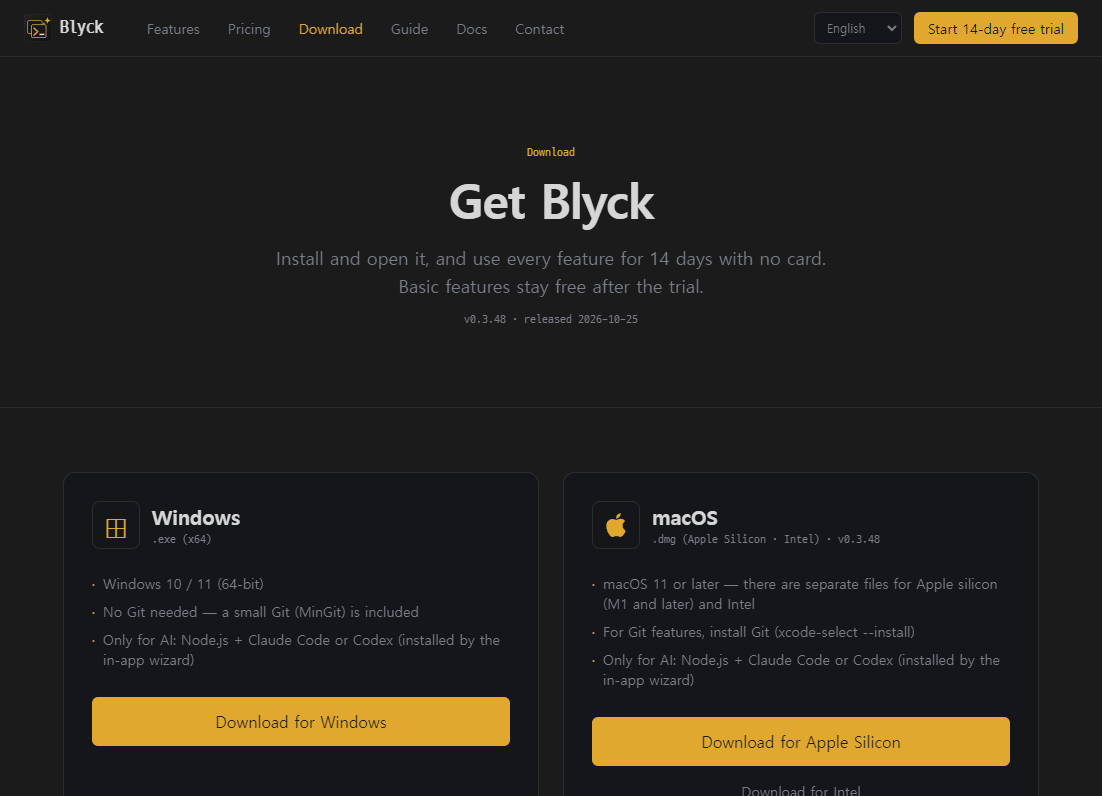
Download the .exe on Windows, or on Mac the .dmg that fits your Mac (Apple silicon / Intel), and install it. On first launch, a 14-day free trial starts automatically with no sign-up or card, and 🎁 Trial: 14d left appears at the top.
- · Download → install → run
- · Windows warning: More info → Run anyway; Mac warning: Open Anyway (just once)
- · During the trial you can use every feature, AI included
- 2
AI setup (optional)
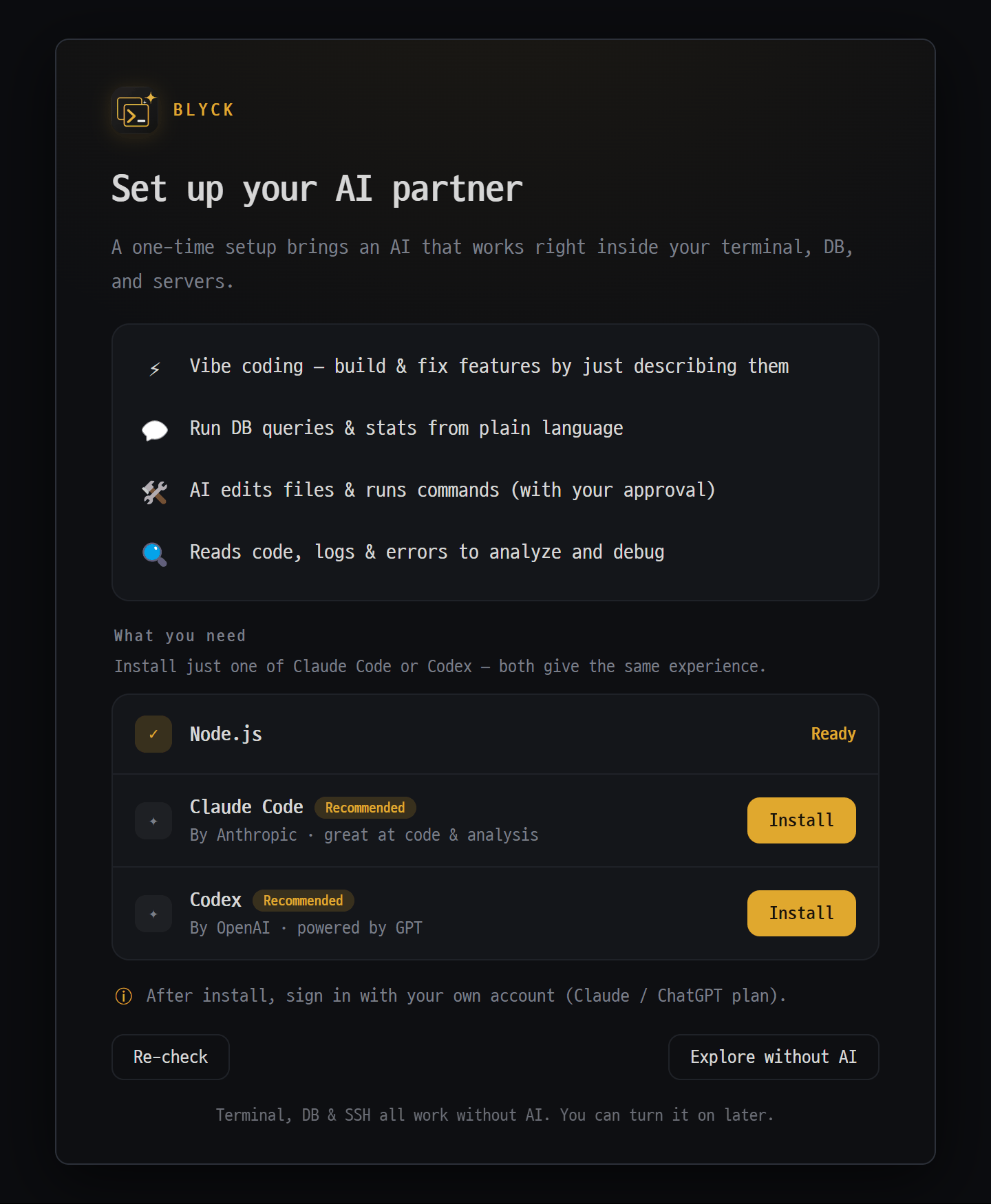
The first time you open the AI chat panel (Ctrl+Shift+A), the AI setup wizard appears. It checks Node.js; click [Install] → [Log in], then sign in with your Claude or ChatGPT account in the browser, and you’re done. Without AI, the terminal, SSH and databases still work as usual.
- · ① Check Node.js → ② [Install] → ③ [Log in]
- · You only need one of Claude Code or Codex
- · You can skip it with [Explore without AI]
- 3
First SSH connection
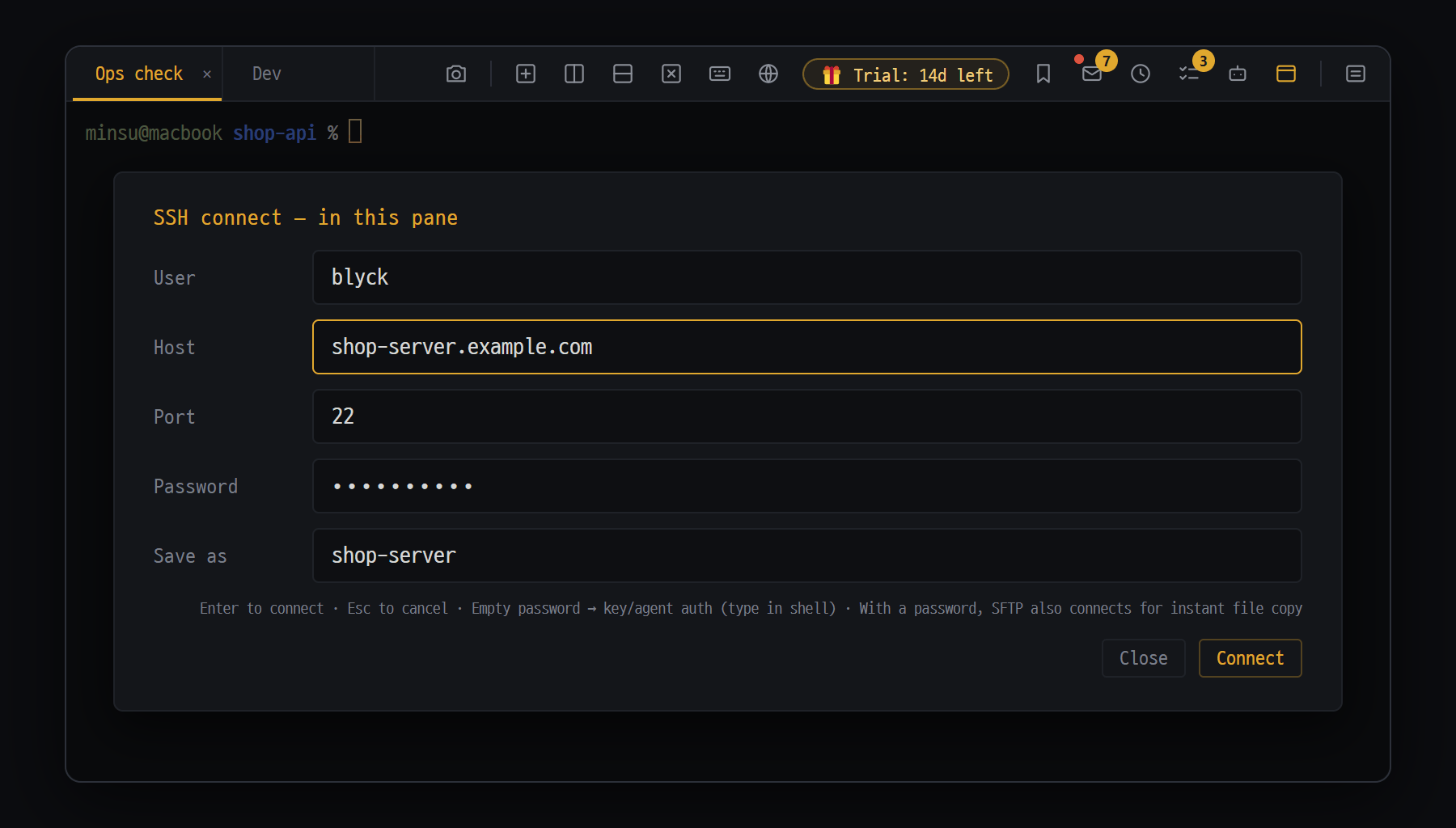
Press Ctrl+Shift+S to open the SSH connect dialog, enter User and Host, then click [Connect]. If you also enter a save name and password, they’re stored with OS encryption, and next time you get in with one click from Saved connections.
- · Ctrl+Shift+S → User · Host (· Port) → Connect
- · Uses your usual ~/.ssh/config and keys as-is
- · If the connection drops, it reconnects on its own
- 4
First AI chat
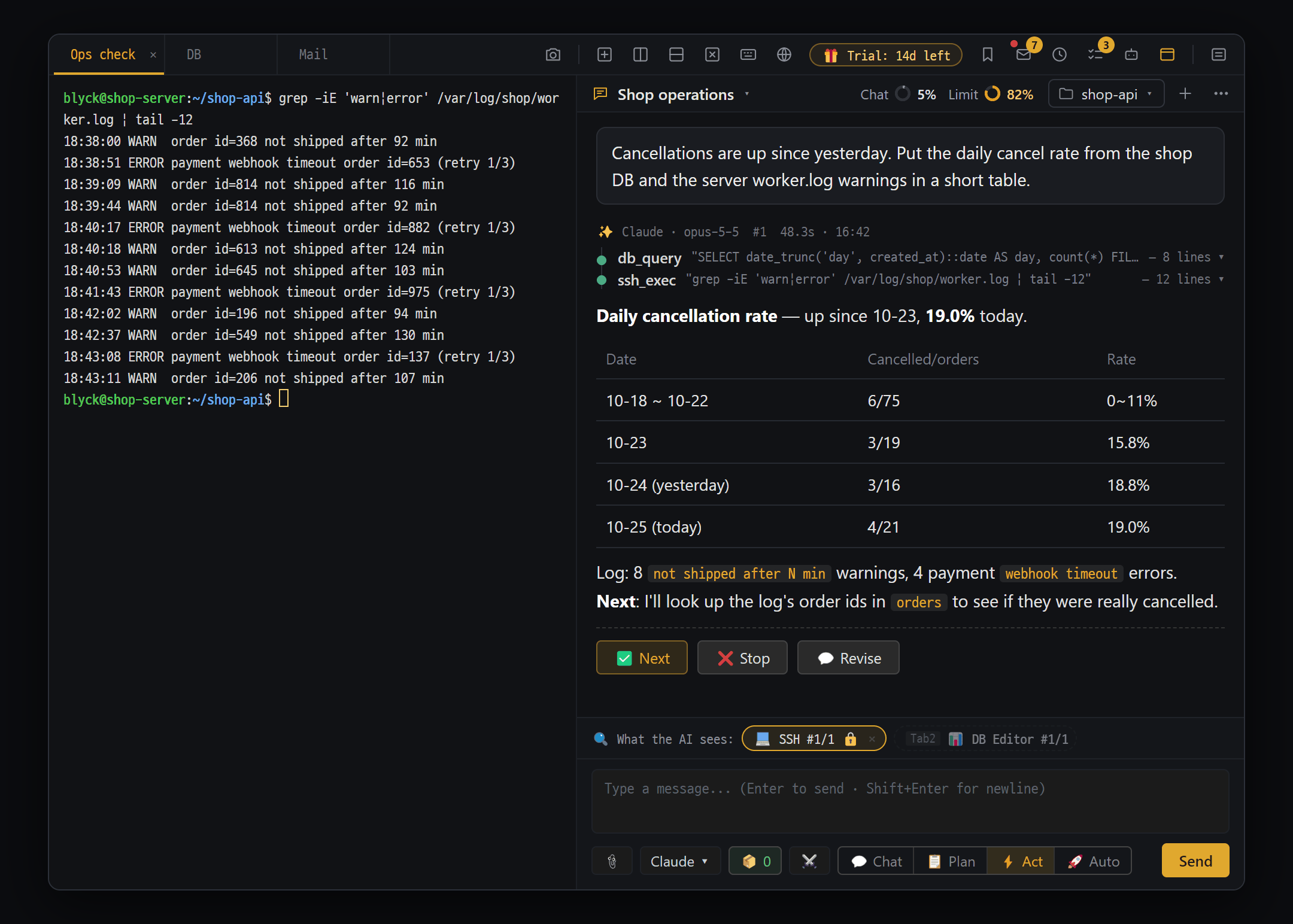
Tell the AI chat panel what you want in plain words. The AI answers while looking at the SSH, DB and editor screens you have open. New chats start in 💬 Chat (read-only) mode; to let it make changes, switch to ⚡ Act (Ctrl+3). You pick what changes on the approval card.
- · "Show me this SSH server’s disk usage"
- · "Tell me yesterday’s sign-ups in this DB"
- · ⚡ Act mode — an approval card for every change (Pro after the trial)
Go deeper
Find detailed usage per feature in the docs, and reach out for anything you get stuck on.