A one-window workbench where AI does the work
AI sees your servers, DBs and terminals and fixes them directly. Risky actions are held back by approval cards, and AI costs come from the Claude or ChatGPT subscription you already have. After the trial, only AI and remote access are Pro — everything else stays free.
Nothing gets installed on your server — all it needs is sshd
To use AI through VS Code Remote-SSH, every server needs AI programs like Claude Code or Codex plus extensions and Node installed and signed in. On air-gapped servers or ones where you can’t install anything, that can be blocked. Blyck runs the AI on your PC. Server files are read and edited over SFTP, and commands are sent over SSH. Set the AI chat’s project folder to a server folder (📡) and the AI’s file work goes to that server.
Claude Code and Codex aren’t installed on the server. They run on your PC and pass the work over SSH and SFTP.
No need to sign in to an AI account or drop keys on every server, so management stays clean.
No AI programs or their caches appear on the server. Air-gapped servers and servers without install permission work as they are.
Good to know: the built-in command tools of Claude and Codex themselves (Bash and so on) run on your PC, not the server. In that case, the approval card in ⚡ Act mode shows a warning: "This command runs locally, not on the remote."
AI Chat (Pro)
The AI looks at the terminal, SSH, DB and editor screens you have open, and — as far as you allow — runs commands, edits files and queries databases. AI costs come from the Claude or ChatGPT subscription you already have — Blyck charges no AI fees of its own.
- ✓ All you need is Claude Code or Codex (GPT). The AI setup wizard handles install and sign-in in a few clicks
- ✓ "What the AI sees" — your open panels (editor, DB, SSH, web preview, mail) go along with your message, so "why is this SQL slow?" is enough. Passwords and keys are masked automatically before sending
- ✓ Four modes — 💬 Chat (read-only) · 📋 Plan · ⚡ Act (approve every change) · 🚀 Auto (approve only risky ones)
- ✓ Tool approval cards — for file changes you see the changed lines and pick ✓ Apply / ✗ Reject; for DB changes you see the number of affected rows first. Risky actions like DROP or rm -rf ask again in every mode
- ✓ Conversations never go to Blyck servers — they stay on your PC
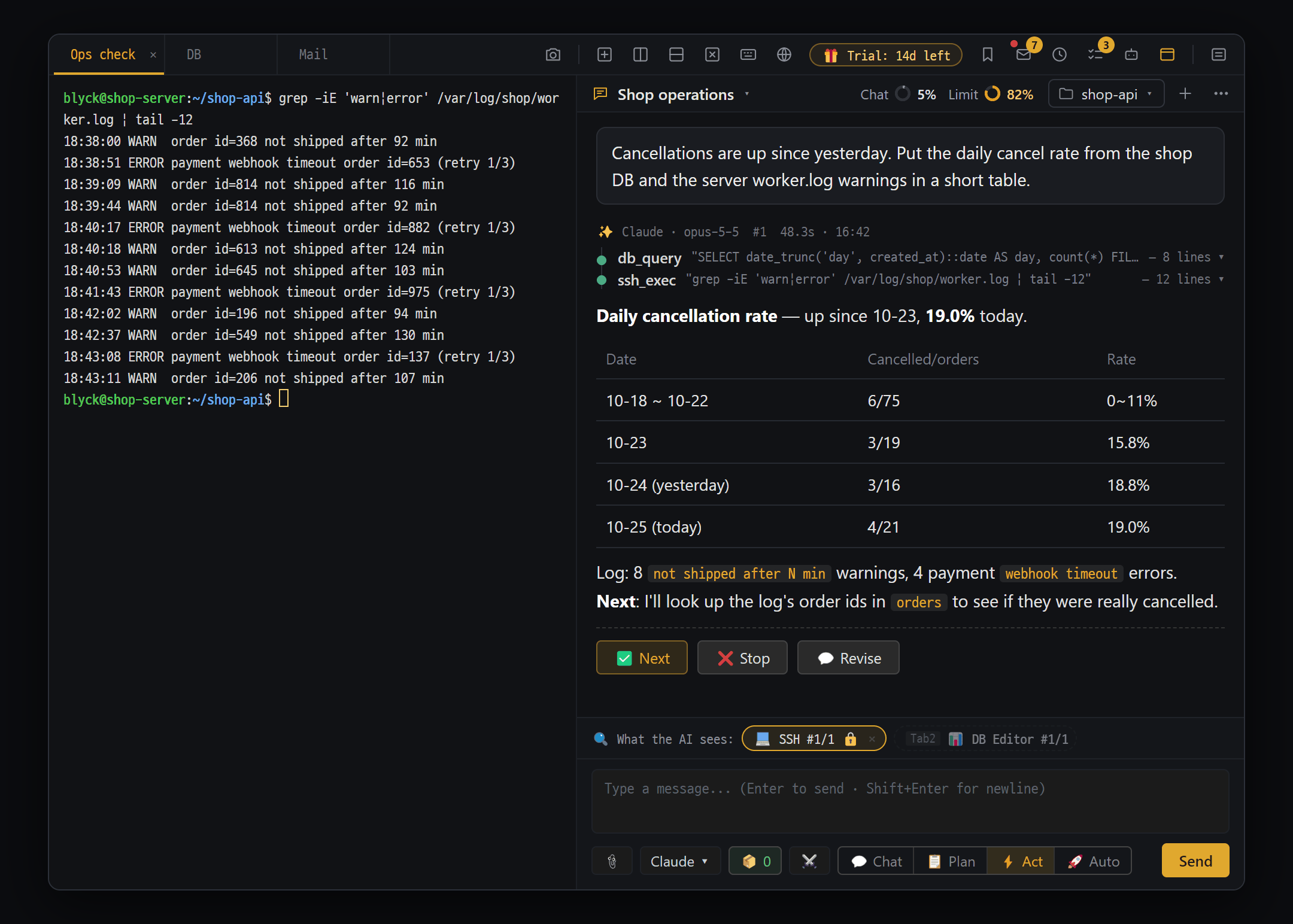
Terminal · SSH · SFTP
Split several servers across one screen and edit server files directly over SFTP. Nothing is installed on the server — the AI also runs on your PC and works over SSH and SFTP.
- ✓ Local shells (PowerShell, bash, zsh) and SSH in the same kind of panel — split the screen to work on several servers at once, with non-English text that never breaks
- ✓ Auto-reconnect when the connection drops (up to 10 tries). Saved connections keep even the password, encrypted by the OS, for one-click login
- ✓ Uses your usual ~/.ssh/config settings and keys as-is
- ✓ SFTP remote tree — open server files in the editor, and upload/download between your PC and the server
- ✓ Tree search box — find names or text inside files down through subfolders. Content search uses the built-in ripgrep, shows results as they’re found and opens them right away (remote: searched on the server)
- ✓ The server only needs sshd. Air-gapped servers and servers where you can’t install anything work too
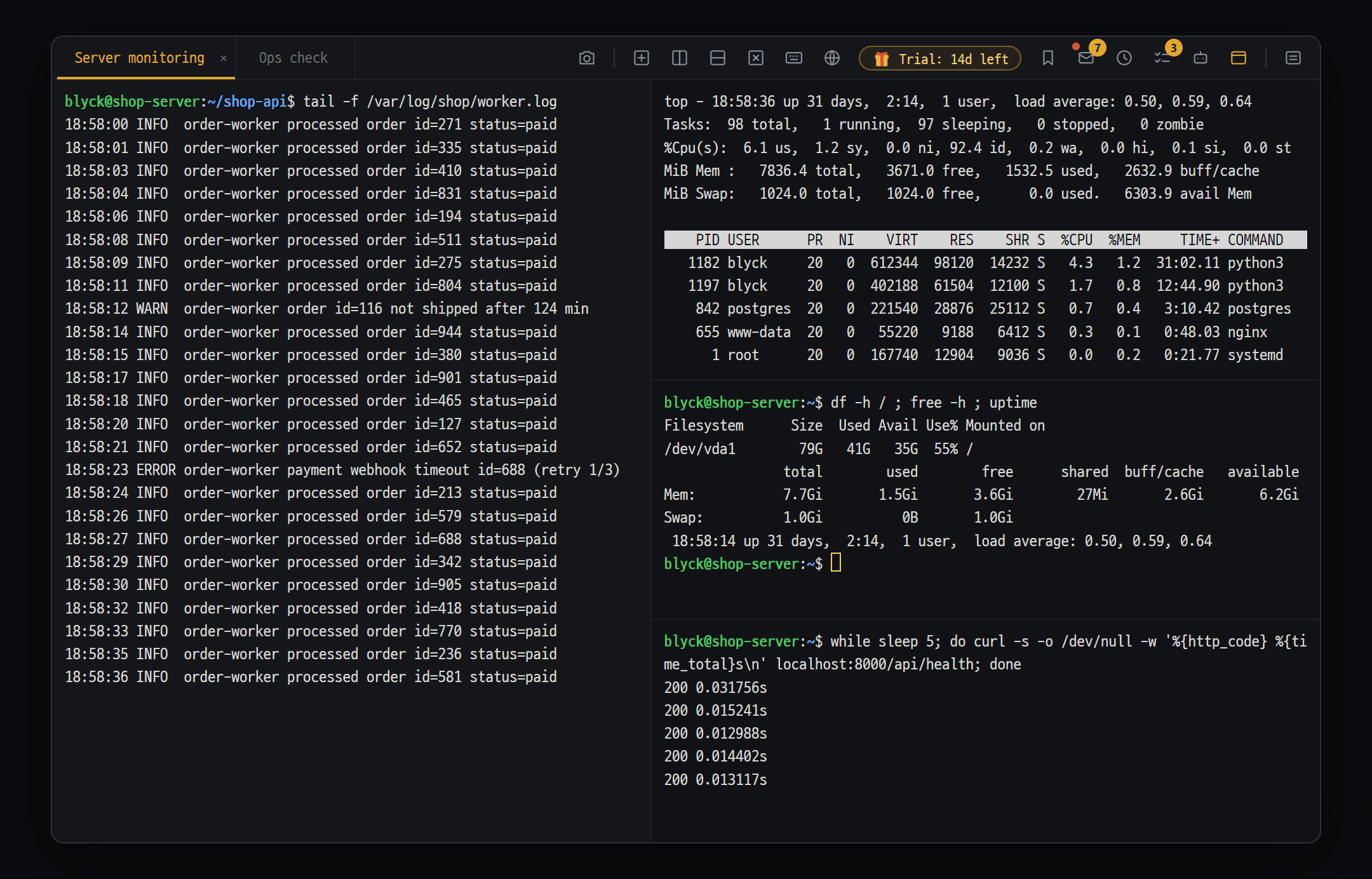
5 database engines
SQLite, Oracle, PostgreSQL, MSSQL and MySQL on the same screen, the same way. Data changes are recorded and backed up first so you can undo them.
- ✓ Schema tree · SQL editor · result grid (5,000 rows at a time, cell editing, new rows)
- ✓ Export to CSV, Excel or clipboard; stop a running SQL (cancelled on the server side)
- ✓ Confirmation for risky SQL + change history — simple UPDATE and DELETE statements back up the affected rows before running, so you can revert
- ✓ Table right-click Excel·CSV — download a template · download data · preview and upload (everything rolls back on a DB error)
- ✓ SQL editor AI (Ctrl+I) — sends table info and the last error along, and only syntax-checks the fixed SQL without running it · AI analysis of result grids (Pro)
- ✓ AI chat queries the database directly — SQL that changes data is confirmed on an approval card
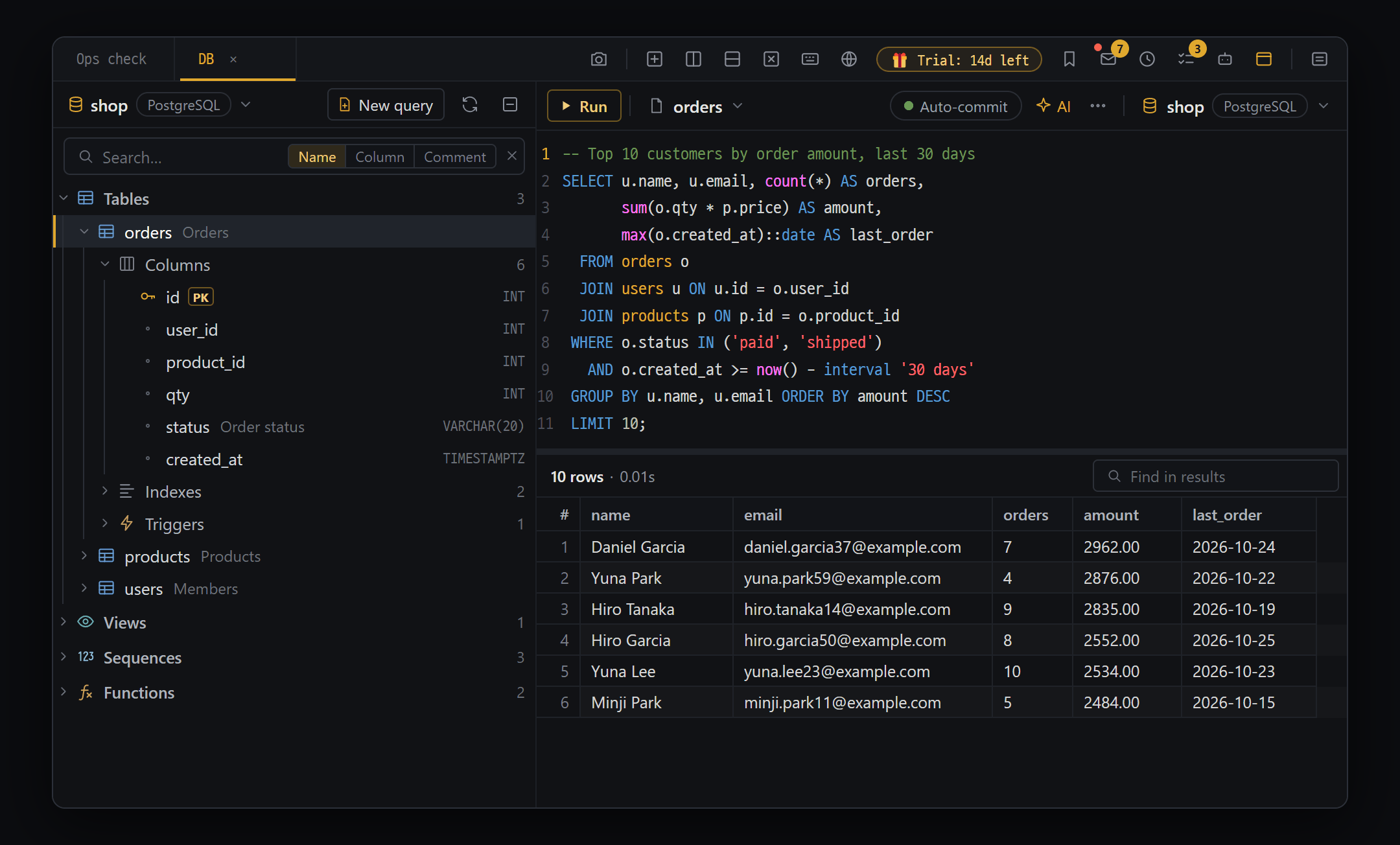
Remote access to other PCs · phone (Pro)
Continue the AI chat running on your home PC from your laptop, and press its approval cards. With the phone app you can also watch, talk and approve (phone app coming soon).
- ✓ Pair once with a 6-digit pairing code — works between Windows and Mac too
- ✓ Watch another PC’s AI chat live · talk to it · stop an answer · allow/reject approval cards
- ✓ Hand work to another PC’s AI and get the results and files back as a reply
- ✓ Permission levels (1–4) are set only in front of the PC receiving the connection. New chats, deleting, terminals, files and settings can never be done remotely, at any level
- ✓ Your devices connect directly through Tailscale — nothing passes through Blyck servers. Both PCs must be on Pro (or in the trial)
- ✓ Phone app (coming soon) — allow or reject approval cards from several PCs on one screen, and snap photos to send to the AI on your PC
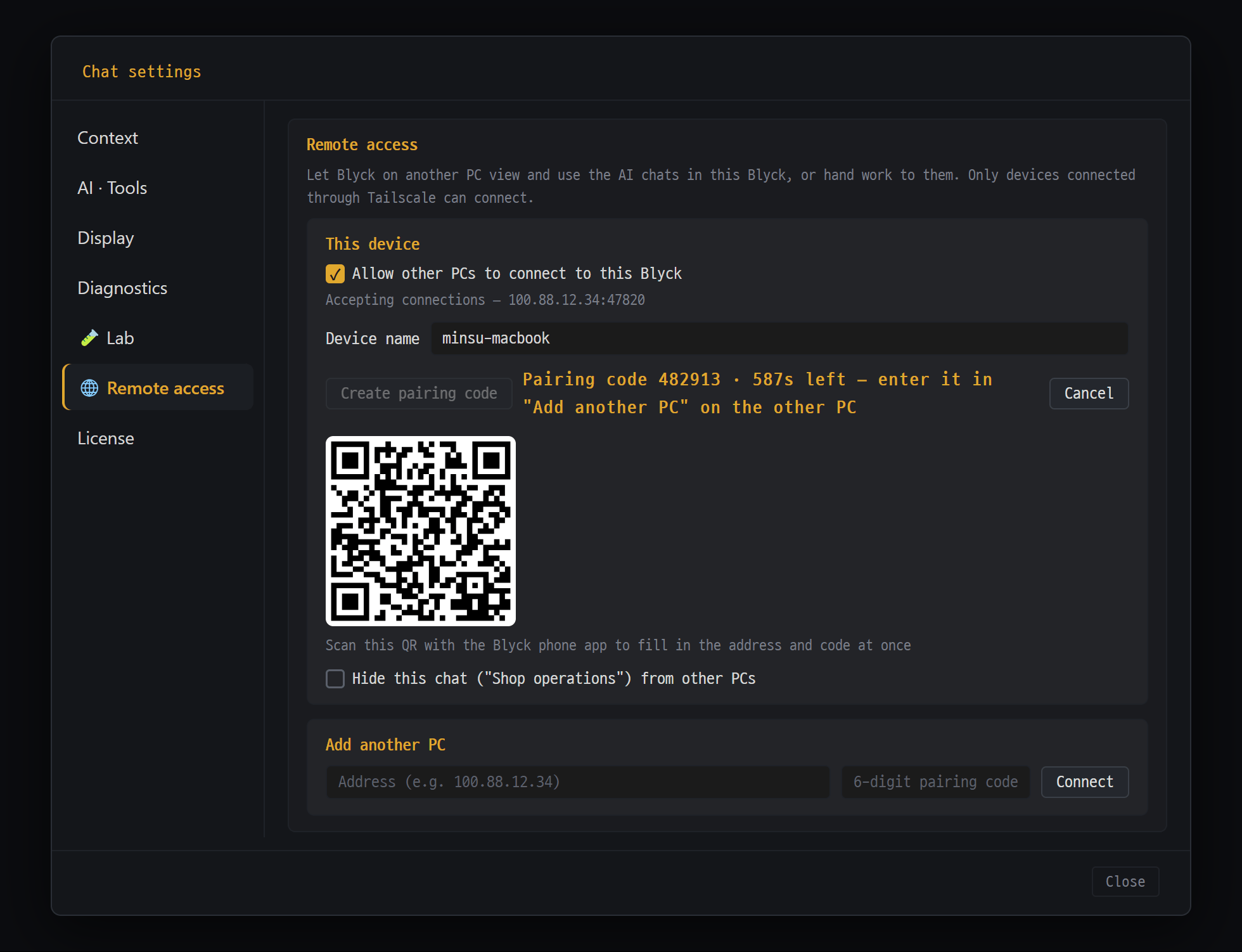
Scheduled runs · background tasks · To-do window
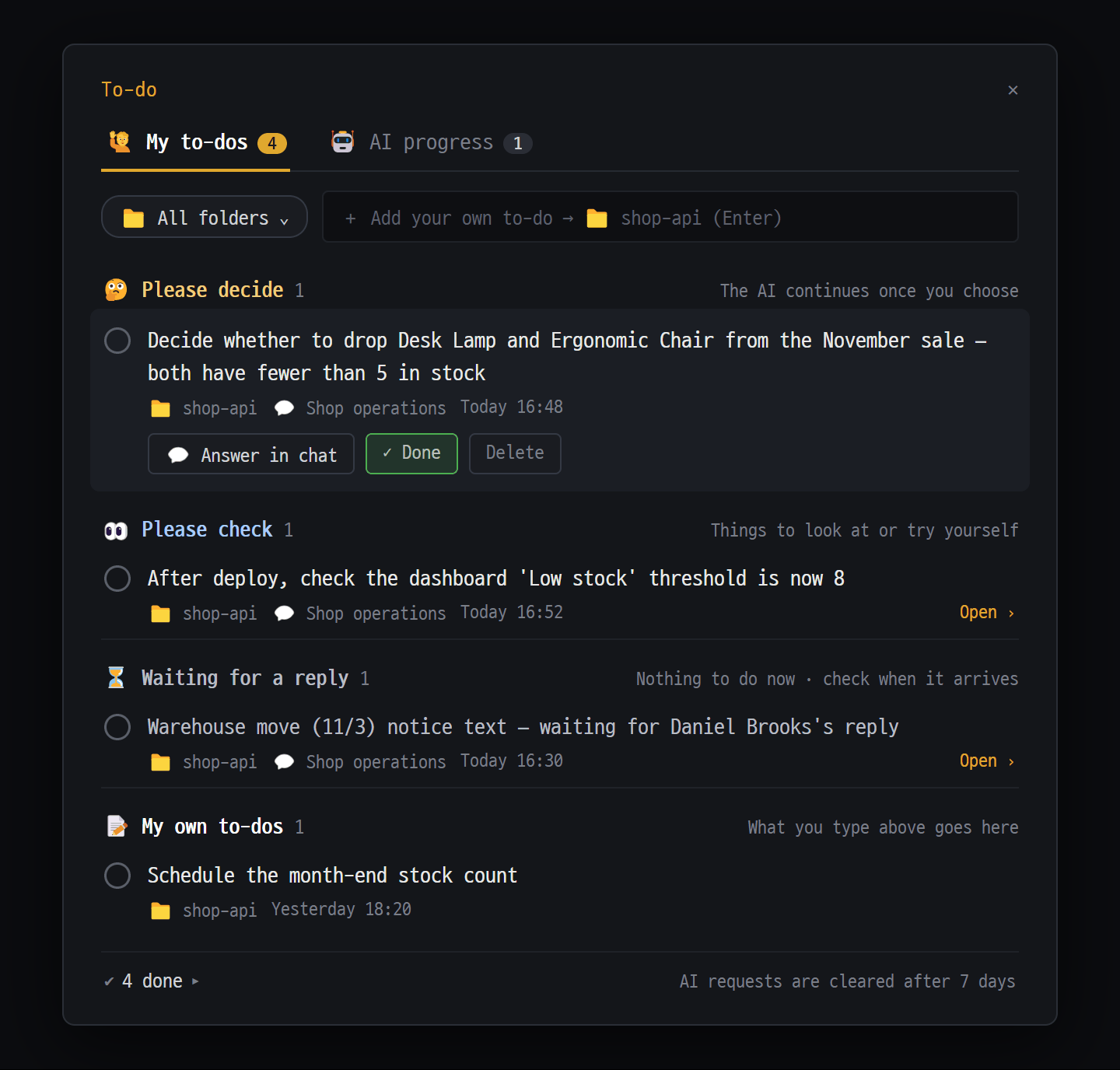
The AI keeps working while you’re away. It does jobs at the times you set, runs long builds in the background and picks up again on its own when they finish. Anything the AI asks of you lands in the To-do window.
- ✓ Scheduled runs (Pro) — write it as a sentence, like "Check the server’s disk usage and tell me if it’s over 80%", and run it daily, weekly or at a fixed interval
- ✓ Background tasks 🔄 (Pro) — builds and full test runs go on in the background while you keep chatting; when they finish, the AI takes the results and wraps up
- ✓ To-do window — 🙋 My to-dos (decisions and checks the AI asked of you + things you wrote down) and 🤖 AI progress in one place. The window itself is free
- ✓ To-dos are saved per project folder, so they stay even when you start a new chat, and any to-do you wrote can be turned into a ⏰ schedule right away
AI teams — debate · Agent Board (Pro)
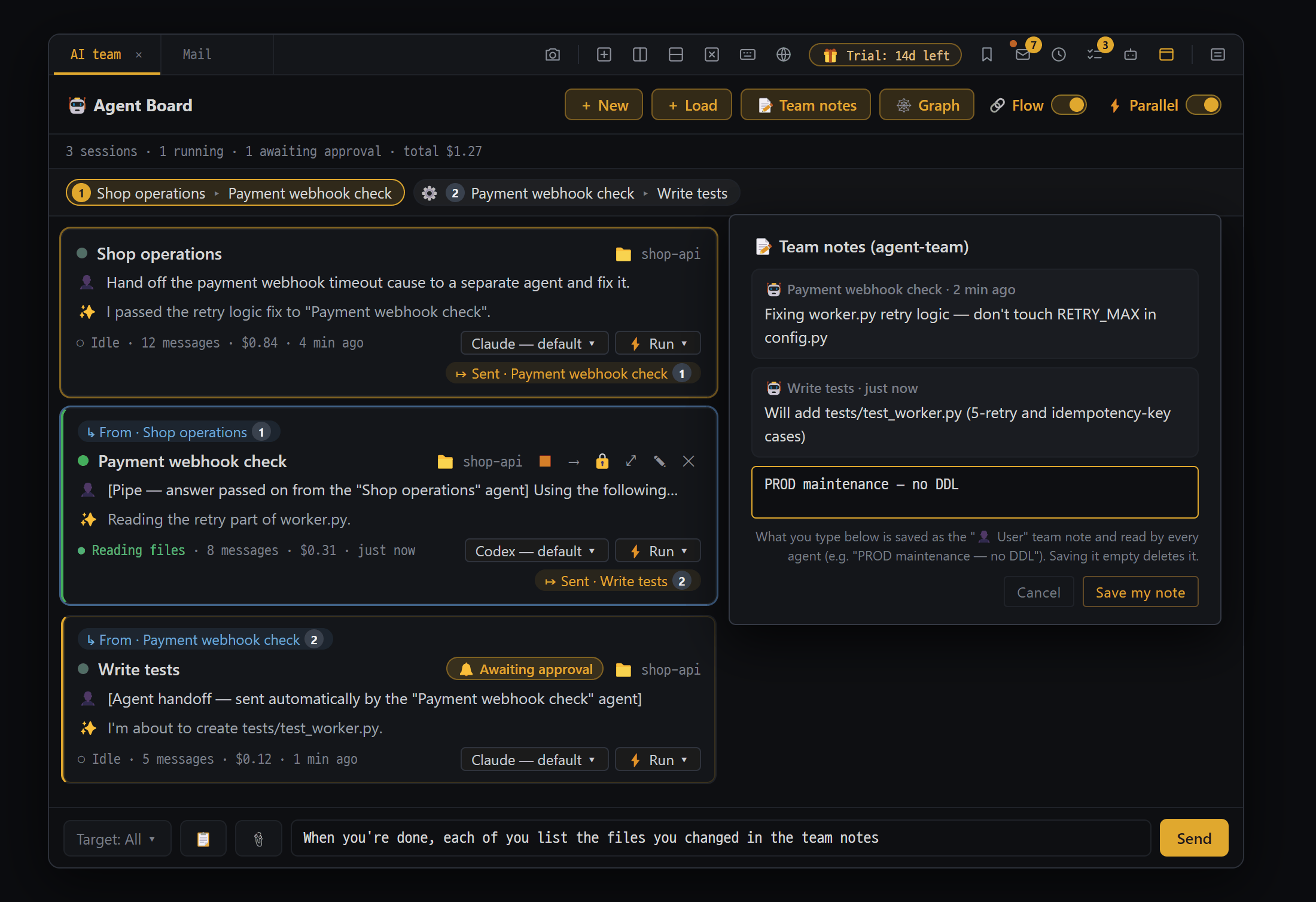
For when one AI isn’t enough. Several AIs debate the same question and a moderator AI gives the conclusion; on the Agent Board, your open AI chats become cards you watch and direct from one screen.
- ✓ ⚔️ AI debate — 2 to 4 AIs each give their own view without seeing the others’ answers, then rebut or agree round by round, and a moderator AI sums up the conclusion
- ✓ If the conclusion includes a task plan, after you confirm, the participating AIs split the work and actually do it (collaborative run)
- ✓ Agent Board (beta) — one card per chat: what it’s doing, pending approvals and errors at a glance, and you can send a word right from the card
- ✓ Give several AIs one instruction from the shared input box, and approve everything in one place in the 🔔 pending-approvals box
- ✓ AIs on the board know each other as teammates, hand off work and create new teammates
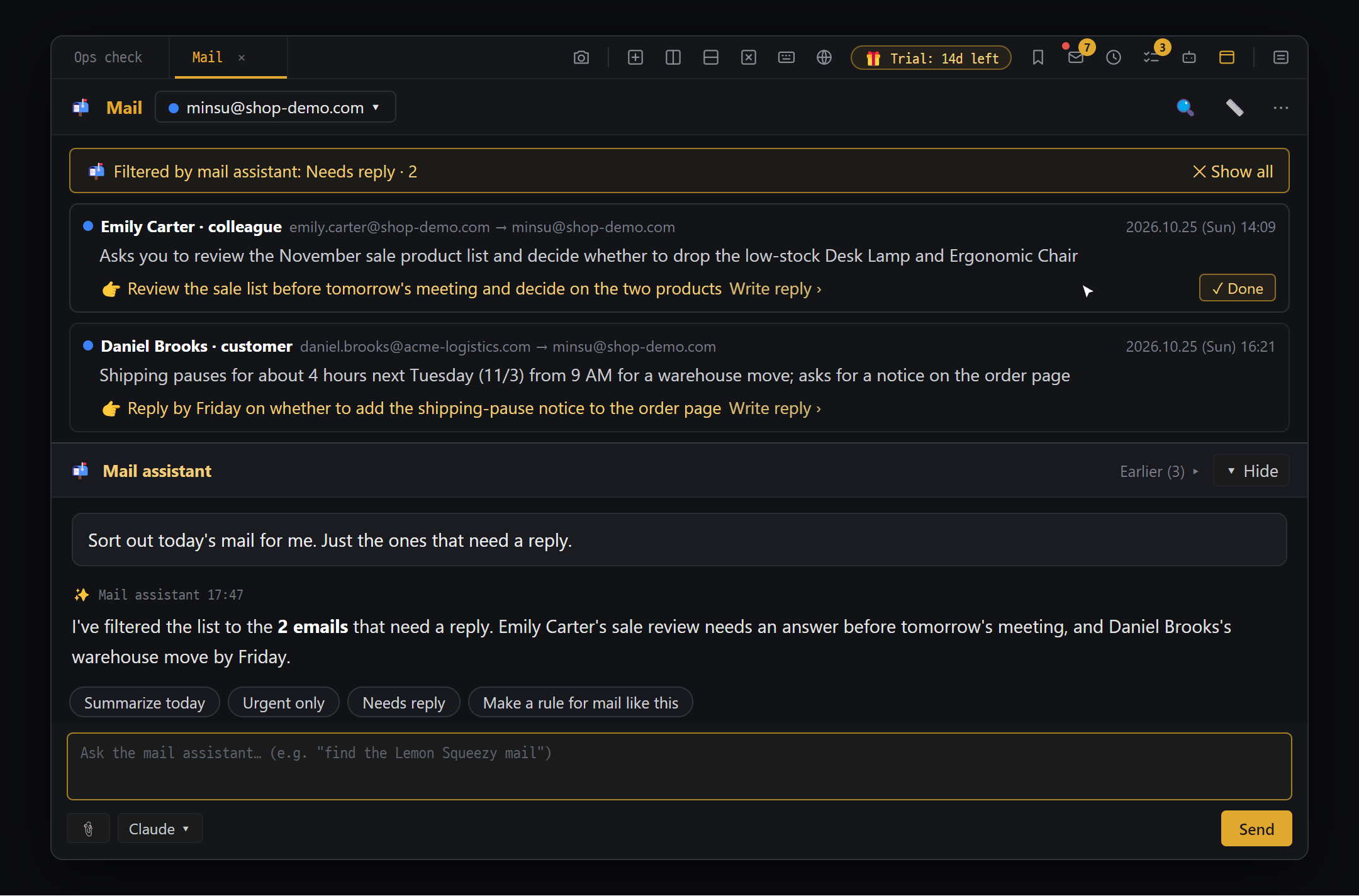
Several mail accounts in a single panel. Only mail a person needs to see is shown as cards, and the AI adds a one-line summary and "what you need to do" to each one. You write replies right there.
- ✓ Just enter your address — it finds the server settings itself, actually connects to test them, then saves (IMAP · POP3, no limit on accounts)
- ✓ Ads, notifications and automated reports are hidden so you see only what matters — reading, writing, replying, searching and attachments are free
- ✓ Mail assistant panel (Pro) — "Summarize today’s mail", "Just the urgent ones", "Write a reply to this mail". Sending is always your click or an approval card
- ✓ Mail rules 📬 When mail arrives (Pro) — create them by just saying it, like "Draft replies to license questions, and add amounts from billing mail to my to-dos". Translation [original | English] is Pro too
- ✓ Mail is stored only on this PC. Gmail connects with an app password; Outlook and Microsoft 365 can’t be connected yet
Code editor
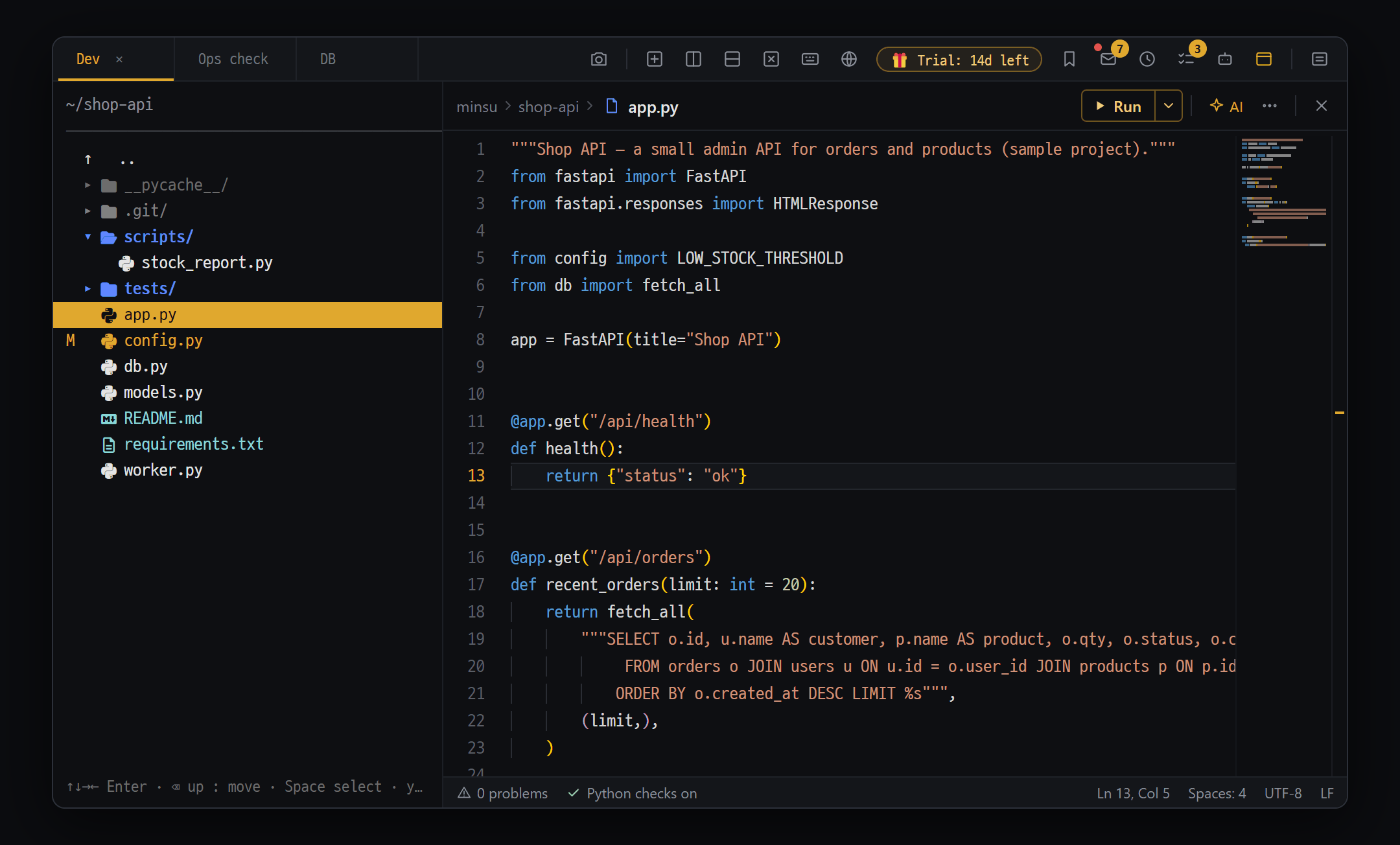
The same Monaco engine as VS Code. Autocomplete and error marks for 12 languages (LSP), remote editing of server files, and inline AI you direct in plain words (Ctrl+I).
- ✓ 12 languages including TypeScript, JavaScript, Python, Go, C#, Rust and C/C++ — download the language server once and get autocomplete, go-to-definition and red-underline errors
- ✓ Open server files straight over SFTP, edit and save
- ✓ Find & replace, Markdown preview, Git diff, SQL autocomplete inside code (with a DB connection)
- ✓ Inline AI Ctrl+I (Pro) — sends run errors and squiggles along, compares the changed lines in place, then Apply Tab. Open files the AI edits update right away
- ✓ Debugging (Python·JavaScript) — stop at red dots and see variables and the call stack; AI Chat can debug for you (Pro)
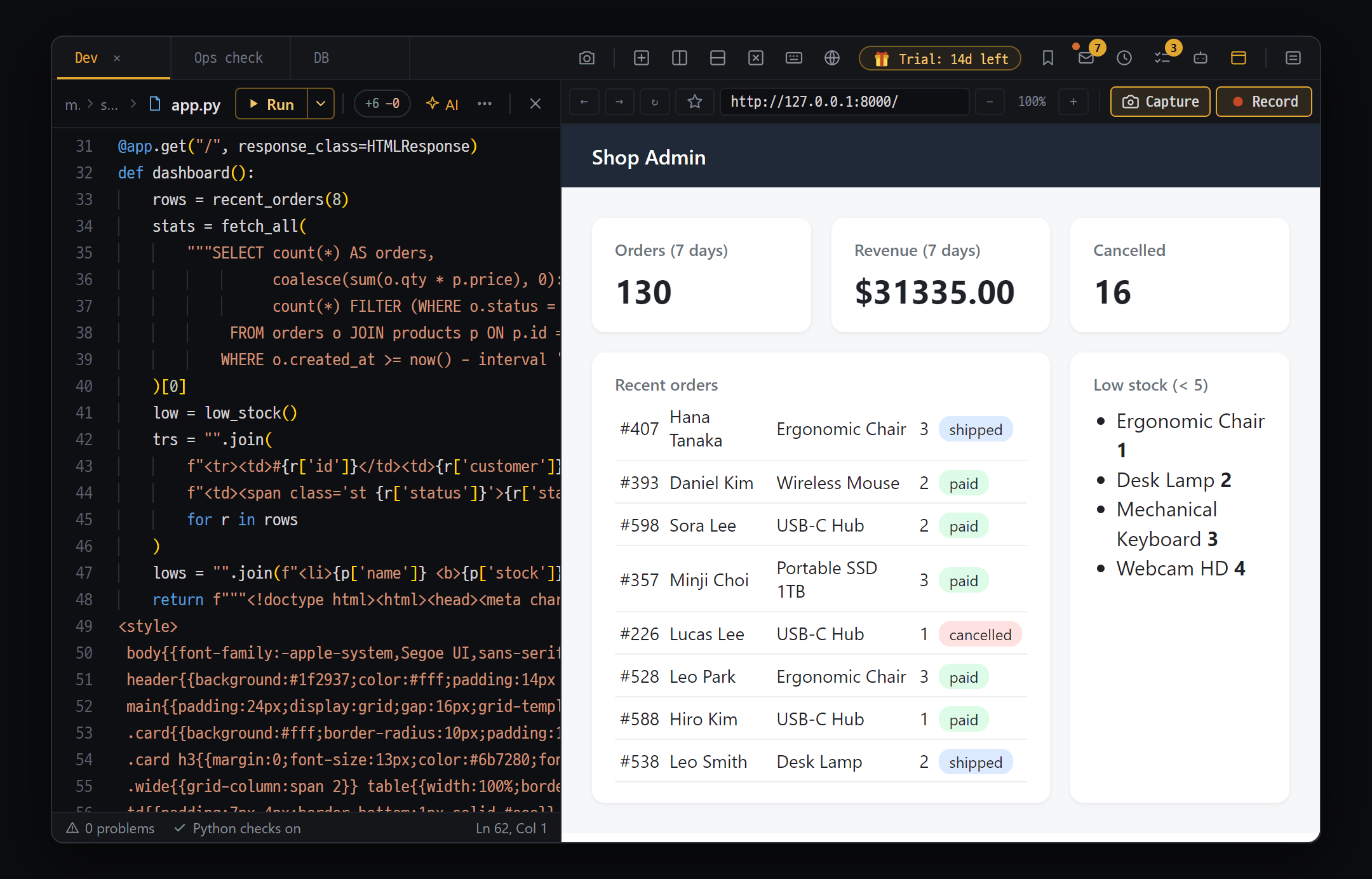
Run · web preview
Run code with ▶ Run and see the failing line marked in the editor. Show the website you’re building in Blyck’s own preview, where the AI looks at the screen, clicks around and fixes things.
- ✓ ▶ Run + output panel — error locations marked in the editor
- ✓ Web preview (Ctrl+Alt+B) — a small browser inside a panel, bookmarks included
- ✓ The AI sees and drives the preview (Pro) — type → take a screenshot → read console errors → fix
- ✓ Visual regression (Pro) — save a baseline screen and compare what changed
- ✓ Python environment per chat — the AI runs code to try it and installs the libraries it needs
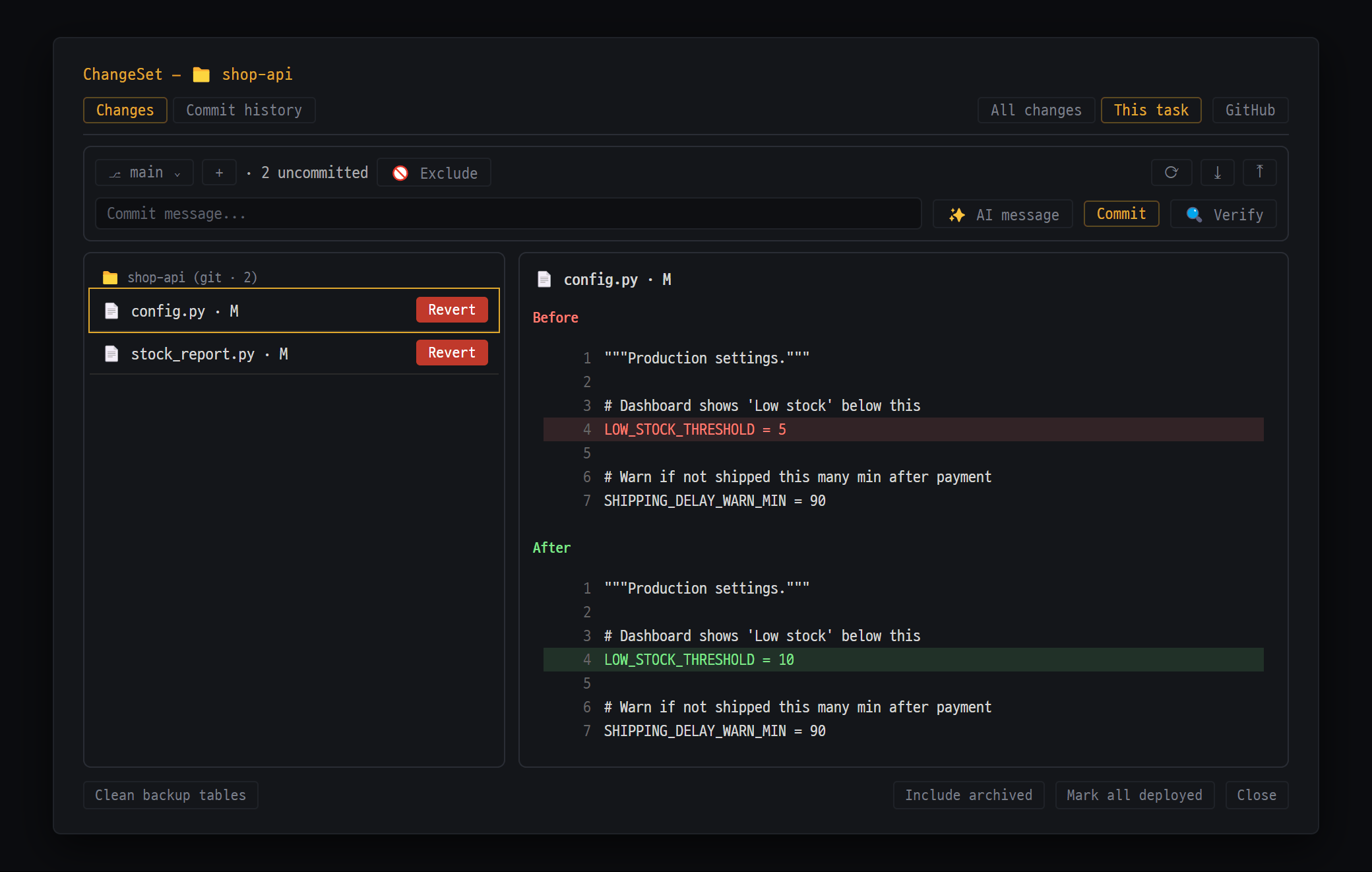
Change history · Git
Files, DB data and server commands changed by people and AI are gathered in one ChangeSet window, where you review and undo them. Git commit, push and GitHub connection happen in the same window.
- ✓ ChangeSet window — review grouped by file and undo. DB changes, server commands and package installs are recorded too
- ✓ Git bar — status, commit, push, branches. On Windows it works without Git installed, using the bundled MinGit
- ✓ GitHub connection — connect by entering a code once, then push and pull
- ✓ Turn on automatic checkpoints to undo just what one AI answer changed; ✨ AI commit messages (Pro)
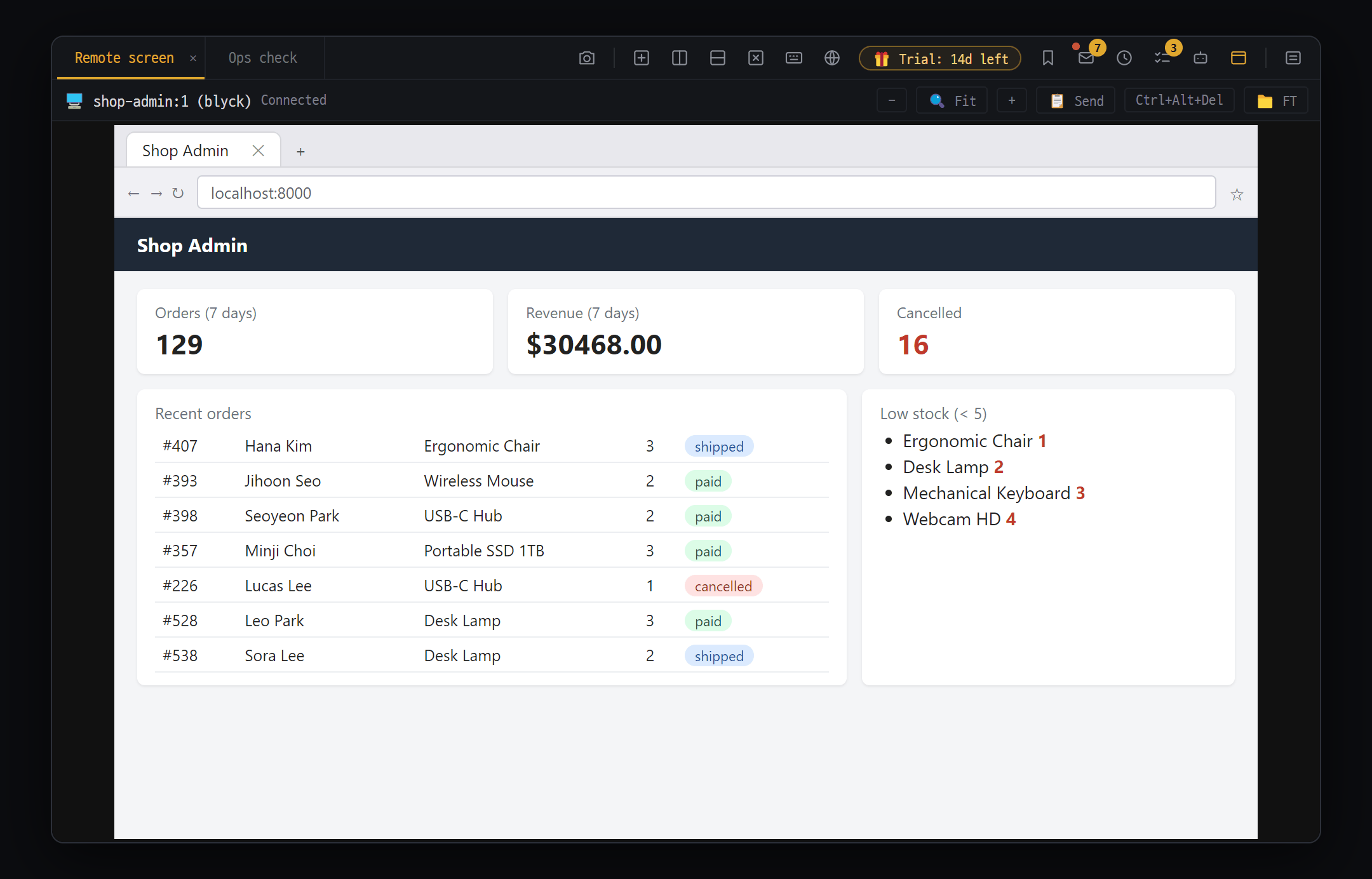
Remote screens · Windows servers (VNC · WinRM)
View and control another PC’s screen over VNC, and send PowerShell commands to Windows servers over WinRM. You can also capture part of the screen, mark it up and show it to the AI.
- ✓ VNC remote screen + file transfer (TightVNC 2.x)
- ✓ WinRM — send PowerShell commands to a remote Windows machine
- ✓ Desktop mirror — show another program’s window from your PC inside a Blyck panel
- ✓ 📷 Screen region capture → mark up with pen, arrows and text → send to AI chat (only sending is Pro; the rest is free)
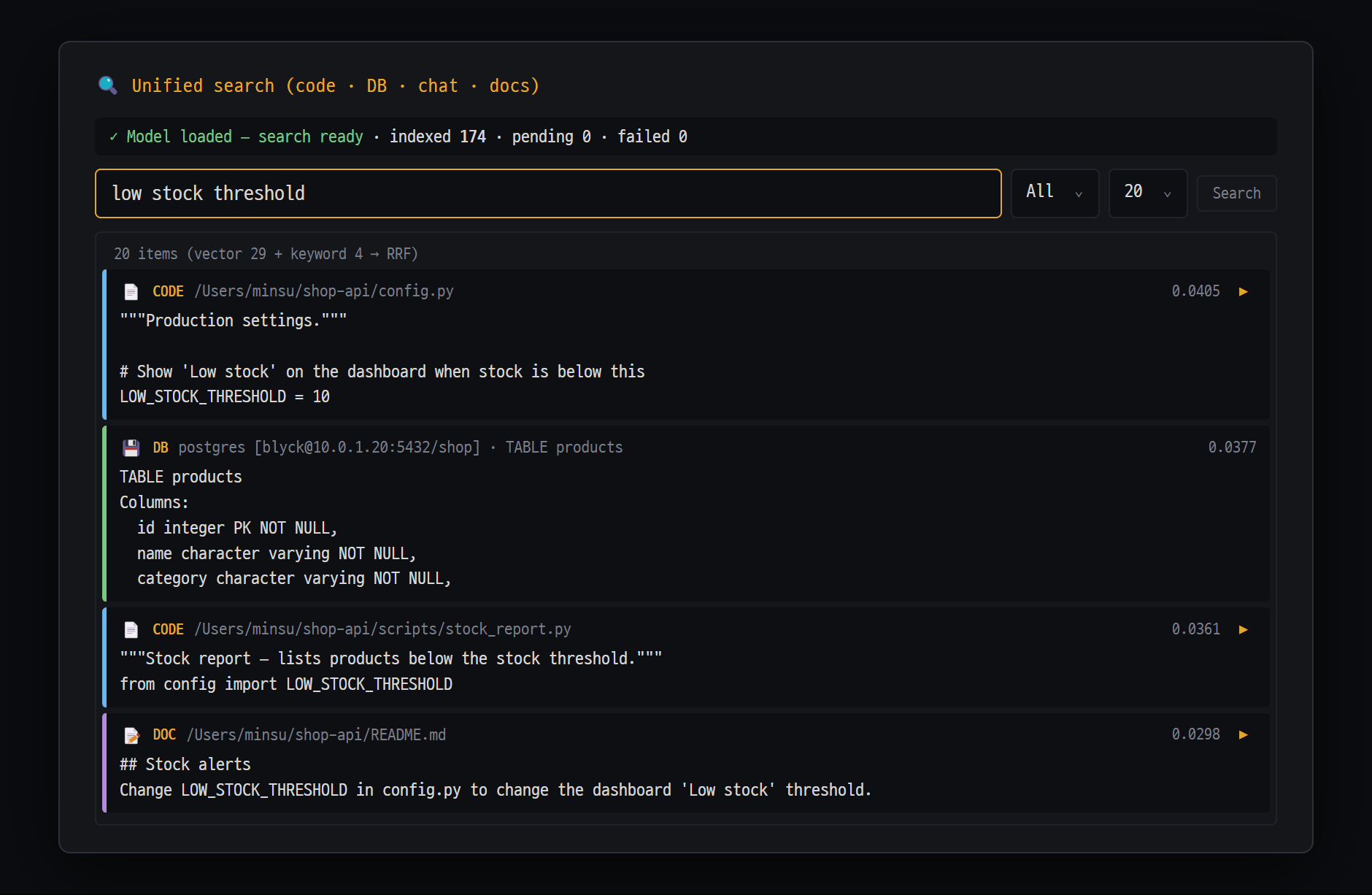
Unified search (Ctrl+K)
Find code, DB structure, past chats, docs, work history and Git commits by describing them. Searching all happens on your PC, and nothing is sent outside. Free.
- ✓ Finds both things similar in meaning and things matching the words — scopes: all, code, DB, chat, docs, work history
- ✓ Set a project folder in AI chat and its code and docs are indexed automatically
- ✓ Search reranking (optional) — scores the top results once more for better accuracy
- ✓ The AI also uses this search to look through your code and past chats before answering
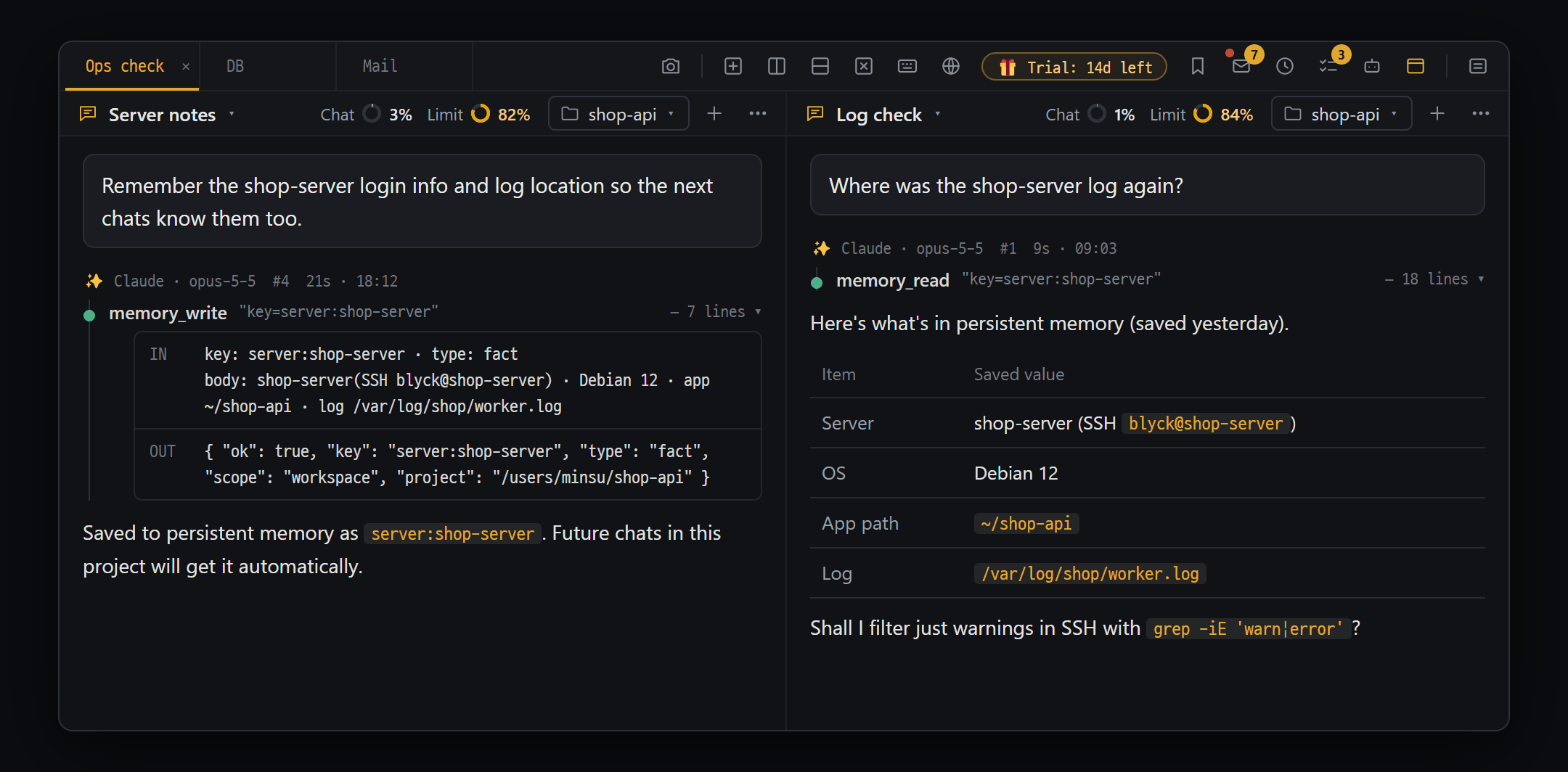
Persistent memory (Pro)
Facts the AI has confirmed once are remembered in the next chat too. It remembers things like "deploying from this PC actually worked" or "never deploy straight to the production server," which stops false "I can’t do that" claims.
- ✓ When something like a deploy, build or DB connection succeeds for the first time, it asks with a "🗂️ Save to persistent memory?" card
- ✓ Say "remember this" and the AI saves it itself
- ✓ With the first message of a new chat, only the relevant memories — from this project and the shared ones — are passed to the AI
- ✓ Abilities, procedures and rules are kept; decisions and facts are tidied away on their own if they go unused for a long time
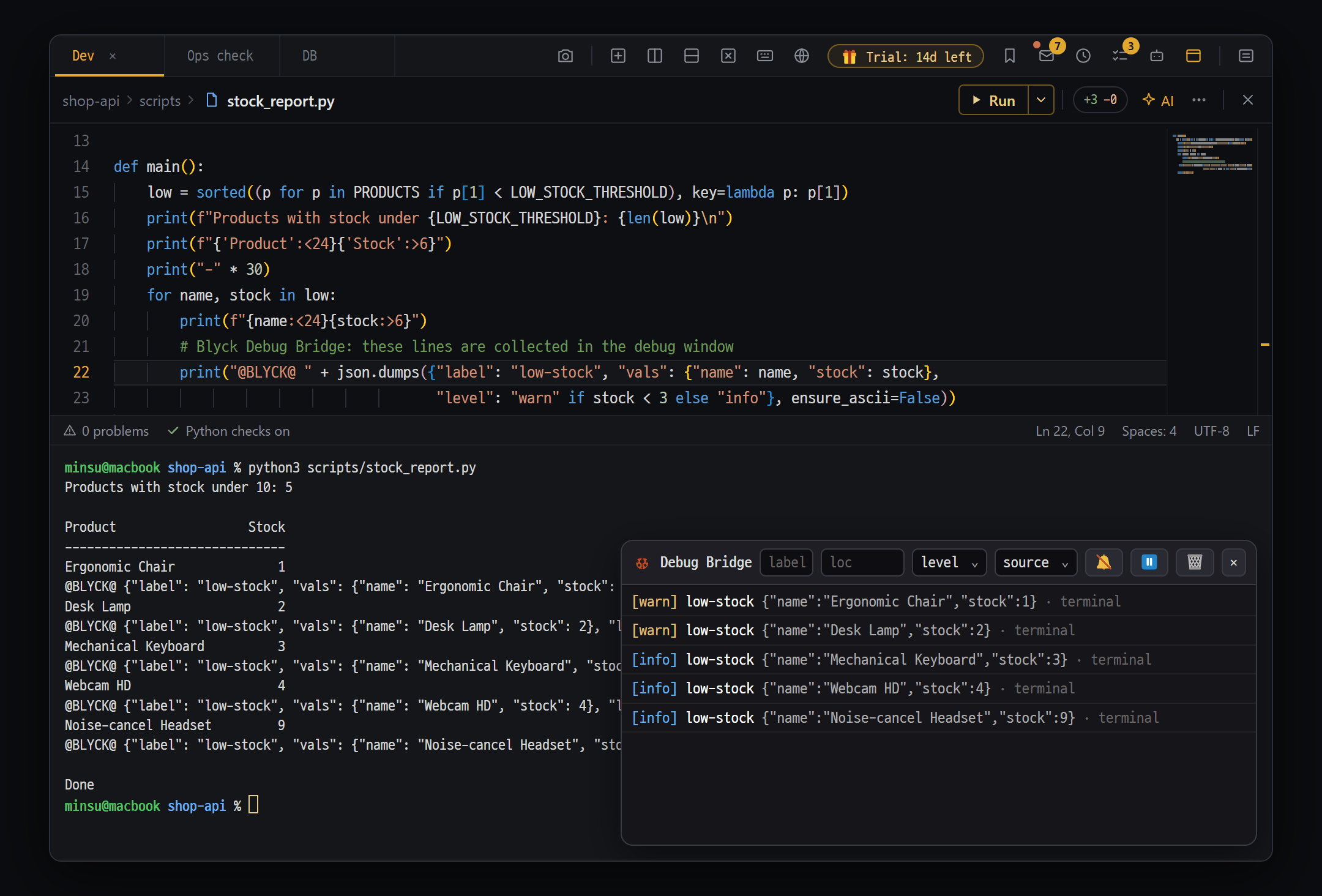
AI Debug Bridge (Pro)
Add one log line (@BLYCK@) to your code, and the AI reads the values printed in Blyck’s terminal or web preview by itself to find the cause. No more copying and pasting output.
- ✓ The AI adds the log lines itself (debug_probe) and removes them itself when done (debug_strip)
- ✓ Phone app logs like flutter run or adb logcat are collected too when shown in a Blyck terminal
- ✓ In the debug panel (Ctrl+Shift+D) you see the same records the AI reads — viewing is free
- ✓ Auto investigation, where the AI looks into errors on its own (off by default); when you’re done, say "clean up the debug lines" to remove leftovers
Design Workbench (Pro)
Collect the design parts the AI made (color and spacing tokens, components such as buttons, screens, screen flows) as cards, and review them at web, tablet and phone sizes.
- ✓ "Open the design panel" — reads the project’s design-system folder and organizes it into tokens, components, screens and flows
- ✓ Web shows mobile, tablet and desktop side by side; iOS and Android show phone screens side by side
- ✓ Token export — to Flutter (app_tokens.dart) and CSS (tokens.css) files
- ✓ While the panel is open, the AI is guided to reuse existing tokens and components, so screens don’t end up looking inconsistent
Backup · migration · chat sync
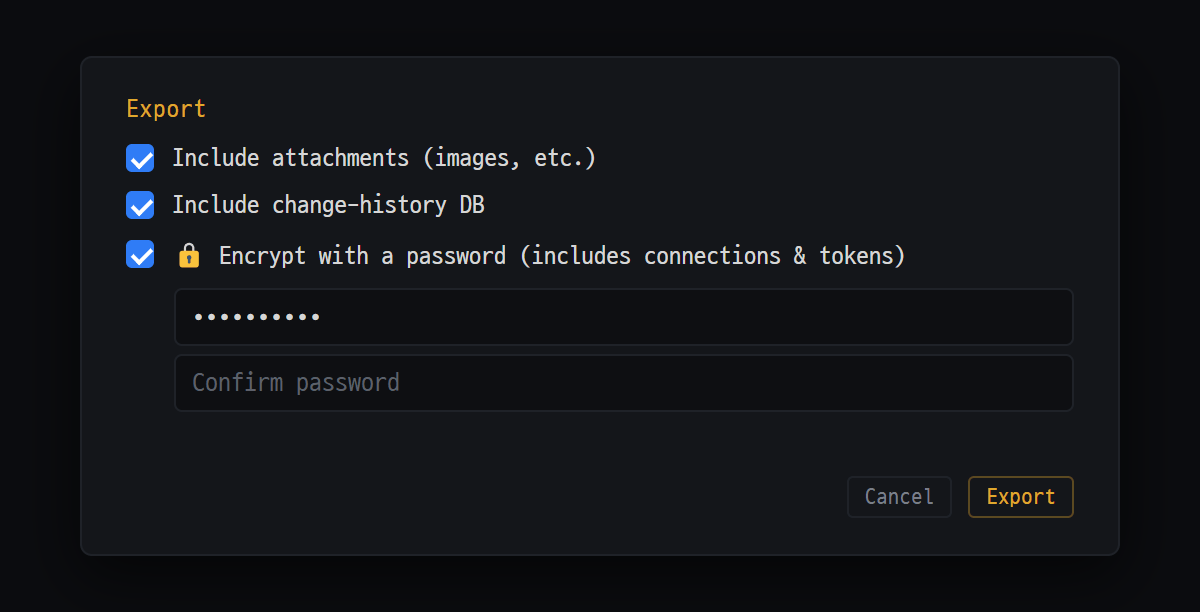
Bundle AI chat history, change history, saved connections and settings into one file and move them to another PC. Works between Windows and Mac too. A single shared folder can also keep chat history in sync between PCs automatically.
- ✓ Export and import as one backup file (.blyckbundle) — Backup / Migrate (Export·Import) in the command palette
- ✓ On import, project folder paths are changed to the new PC’s paths (e.g. D:\work\shop → /Users/me/work/shop)
- ✓ Encrypt it with a password to bring connection passwords and the GitHub token along too (AES-256)
- ✓ Choose replace or merge — existing data is kept aside before anything is overwritten
- ✓ Chat sync — keep AI chat history matched between PCs through a shared folder like OneDrive, iCloud Drive or Dropbox
Windows · macOS · automatic updates
Runs on Windows and macOS (Apple silicon and Intel). New versions download themselves and apply when you restart, and the interface comes in 7 languages.
- ✓ Automatic updates — new versions download themselves and apply on restart
- ✓ 7 UI languages (한국어 · English · 日本語 · 简体中文 · 繁體中文 · Español · Deutsch) — switching also changes the AI’s default answer language
- ✓ 14-day free trial, no card — after it ends, the terminal, SSH, editor, files, databases and mail reading stay free
- ✓ One license key for 3 PCs; after one check, Pro works for 7 days without internet
The fastest way is to try it yourself
Install and open it, and use every feature for 14 days with no card.